OrcaSlicer: 3D Printer Calibration Features Deep Dive

Try JusPrin, the first GenAI 3D printing tool built on OrcaSlicer.
📢 We've published a comprehensive, step-by-step calibration guide!
This article provides a good overview of OrcaSlicer's calibration features, but for the most detailed and up-to-date calibration instructions, check out our Mastering Your Prints: The Comprehensive OrcaSlicer Calibration Guide which includes detailed procedures, troubleshooting tips, and best practices for all calibration tests.
If you've been 3D printing for a while, you've likely heard about the importance of calibrating your printer. Print calibration improves your print quality, gives you consistent results, and also increases your overall productivity.
On the internet, you'll find several resources that help you calibrate your 3D prints. Michael from Teaching Tech has an entire library of tools to fine-tune your 3D prints. Thingiverse and Printables have an array of calibration prints as well.
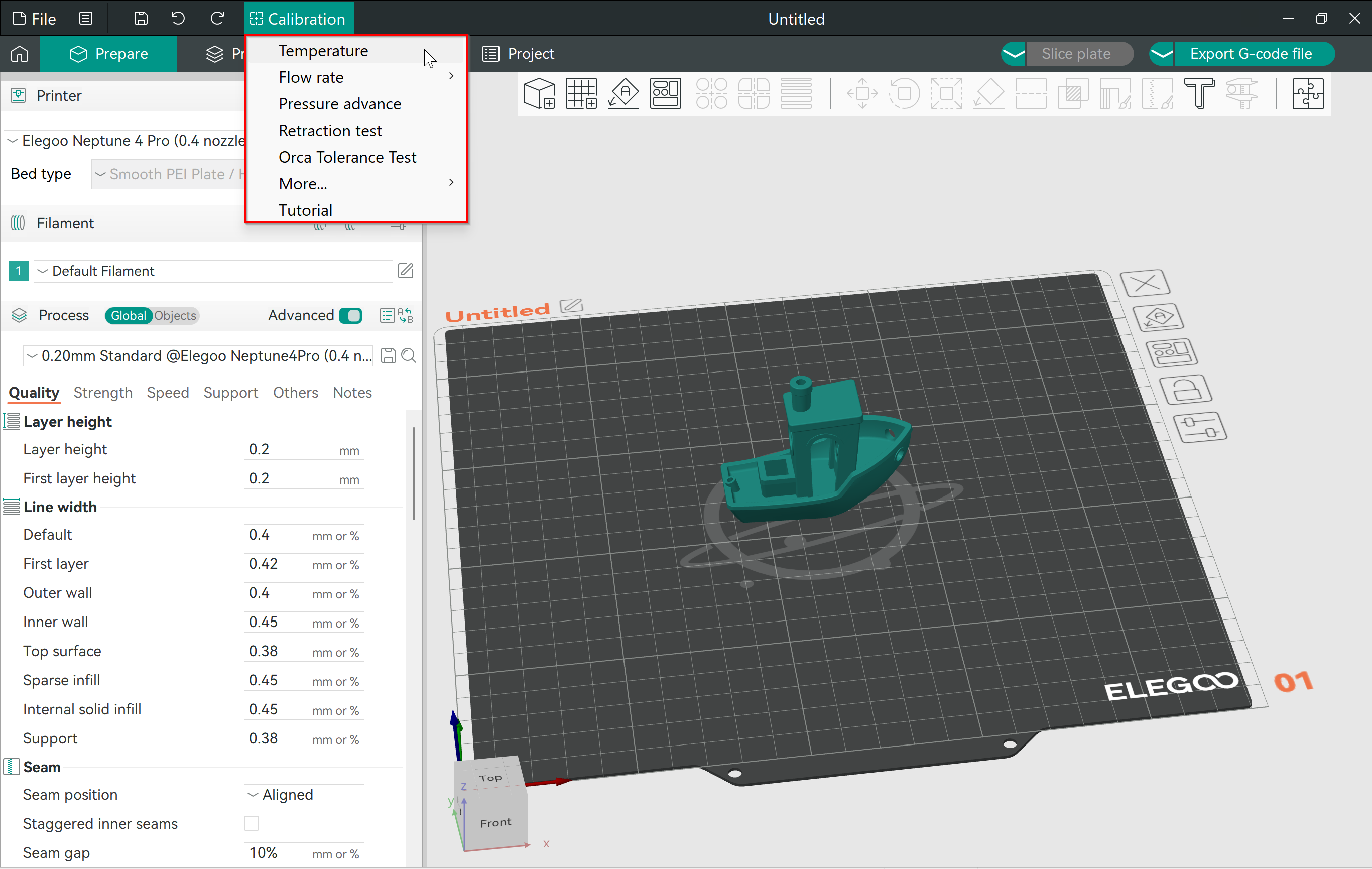
However, OrcaSlicer brings all these tools in a single place. It gives you an easy way to access and use these calibration prints without downloading or anything. The slicer settings are already set, and all you need to do is hit Print!
In this article, we'll dive deep into OrcaSlicer's calibration Menu. We'll take a look at the various options it has and how you can use its calibration prints to fine-tune your 3D printing results.
Let's calibrate and create!