Ga naar hoofdinhoud

Ender 3 Camera Mounts - Installing a Camera on Your Ender 3

· 9 minuten leestijd

Camera mount for Creality 3D printer/Courtesy: Thingiverse

Creality's Ender 3 3D printer is one of its best-selling models, and it's popular among students, enthusiasts, and hobbyists. As a result, it is safe to say that Ender 3 users are mostly hustlers looking for ways to get the most out of their 3D printer. Many users do not see the need to connect a camera to their 3D printers, but it can greatly improve your 3D printing experience. Many feel that installing. Camera is a tedious task but it is not so. In fact, it is quite easy. All you need is a good camera and a camera mount. This article discusses the various Ender 3 camera mounts that can be installed on your 3D printer.

OctoPrint Bed Level Visualizer - All You Need to Know

· 6 minuten leestijd

What is OctoPrint and why would you want it?

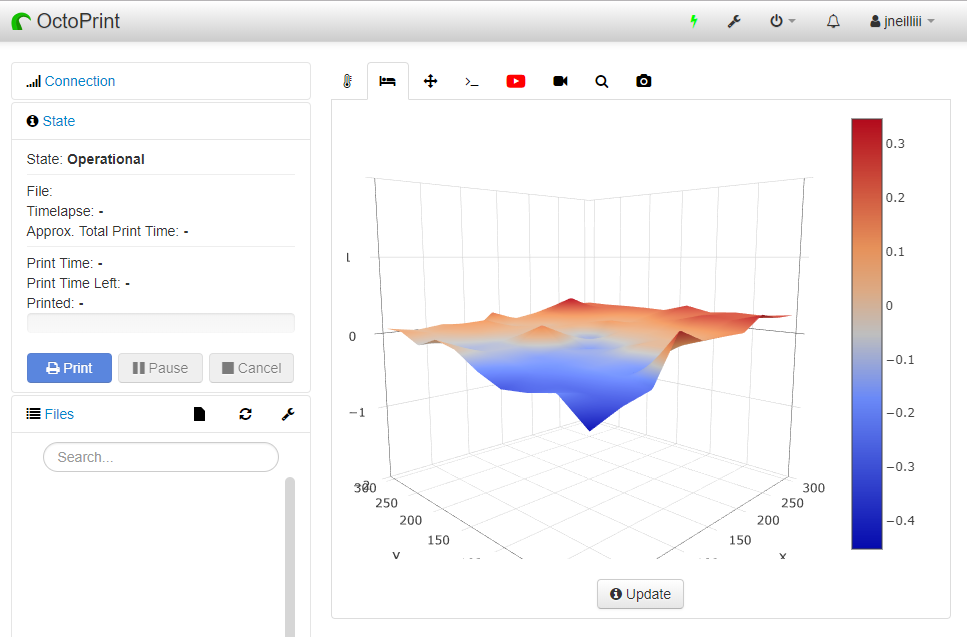
OctoPrint Bed Level Visualizer plugin display screen/Courtesy: OctoPrint

We are all aware of how critical, yet difficult, it is to level a 3D printer bed. All of your prints will fail if you don't have a level bed, wasting your time, materials, and money. Even having an auto-bed leveling feature is not always sufficient, and your prints may still fail. To solve this issue, OctoPrint's Bed Level Visualizer plugin is the only tool you need to easily level your print bed.

To help you understand this useful OctoPrint plugin, we've written a complete guide on the Bed Level Visualizer to help you set it up quickly and eliminate your bed leveling issues.

What is the OctoPrint Bed Level Visualizer Plugin?

Bed level visualizer is a useful OctoPrint plugin that converts the bed topography report into a comprehensive 3D map to show the varying elevation (height) across a 3D printer bed, assisting users in leveling the same. This plugin also assists you in determining whether your bed is warped or simply tilted. Thus, the bed is leveled by carefully tightening or loosening the leveling screws at peaks and valleys respectively, to make it as flat as possible for a successful print.

The Bed level visualizer plugin was created by jneilliii (GitHub page). This plugin was installed on at least 35.84k instances in the previous month (August 2022), with at least 759 new installations in the previous week (at the time of writing this article).

3D Modeling Software for 3D Printing - Getting Started

· 14 minuten leestijd

The core of 3D printing is a 3D model. 3D modeling for 3D printing is important as all 3D prints start with a digital CAD model that is "sliced" in a slicing software which the 3D printer prints. Being an integral part of 3D printing, having a working knowledge of 3D modeling and the various tools becomes crucial.

In this article, we'll go over the fundamentals of 3D modeling for 3D printing, as well as the distinction between inorganic and organic 3D models, and the popular software for each type.

We've included 3D modeling software for beginners for those on a low budget, as well as a few high-end options for professionals.

But first, to make sure we're all on the same page, let's go through the fundamentals of 3D printing.

How does 3D Printing work?

A CAD design (left screen), slicing software (right), and the finished print / Courtesy: Ultimaker

3D printing, also known as additive manufacturing, is a method of creating three-dimensional objects layer by layer using a computer-aided design, or CAD. 3D printing builds objects by layering materials such as polymers, composites, or biomaterials that vary in shape and size, as well as rigidity and color.

Even though 3D printing isn't new, there are some who will benefit from our guide to the most common 3D printing terms for beginners.

Regardless of the 3D printing technology being used, it all starts with a 3D CAD model. In this article, we will go through the fundamentals of 3D modeling and its different types, with a focus on 3D printing.

To further help you in selecting the best CAD software for your 3D models, we will also list out a number of 3D modeling software suitable for both beginner and advanced users.

So let's jump in!

Klipper Camera - Een camera installeren en configureren met Klipper

· 9 minuten leestijd

Klipper is een van de weinige 3D-printerfirmware die native ondersteuning biedt voor een externe camera om je 3D-printer te monitoren. De webinterface van Klipper maakt het eenvoudig om een camera aan de Raspberry Pi te koppelen en de voortgang van je printproces te volgen.

Klipper is echter een relatief nieuwe firmware met beperkte informatie en handleidingen die de verschillende functies beschrijven. Als nieuwe gebruiker of beginner is het gemakkelijk om in de war te raken over de installatie en configuratie van een camera op je Klipper 3D-printer.

Dit artikel is bedoeld om dit proces voor u te vereenvoudigen en u te helpen bij het instellen van een camera op uw Klipper-aangesloten 3D-printer. Lees verder voor een uitgebreide uitleg over de camera-installatieprocedure van Klipper en hoe een camera uw 3D-printworkflow kan verbeteren.

Klipper timelapse met Fluidd of Mainsail - Alles wat je moet weten

· 9 minuten leestijd

Inleiding

Met de timelapse-functie van Klipper kun je je volledige 3D-printproces vastleggen en fragmenten ervan delen op je sociale media. Deze video's zijn ook een uitstekend hulpmiddel om printfouten te analyseren en de oorzaken van een mislukte print te achterhalen.

Ondanks hun nut kan het instellen van timelapse-video's in Klipper voor veel gebruikers een uitdaging zijn. En hoewel de installatie relatief eenvoudig is, kan de eerste configuratie beginners in Klipper gemakkelijk in de war brengen.

In dit artikel vereenvoudigen we dit proces voor u. We nemen de volledige procedure stap voor stap door en configureren de timelapse-functionaliteit voor uw Klipper-instantie. Aan het einde van deze handleiding kunt u perfecte timelapse-video's van uw 3D-prints opnemen en delen met uw sociale netwerk.

Laten we beginnen met filmen.

Nozzle Scraping Bed Surface

· 4 minuten leestijd

Nozzle Scraping Bed Surface

What Is It?

Inaccurate bed leveling, low initial layer height, or incorrect Z-offset settings can cause your printer's nozzle to scrape against the printing bed. It might damage the nozzle and the print bed and restrict the filament from flowing out of the nozzle.

If left unchecked for a while, it can build up pressure in the hot end and cause the extruder motor to skip steps. Nozzle scraping is relatively minor but one of the most common issues faced by beginners and new 3D printer users.

Blobs and Zits

· 3 minuten leestijd

Blobs or Zits

What Is It?

Blobs or Zits are the tiny dots on your print's surface and directly affect its overall quality and appearance. These are often the result of incorrect retraction settings or high printing temperature and negatively affect the surface finish of your 3D printed part.

Sometimes, you can easily remove them with sanding, but big blobs can be challenging to remove and may leave an impression on your parts. For this reason, it's best to tune your printer to not create them in the first place rather than try to remove them through post-processing.

Broken Filament

· 4 minuten leestijd

Broken Filament

What Is It?

The filament is a relatively fine plastic thread, which can break easily under certain conditions. If your filament breaks mid-way during a print, it will cause a print failure leading to a loss of print time and effort.

Filament usually breaks due to poor quality control, high humidity, or extreme tension in the filament path. These conditions are essential to consider if you're planning to print large-sized objects or want to use your printer for batch 3D printing.

Filament Stops Extruding Mid-Print

· 4 minuten leestijd

Filament Stops Extruding Mid-Print

What Is It?

Your 3D printer can stop extruding filament mid-way during printing, leading to a failed print and losing printing time. The most likely and apparent reason might be your printer running out of filament material.

But, in some cases, nozzle clogs and defective extruders too can be a potential issue.

First Layer Issues

· 5 minuten leestijd

First Layer Issues

What Is It?

First layer issues reduce the chances of a successful print and are often the cause behind several failed 3D prints. Some of the significant and most common first layer problems are - prints not sticking to the bed surface, the first layer too rough, the nozzle not extruding filament or holes and lines in the bottom of your prints.

These problems can either affect the quality of your prints or cause them to fail, leading to loss of filament and printing times. Therefore, it's crucial to eliminate these issues and ensure a smooth and even initial layer.