The Best Octoprint Plugin Pack for Beginner Users

Introduction
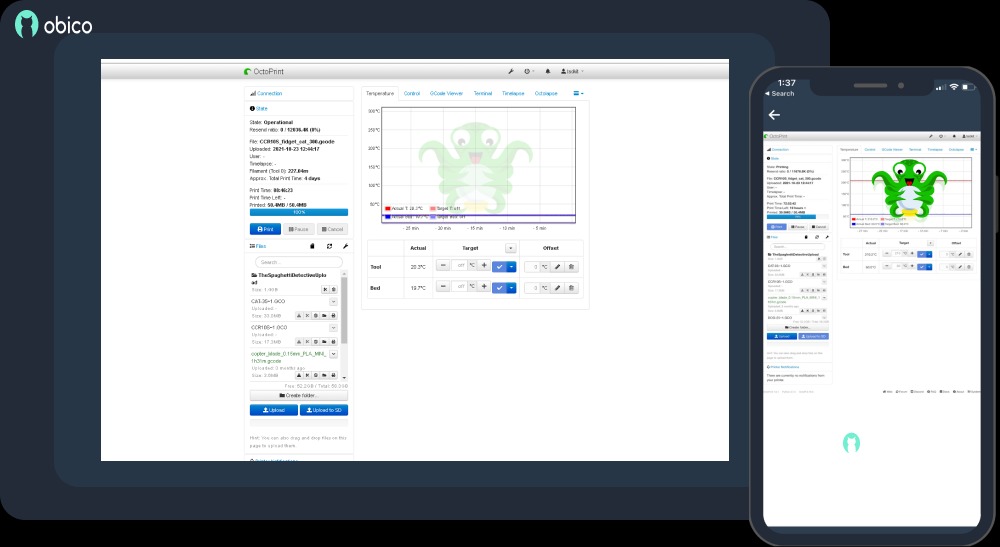 Octoprint has changed the way we use 3D printers in more ways than anyone could have thought. Wireless 3D printing, failure detection, smooth time-lapse movies, and a ton of other features make it one of the best 3D printing software on the market today.
Some of these features are built into the program, and others are made possible by the plugin system. The "plugins" allow users to perform a wide variety of operations and increase Octoprint's use.
It can be difficult to know which plugins to install first and what they do as a newbie while setting up a 3D printer. In this article, we’ll help you figure out this ''plugin'' situation and guide you through installing them simply via a Plugin pack.
We’ve compiled a list of the best 11 plugins in Octoprint that you, as a beginner, should take notice of. The purpose is to get you up and running quickly with Octoprint and ensure that you get the most out of it.
Let's get started!
What are Octoprint Plugins?
 OctoPrint plugins are add-ons that extend the capabilities of the OctoPrint software. You can use these plugins to add new features, improve the user experience, and adjust how the software works to suit your needs.
For example, one of the most used add-ons for Octoprint is the OctoLapse. It lets you make time-lapse videos without moving the hot end and extruder. The result is a smooth time-lapse that makes it look like your parts just appear out of thin air.
There is also the bed visualizer add-on. It lets you see what the level of your print bed looks like. It makes a height map of the printing area so you can see how even the bed is.
To be exact, there are 378 of these plugins for Octoprint, which makes it even more useful than it already is. These can greatly improve your general user experience and make 3D printing easier to use and more fun.
Obico Octoprint Plugin Pack
Adding apps to Octoprint is a fairly repetitive process. You have to search for and install every application one at a time. This can be very time-consuming when you are setting up your system, especially if you want to add more than one plugin.
We put together a pack of the 11 most useful plugins for new users to make the process of installing plugins easy. With this pack, you can install all 11 apps at once without having to repeat steps or do things in a complicated way.
How to Install the Octoprint Plugin Pack
The process to install this Octoprint plugin pack is pretty straightforward. Just follow the steps below.
- Open the Web interface for Octoprint and go to the settings page.

- From the settings menu, choose Plugin Manager.
- Click on the button that says Get More. This will make the Octoprint Plugin source accessible.

- Scroll to the bottom and click on the choice that says "Insert from URL." In the box, type the following URL:
<https://obico.io/octoprint_plugin_lists/plugin_list.json>
- Once all the plugins are loaded, a window will pop up on the side, telling you to restart the system.

- Click on Reboot, and the web interface will load again. Your Octoprint instance now has all of the listed plugins.
- You can check the plugins by going to the plugin menu and choosing the Installed option. This is where you should be able to see all the newly loaded plugins.

That’s it. You’re now set to use these Plugins in your 3D printing projects.
Octoprint Plugins in the Pack
Now, let's take a closer look at the plugins included in the Obico Octoprint Plugin pack and understand them in more detail.
Obico for Octoprint

Obico for Octoprint is the successor to the popular Spaghetti Detective program. Consider Obico as a full-fledged solution for remote 3D printing.
With Obico, you can check on your Octoprint 3D printer and oversee it from anywhere in the world. You can start and stop printing, get updates on how the printing is going, and do a lot more from one application.
Obico takes The Spaghetti Detective's AI-based failure recognition features and makes them even better. The team at Obico has used more than a million hours of 3D printing footage to teach their AI model. Because of this, the program can rapidly identify any print failure, preventing mishaps and wasting materials.
If that isn't enough, you can use Obico's Octoprint tunneling to reach your Octoprint window safely. This lets you use your Octoprint terminal and all of its features even when you're not at home.
Obico is one of the must-have apps if you use Octoprint. It comes in quite handy to detect print failures, and the remote access works seamlessly. Plus, there’s a free plan with limited yet, great functionality that you can try out.
- Created By: The Obico Team
- Total Active Instances: 14.49k
- GitHub page: OctoPrint-Obico
Bed Level Visualizer
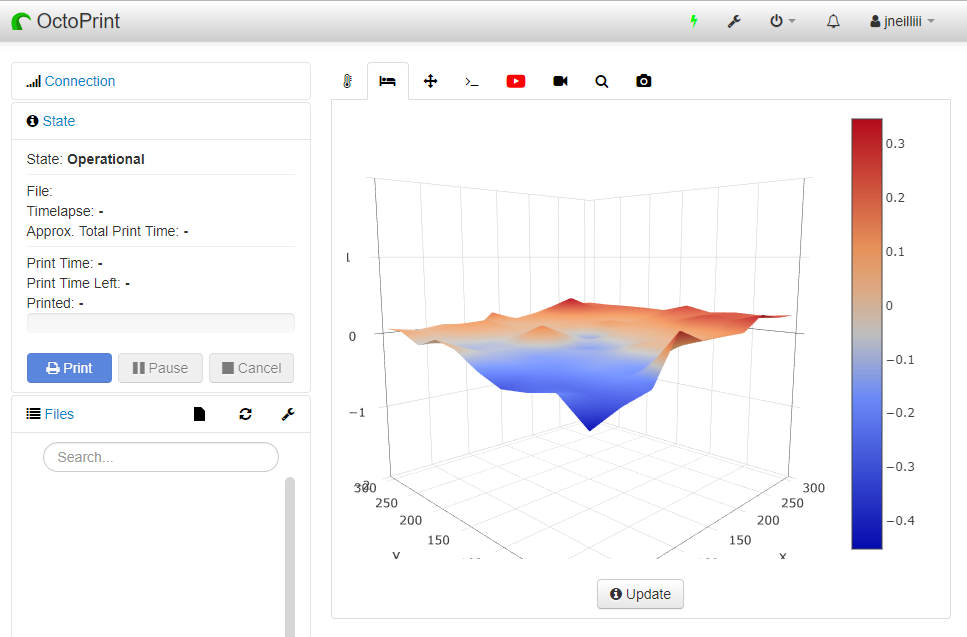
The Bed Level Visualizer is a great tool to have if your print bed has an automatic bed leveling setup. This app shows you the level of your print bed in a way that is easy to understand.
When the printer levels the print bed, it makes a "Topography report" of the print area. This report has information about how high or low a certain spot on the print bed is. The 3D printer's firmware then uses this information to change how the nozzle moves as it prints the first layer.
All of the topography data is in the form of number values that are not easy to figure out. If your printer has a big print bed, these numbers can get very confusing. It's hard to get a clear idea of the bed level from the number statistics.
The Bed Level visualizer turns all of these numbers into an easy-to-read picture of the print bed's height. The height map shows all the highs and lows on your print surface and color codes them. This lets you know right away if the surface you're printing on is level or not.
There are, however, some minor known problems with this software installation. You should read the Plugin page first, then move on to installing the plugin. We also have a detailed bed visualizer guide that'll help you better understand this plugin.
- Created By: jneilliii
- Total Active Instances: 39.35k
- GitHub Page: BedLevelVisualizer
Themeify

The User Interface (UI) of Octoprint is great, but by default, there are almost no ways to change it. And looking at the same user interface (UI) and colors over and over again can get boring.
The Themeify Octoprint plugin helps with this. This plugin makes it easy and quick to give your Octoprint instance a custom look. There are six themes ready to go that you can install with just one click. The theme for Discord is our best.
If you want more control over how things look, you can give each part of the Octoprint UI its own color. You can change the color of the Navigation bar, change the icons on the tabs, and do a lot more. It's fun to experiment with the different colors and icons.
This plugin is for anyone who wants to change the look and feel of Octoprint.
- Created By: Birk Johansson
- Total Active Instances: 19.46k
- GitHub Page: Octoprint-Themeify
OctoPrint-Dashboard

Each of the printer's functions has its own tab in Octoprint's user interface. For example, the Temperature tab lets you check and change the temperature of the printer. On the "Control" tab, you can move the "hot end" and "print bed," and you can also watch a live stream of the printer's camera.
Even though these tabs work well, it's not ideal to switch between them during the printing process. To check on the printer's current status, you must always go to the Control tab. If you want to monitor the temperature more precisely, you need to go to a different tab.
The Dashboard plugin solves this issue pretty well. It gives you a single Dashboard that ties together all of the printer's tabs. You can see the temperature, the camera feed, how far along the print job is, and some performance data for your Raspberry Pi.
The panel makes Octoprint easier to use and lets you keep an eye on your printer from a single window. It's a useful tool for anyone who wants their Octoprint 3D printers to have a single interface and be easy to use.
- Created By: Stefan Cohen, j7126, Willmac16
- Total Active Instances: 27.96k
- GitHub Page: OctoPrint-Dashboard
OctoPrint-PrintTimeGenius
 Often, you may have noticed that the print time shown in the slicer and the real print time are both way off. The slicer might say that the printing will take 1 hour, but in fact, it will always take more than 1 hour.
This mistake messes up your time estimates, so you can't be sure how long a print will take. Plus, Octoprint's own time estimate isn't very accurate and can really throw you off about the real print time.
Print Time Genius fixes this problem. It looks at the whole Gcode as you load the file and gives you a pretty good idea of how long the print will take. The creators of Print time genius assert that their app's time estimations are only off by 0.2% on average.
This plugin takes away any worries about missing project dates. We suggest this plugin to anyone who runs a 3D printing business or needs to know how long their printing work will take.
- Created By: Eyal
- Total Active Instances: 38.76k
- GitHub Page: OctoPrint-PrintTimeGenius
Firmware Updater
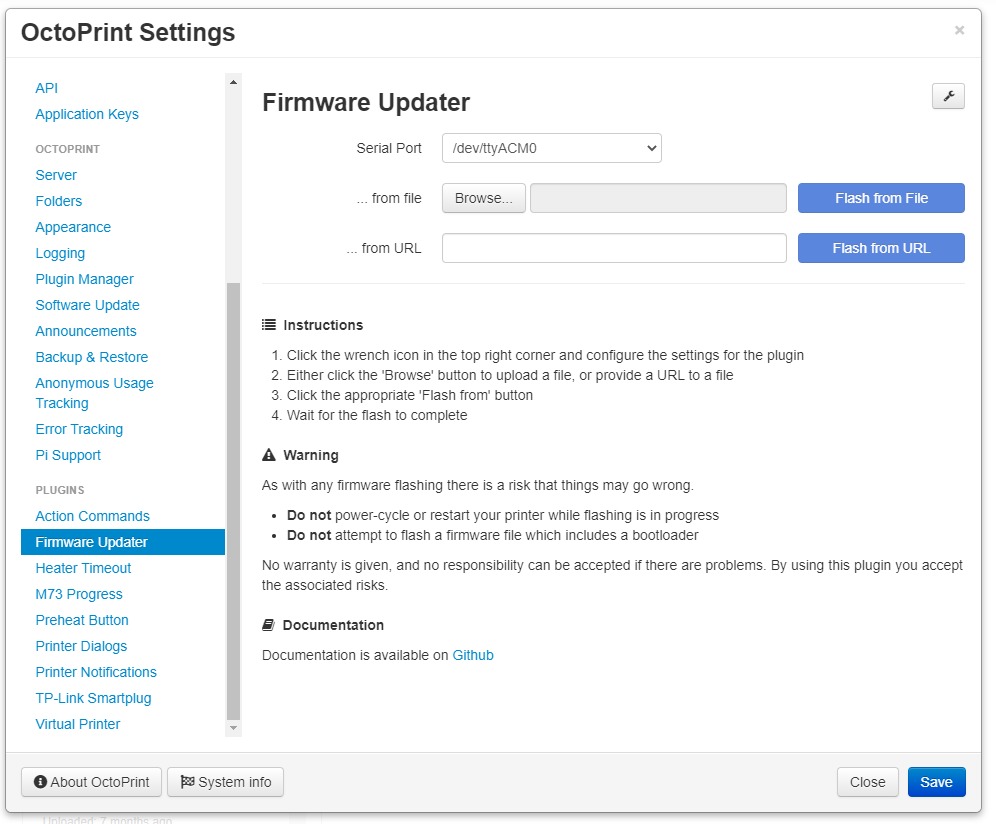
Updating the firmware on a Marlin 3D printer is a long, tedious, and manual job. You have to connect the printer to your computer, set up the process using different software, and hope that everything works right at once.
The goal of the firmware updater plugin is to make it easier to flash new software. You can change the printer's firmware through a single window. Through the firmware updater, you can load a custom firmware file, change the printer's settings, and add commands before or after flashing.
Everyone who uses Marlin needs to have this app. It simplifies everything to the point where it's practically a blessing for anyone using a 3D printer for the first time. On its GitHub page, you can find out more about the app and the different boards it works with.
- Created By: Ben Lye, Gina Häußge, Nicanor Romero Venier
- Total Active Instances: 27.41k
- GitHub Page: OctoPrint-FirmwareUpdater
Fullscreen Webcam

The default camera view in Octoprint is a tiny window in the control tab. This makes it hard to see the way the printer works and takes away from the visual experience.
With the Full-Screen camera plugin, you can open your 3D printer camera in a full window. All you need to do is double click on the default webcam view and it opens up the stream in full-screen.
This shows the video feed from the webcam in a separate window so you can see how the print is coming along. It helps you see at a glance how your print job is coming out. With this app, you don't have to strain your eyes to look at the small webcam view.
- Created By: Paul de Vries
- Total Active Instances: 10.16k
- GitHub Page: OctoPrint-FullScreen
Slicer Thumbnails

The file name of your sliced 3D model may not always tell you exactly what it is. In these situations, a thumbnail is a great way to quickly figure out which file holds which model.
You can see a thumbnail of your gcode file with the Slicer Thumbnails tool. It gives you a quick look at the cut models and lets you know exactly what you'll be printing.
To use this tool, you must set up and turn on the thumbnail settings in your slicer. On the app page, there is a short guide about this topic. At the time, you can see thumbnails of gcode files that are sliced with Cura, PrusaSlicer, and Simplify 3D.
It's a good feature to have if your workflow includes printing different models. It will make it less likely that a person will make a mistake and make your print preparation a bit more efficient.
- Created By: jneilliii
- Total Active Instances: 15.86k
- GitHub Page: OctoPrint-PrusaSlicerThumbnails
OctoPrint PrettyGCode
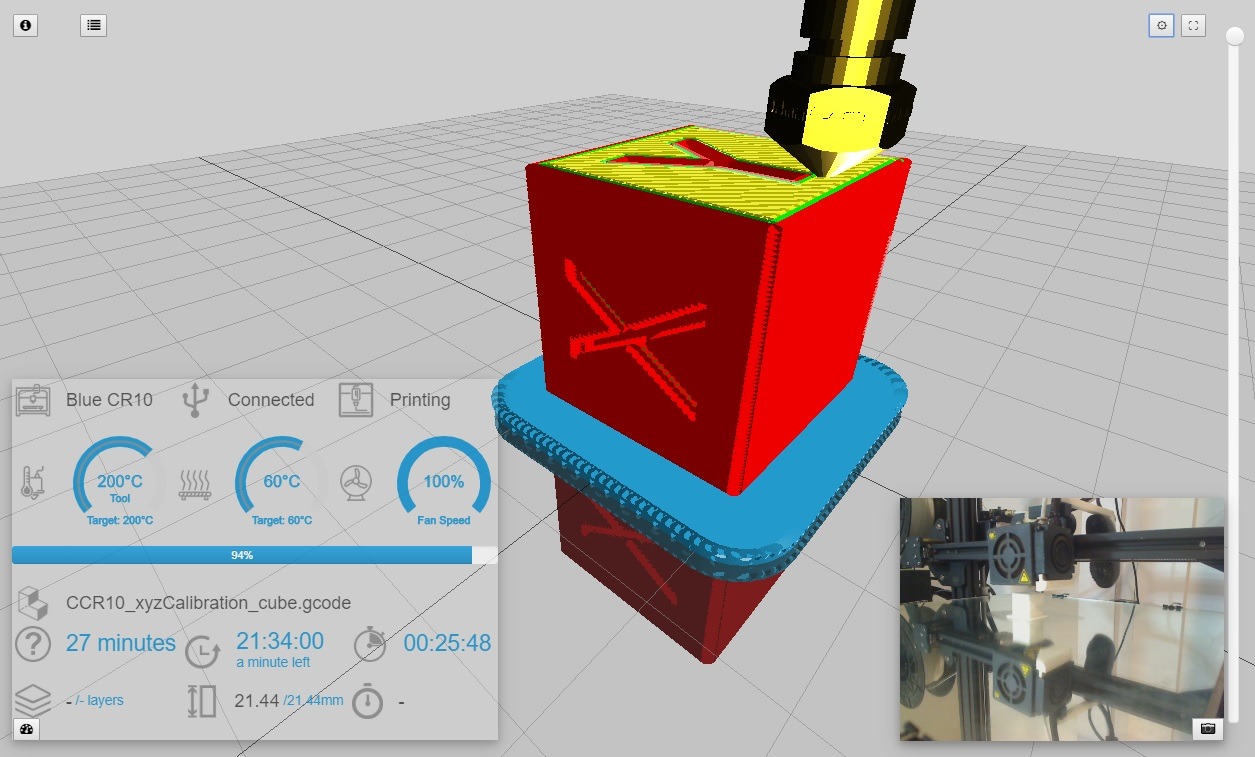 The Gcode visualizer in the OctoPrint Pretty Gcode tool gives you a 3D view of your model. It renders the Gcode file in color and updates in time with the printing process.
It's a big improvement over the built-in Gcode visualizer, which only lets you see the model in two dimensions. The 3D view not only looks great, but it also provides a clear picture of the print's progress.
You can use it if the camera on the printer is too far away and you can't get a good look at the print job. The Pretty gcode is also a good way to get visual feedback if you don't have an Octoprint webcam connected to the printer.
- Created By: Kragrathea
- Total Active Instances: 15.28k
- GitHub Page: OctoPrint-PrettyGCode
BedReady
 How often have you left a model on the print bed but clicked the print button for another job? When you realize this, either it's too late, or you have to cancel the print, remove the model, and start over. This can be very annoying and even lead to accidents that didn't need to happen.
Enter BedReady.
This app uses your printer's camera and computer vision to figure out if the print bed is ready to print. It matches the current image of your print surface to a previously saved reference and tells you if there's anything strange on the bed. It works well, is pretty accurate, and can be a lifesaver for forgetful users.
To set everything up, there is a small configuration process, and you should follow the directions on the plugin page. Once it's set up, it will run automatically before every print and let you know if you can print on the bed.
- Created By: jneilliii
- Total Active Instances: 347
- GitHub Page: OctoPrint-BedReady
OctoPrint-CancelObject

Consider this. You are doing a print job in which there are several prints on the build plate. One model fails mid-print, and now you have to cancel the complete print job. Because of one bad piece, you've lost the rest of the models, the time it took to print them, and the material that was used to print them.
The Cancel Object add-on was made for this same purpose. With this plugin, you don't have to cancel the whole print job. Instead, you can stop the printing of just the one failed piece. The rest of the models will keep printing as usual.
This helps you save a lot of print time and material that would have been lost otherwise. Also, for this plugin to work, you need to set up a few directions in your 3D printing slicer. They're all on the GitHub page mentioned below.
This is another tool that Octoprint users must have. In the event of print failure, this can be a lifesaver that spares you a lot of trouble.
- Created By: Paul Paukstelis
- Total Active Instances: 9.67k
- GitHub Page: OctoPrint-Cancelobject
Final Thoughts
That’s it. These are some of the best plugins that you, as a beginner user, need to get started with Octoprint. There are, of course, many more plugins available, and we even have a full article devoted to discussing a few of these.
Would you like the pack to include more plugins? Tell us what you think about the list, and if there's anything else, feel free to say so in the comments section.
Keep Printing!