Orca Slicer Download (OrcaSlicer): Free 3D Printing Slicer [2026]

Try JusPrin, the first GenAI 3D printing tool built on OrcaSlicer.
Several websites are impersonating OrcaSlicer, including orca-slicer.com and orcaslicer.net. The OrcaSlicer team has flagged these as clickbait/malicious. The only official sources are:
- Official website: www.orcaslicer.com
- Official GitHub: github.com/OrcaSlicer/OrcaSlicer
Always download Orca Slicer from GitHub Releases to ensure you get a safe, authentic version.
Orca Slicer (also written as OrcaSlicer) is the most popular open-source 3D printing slicer, and for good reason. It's free, supports hundreds of printers, and has the most advanced calibration tools of any slicer available. Built on Bambu Studio, Orca Slicer gives you more control over every aspect of your prints.
Current version: v2.3.1 (October 2025) · Price: Free · Platforms: Windows, macOS, Linux
Download Orca Slicer (Latest Version: v2.3.1)
Download Orca Slicer directly from the official GitHub Releases page:
| Platform | File Type | Min Requirements | File Size |
|---|---|---|---|
| Windows | .exe installer | Windows 10 or newer | ~94 MB |
| Windows (Portable) | .zip | Windows 10 or newer | ~118 MB |
| macOS (Apple Silicon) | .dmg | macOS 10.13+ (Metal GPU) | ~193 MB |
| macOS (Intel) | .dmg | macOS 10.13+ | ~193 MB |
| Linux (Ubuntu/Debian) | .AppImage | Ubuntu 22.04+, Debian 11+ | ~109 MB |
| Linux (Fedora) | .AppImage | Fedora 39+ | ~125 MB |
Minimum system requirements (all platforms):
- Processor: Intel Core i3 or equivalent
- RAM: 4 GB (8 GB+ recommended)
- Storage: 500 MB free space
- Graphics: DirectX 11 (Windows), Metal (macOS), OpenGL 3.2 (Linux)
Want to try the latest features before they're officially released? Download Nightly Builds — these are updated frequently but may contain bugs.
How to Install Orca Slicer
Step 1: Download Orca Slicer
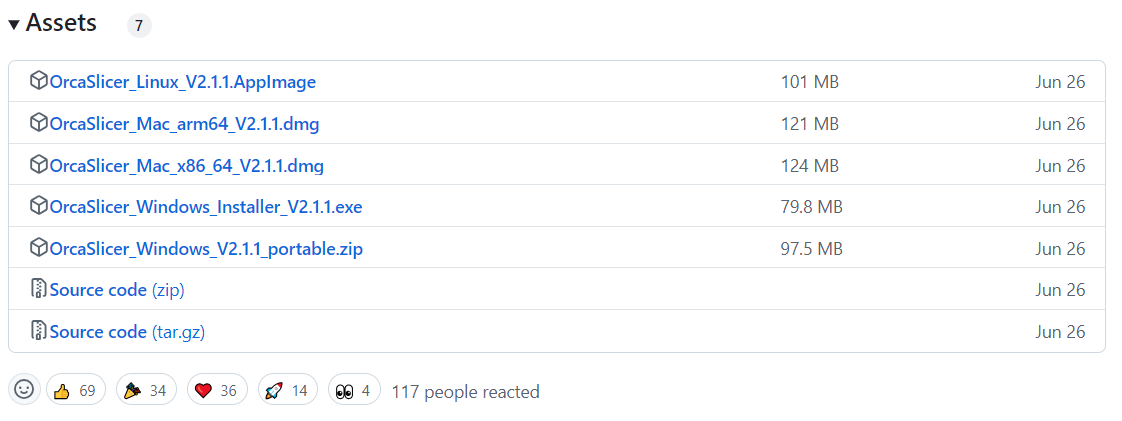
Go to the Orca Slicer GitHub Releases Page. Under the latest release, go to the Assets section and download the file for your OS (see table above).
Step 2: Install Orca Slicer
- Windows: Run the
.exefile and follow the installation prompts. - macOS: Open the
.dmgfile and drag Orca Slicer into your Applications folder. - Linux: Run the
.AppImagefile directly, or set it to be executable using your terminal:chmod +x OrcaSlicer*.AppImage && ./OrcaSlicer*.AppImage
Step 3: Launch and Set Up
After installation, launch Orca Slicer. The setup wizard will guide you through selecting your login region and configuring your 3D printer. Orca Slicer supports auto-updates, so you'll always be notified when a new version is available.
What's New in Orca Slicer v2.3.1
Released in October 2025, v2.3.1 includes:
- Bug fixes: Fixed incorrect printer models for Prusa MK3S and MINI, enhanced G-code handling for Z-axis movements, fixed crash when importing 3MF files
- New printer profiles: Sovol SV01, Sovol SV08 MAX, Afinia 3D printers, Flyingbear, updated Anycubic Kobra 2 Neo
- Revamped auto-updater: More reliable update mechanism
- UI improvements: Slider position now remembered in single-layer preview mode, fixed grid lines for multiple plates
- Improved translations: Updated Turkish and Brazilian Portuguese
For the full changelog, see the v2.3.1 release notes.
Orca Slicer Version History
| Version | Release Date | Key Changes |
|---|---|---|
| v2.3.2 | Coming soon (RC2 available) | Linux UI fixes (no more double title bar), discrete GPU preference, pressure equalizer corrections, fuzzy skin fixes |
| v2.3.1 | October 2025 | Bug fixes for Prusa MK3S/MINI, revamped auto-updater, new Sovol/Afinia/Flyingbear profiles, improved translations |
| v2.3.0 | March 2025 | Junction Deviation support, smooth spiral vase mode, multi-plate improvements, major profile additions |
| v2.2.0 | October 2024 | Scarf seam, precise wall, sandwich mode (inner-outer-inner), polyholes, overhang optimization |
| v2.1.1 | June 2024 | Bug fix release for v2.1.0 |
| v2.1.0 | June 2024 | Tree support improvements, adaptive layer height, new printer profiles |
All releases are available on the OrcaSlicer GitHub Releases page. Only download from this official source.
What is Orca Slicer?
Orca Slicer is a free, open-source 3D printer slicer developed by SoftFever. It's based on Bambu Studio, which is itself a fork of PrusaSlicer, one of the most widely used open-source slicers.
A "slicer" converts 3D models into G-code — the instructions your 3D printer follows to build an object layer by layer. Orca Slicer does this with more control, more printer support, and better calibration tools than most alternatives.
What Makes Orca Slicer Different?
Compared to Cura, PrusaSlicer, and Bambu Studio, Orca Slicer stands out because of:
- Broader printer compatibility: Supports hundreds of printers out of the box — Creality Ender 3 series, Elegoo Neptune, Bambu Lab, Voron, Sovol, and many more. If your printer isn't listed, you can create a custom profile.
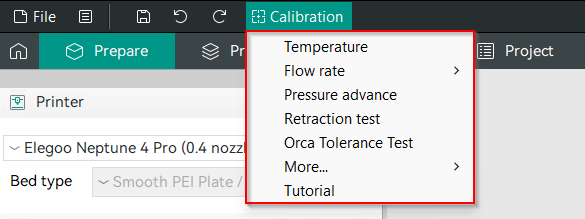
- Advanced calibration tools: Built-in Temperature Tower, Flow Rate Calibration, Pressure Advance, Retraction Test, and more.
- Z-seam control: Seam Gap and Wipe on Loops reduce or eliminate visible layer transition marks.
- Multi-plate support: Arrange multiple models on multiple build plates in a single project.
- Remote printing integration: Built-in support for Obico, Klipper interfaces (Mainsail/Fluidd), and OctoPrint.
To see a detailed comparison, check out: Orca Slicer vs. PrusaSlicer vs. Cura and Orca Slicer vs Bambu Studio.
Setting Up Your Printer in Orca Slicer
Select Your Printer
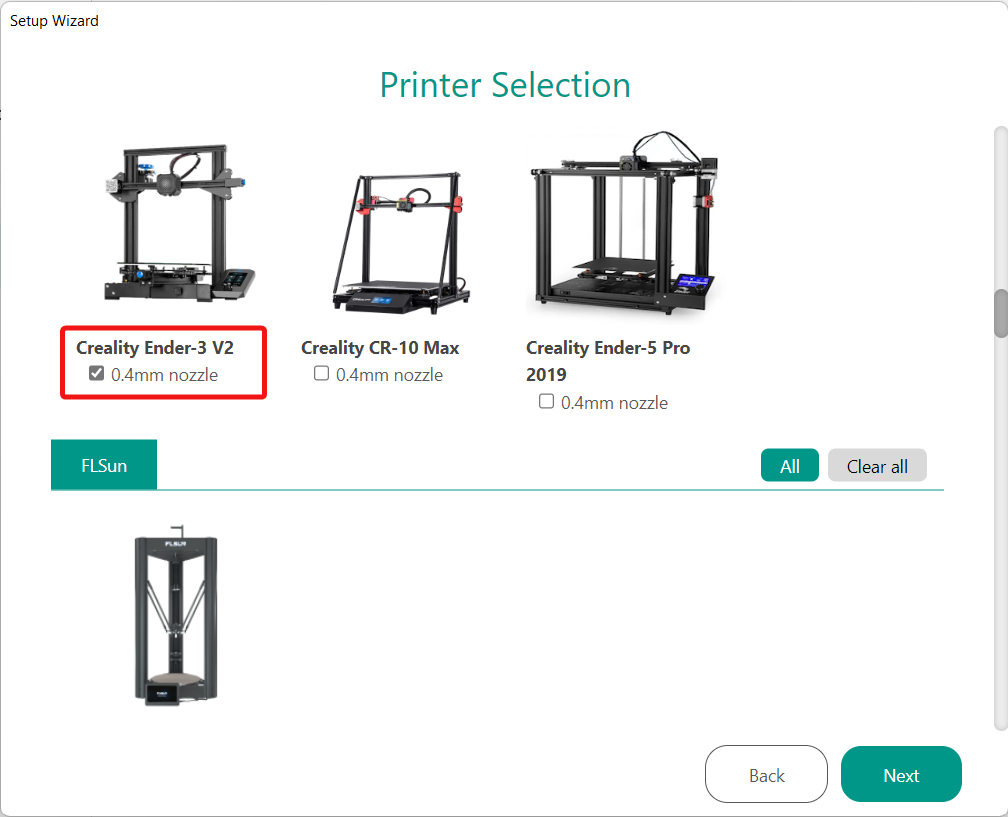
When you open Orca Slicer for the first time, it will ask you to choose your printer from the list after determining your login region. If your printer is not in the list, you can create a custom profile and configure its settings.
For a detailed guide on setting up a custom printer, see Setup a 3D Printer in OrcaSlicer.
Configure Filament Settings
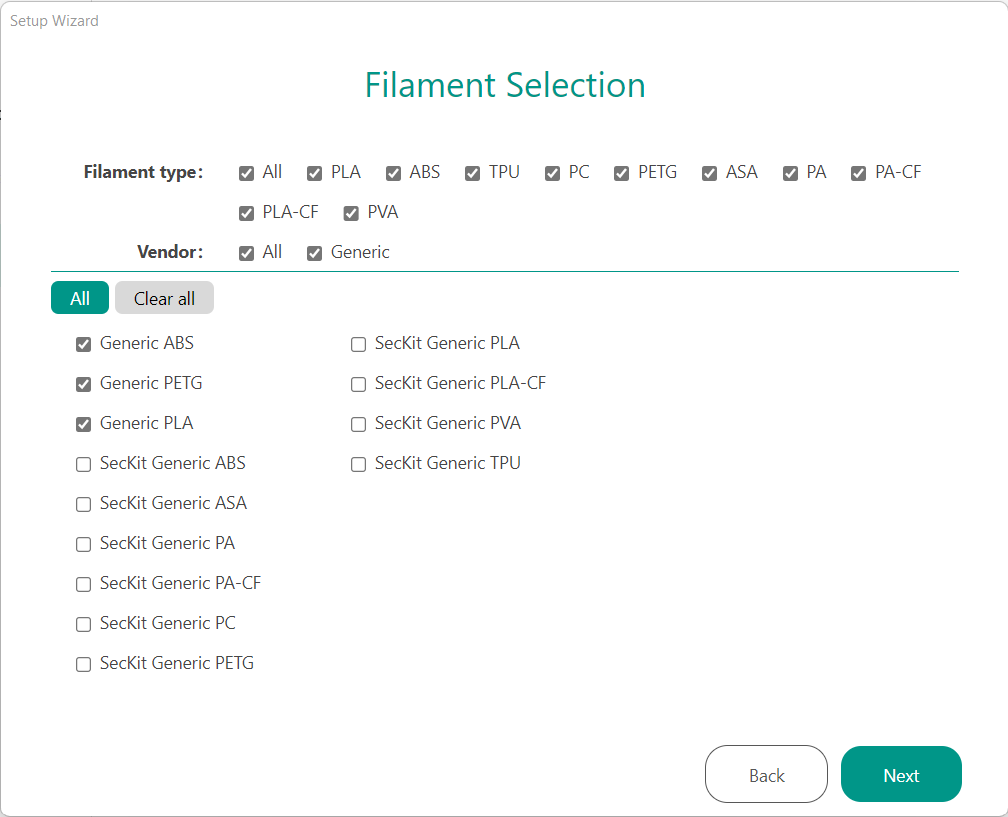
Orca Slicer has detailed filament profiles for common materials like PLA, ABS, PETG, and TPU. Once you've chosen your printer, select the filament you're using and Orca Slicer will adjust nozzle temperature, bed temperature, retraction settings, print speed, and other settings automatically. You can also adjust these settings manually.
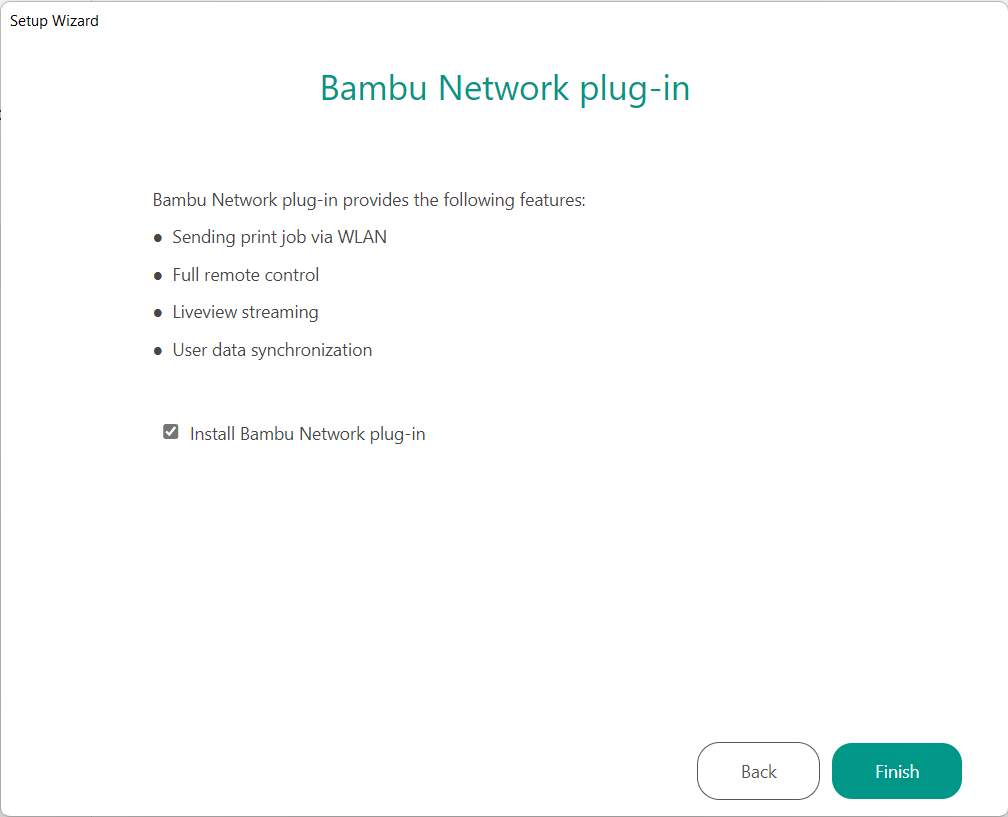
Enable Wireless Connectivity (Optional)
If you have a Bambu Lab printer or any other printer that supports wireless printing, Orca Slicer allows you to connect directly to your machine via the Bambu Network Plug-in. No SD cards or USB cables needed.
Slicing and Printing with Orca Slicer
Once your printer is set up, select "New Project" and drag and drop your 3D model into the slicer window. Orca Slicer will place your model on the build plate and give you options to scale, rotate, or position it.
On the left-hand side, you'll see settings to control how your model is sliced — layer height, infill density, print speed, seam visibility, support structures, and cooling fan settings. Orca Slicer has presets for beginners, but you can fine-tune everything.
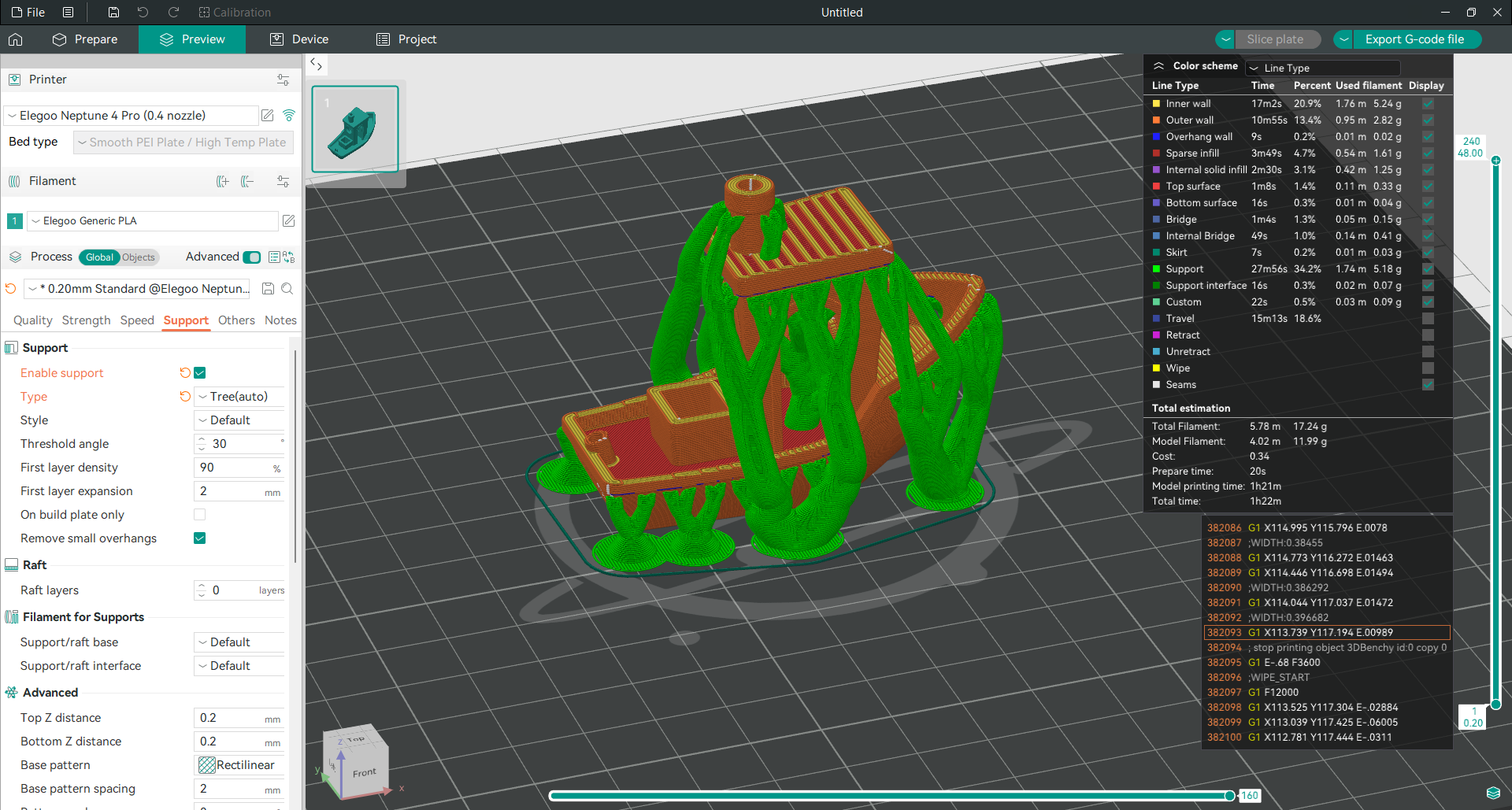
Hit the "Slice Plate" button to process your model. Preview the G-code to see how the printer will move layer by layer, then either export to SD card or send directly to your printer via Wi-Fi (if connected through Obico, OctoPrint, or a Klipper interface).
Advanced Calibration Tools
Orca Slicer has the most comprehensive set of calibration tools of any slicer. These help you eliminate common printing problems like under-extrusion, stringing, poor layer adhesion, and more.
| Calibration Tool | What It Does | Guide |
|---|---|---|
| Temperature Tower | Find the perfect print temperature for your filament | Guide |
| Flow Rate Calibration | Fine-tune extrusion for smooth surfaces and strong layers | Guide |
| Pressure Advance | Sharper corners by optimizing extrusion at speed changes | Guide |
| Retraction Test | Eliminate stringing and oozing between sections | Guide |
| Tolerance Test | Test printer accuracy for snap-fit and mechanical parts | Guide |
| Max Volumetric Speed | Find the fastest speed without sacrificing quality | Guide |
| VFA Speed Test | Balance speed vs. surface quality | Guide |
Remote Printing with Orca Slicer and Obico
Orca Slicer integrates with Obico, a remote 3D printer management platform, giving you:

- Remote control: Start and stop prints from anywhere
- Real-time monitoring: Watch print progress through your webcam feed
- AI failure detection: Automatic spaghetti detection that can pause prints before wasting filament
- First Layer AI: Detailed first layer analysis with grading and insights
- 3D model library: Browse and slice models directly within Orca Slicer
- Klipper interface access: Mainsail and Fluidd interfaces built right in
To set up Orca Slicer with Obico: Obico Integration Guide.
Orca Slicer also integrates with Klipper interfaces (Mainsail and Fluidd) and OctoPrint through the Device Tab.
Frequently Asked Questions
Where do I download Orca Slicer?
Download Orca Slicer for free from the official GitHub Releases page. Choose the file for your operating system — .exe for Windows, .dmg for macOS, or .AppImage for Linux. The current version is v2.3.1.
Is Orca Slicer software free?
Yes, Orca Slicer is completely free and open-source. There are no paid tiers, subscriptions, or premium features. It's developed by SoftFever and maintained by the community on GitHub.
What is the real Orca Slicer website?
The only official OrcaSlicer website is www.orcaslicer.com, and the official downloads are on GitHub. The original developer is SoftFever.
⚠️ Websites like orca-slicer.com, orcaslicer.net, and orcaslicer3d.com are not affiliated with the OrcaSlicer project. The OrcaSlicer team has explicitly warned that these sites may contain misleading information or redirect to dangerous downloads. Always download from the official GitHub releases page.
Is Orca Slicer better than Cura?
Orca Slicer and Cura serve different audiences. Orca Slicer has more advanced calibration tools, broader printer profile support, and tighter integration with Klipper-based printers. Cura has a larger user base and more plugins. If you want more control over your prints and use a Klipper or Bambu Lab printer, Orca Slicer is the better choice. See our detailed comparison.
What printers are compatible with Orca Slicer?
Orca Slicer supports hundreds of printers including Creality Ender 3 series, Elegoo Neptune, Bambu Lab (P1P, P1S, X1C, A1), Voron, Sovol, Prusa, Anycubic, and many more. If your printer isn't listed, you can create a custom profile.
Does Orca Slicer support wireless printing?
Yes. Orca Slicer supports wireless printing through multiple methods: Bambu Lab network plugin (for Bambu printers), Obico integration (for any printer with Klipper or OctoPrint), and direct Klipper interface connections (Mainsail/Fluidd). You can send G-code and monitor prints without SD cards or USB cables.
How do I update Orca Slicer?
Orca Slicer v2.3.1 includes a revamped auto-updater. When a new version is available, you'll be prompted to update. You can also manually download the latest version from the GitHub Releases page.
Related Guides
- OrcaSlicer Calibration Features Deep Dive
- Temperature Tower Test
- Flow Rate Calibration
- Pressure Advance Calibration
- Retraction Test
- Orca Slicer vs Bambu Studio
- Orca Slicer vs PrusaSlicer vs Cura
- Setup a 3D Printer in OrcaSlicer
- OrcaSlicer Device Tab Guide
- OrcaSlicer Seam Settings
- Connect OrcaSlicer to Obico
Also available in: Deutsch | Español | Français | Italiano | Nederlands | Polski | Português | Русский