Mastering Your Prints: The Comprehensive OrcaSlicer Calibration Guide

· 24 min read

Achieving high-quality 3D prints relies heavily on precise printer calibration. Without it, you'll encounter common issues like stringing, poor bed adhesion, and inaccurate dimensions. Calibration is the foundation for consistent, reliable, and excellent print results.

OrcaSlicer is an advanced, open-source slicing software with powerful built-in calibration tools. This guide will help you use the latest stable releases of OrcaSlicer (typically versions 2.3.0 or recent 2.3.1 nightly builds) to fine-tune your printer. We'll cover Temperature, Flow Rate, Pressure Advance, Retraction, Tolerance, Max Volumetric Speed, and Vertical Fine Artifacts (VFA) calibrations. These tests are designed to be performed in a specific order, progressively improving your print quality.

Understanding OrcaSlicer: Your Calibration Hub

OrcaSlicer offers advanced features like precise wall control, "sandwich mode" for better surface finish, "polyholes conversion" for complex geometries, and seamless integration with Klipper, OctoPrint, and PrusaLink. It provides granular control while remaining user-friendly with drag-and-drop design and pre-made printer profiles.

Accessing Calibration Tools in OrcaSlicer

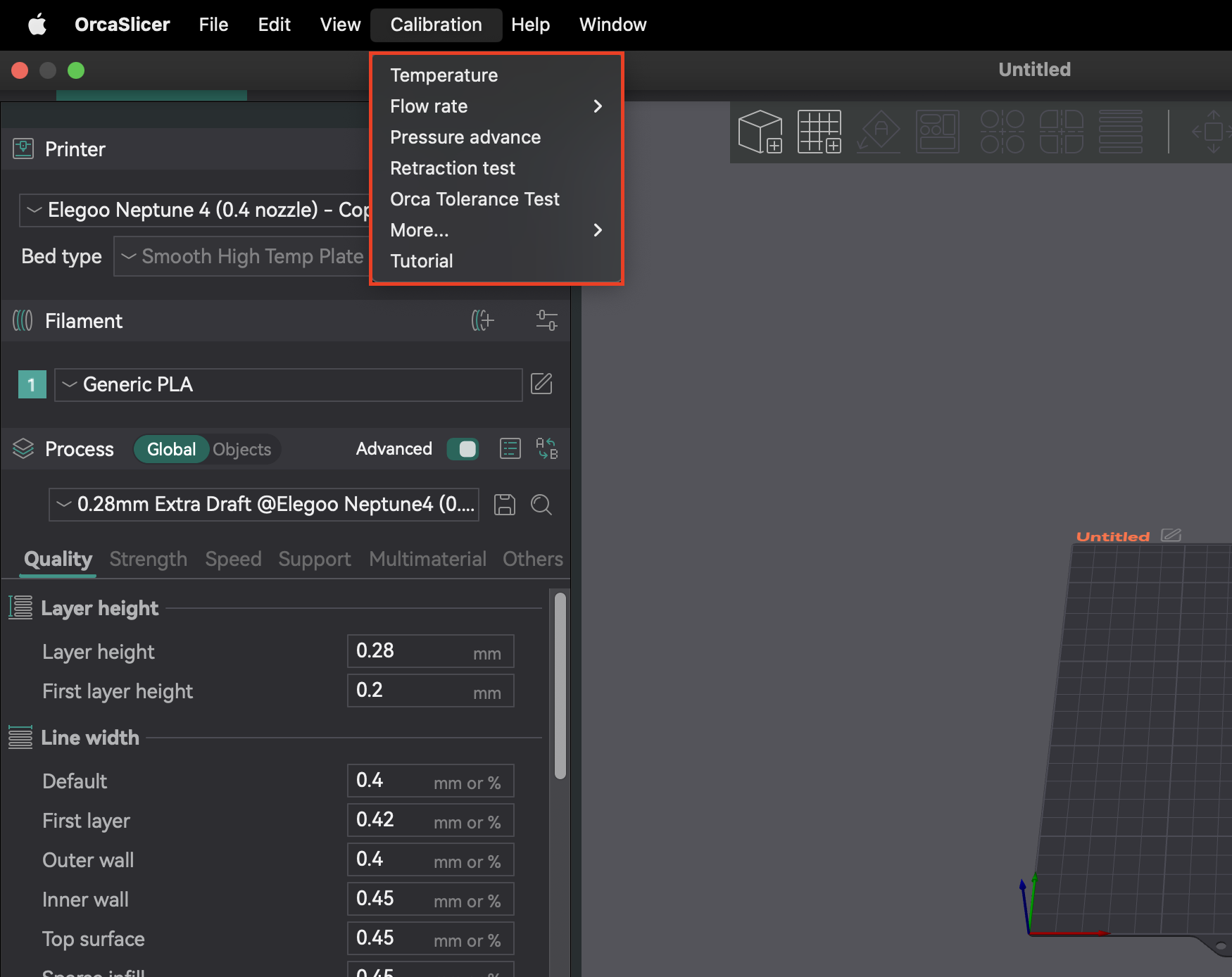
Most calibration features are in the "Calibration" menu. After completing any calibration test, always create a new project. This ensures OrcaSlicer exits calibration mode and resets parameters for your next prints.

OrcaSlicer "Calibration" menu dropdown

🎉 Introducing JusPrin 1.0 — The First GenAI 3D Printing Experience

· 4 min read

The Obico team is no stranger to AI-powered innovation in 3D printing. We previously created The Spaghetti Detective, the first open-source AI project to monitor and detect failed 3D prints using computer vision.

Now, we're excited to lead again in the Generative AI era—this time with JusPrin.

👉 No slicing. Just print.

🧠 Why We Built JusPrin

3D printing remains unnecessarily complex for most users—especially the slicing step. While slicing software has become more capable, it's still filled with technical jargon, countless parameters, and trial-and-error guesswork.

JusPrin was born out of a vision:

What if we could delegate slicing expertise to an AI assistant that's always available and personalized to your printer and filament?

Rather than tweaking supports, brims, speeds, or infill manually, we dreamed of an interface where you could simply describe your goal (e.g., "I want this deer to stand steadily with nice antlers"), and the AI figures out the best slicing strategy.

Prusa Slicer VS Cura

· 8 min read

Prusa Slicer and Cura are the top-performing 3D printing slicers, each with its strength. Both PrusaSlicer and Cura are efficient open-source slicers and have a great printer profile setup. 

Where’s the difference? –In everything, PrusaSlicer and Cura are original slicers, unlike Bambu Studio and other slicers that are forks. Their slicing engine, project handling, and features are original and different from one another. PrusaSlicer is essentially a fork of an earlier slicer called Slic3r, but Prusa Research has completely changed the slicer, making it unrecognizable and far better. 

Now, let’s dive straight into PrusaSlicer VS Cura and understand the key differences that can help you define your choice. 

Orca Slicer vs Bambu Studio: Detailed Feature Comparison

· 6 min read
tip

Try JusPrin, the first GenAI 3D printing tool built on OrcaSlicer.

In 3D printing, there are many ways to optimize your prints. Some people upgrade the extruder or tune the bed-leveling, while others focus on adjusting print settings like retraction and speed. However, often both can be achieved by choosing the right slicer. 

Two of the most popular slicers have significant user bases, and this comparison delves into features and user interface perks to help you decide your camp. 

Bambu Studio

Bambu Studio, developed by Bambu Lab, is based on PrusaSlicer and has recently extended its printer profile to include Creality, Voron, and other big names. However, the slicer still works best with Bambu Lab printers. 

Orca Slicer

SoftFever developed Orca Slicer as a fork of Bambu Studio by adding more printer presets, detailed print settings and advanced tools for 3D printing. Orca Slicer is similar to Bambu Studio but still has many differences with recent updates. 

User Interface

User interface of a slicer can save you time, help you manage multiple prints, and utilize slicer features that produce the best results. 

Bambu Studio UI

Orca Slicer Vs Cura: Head To Head

· 9 min read

Orca Slicer and Cura Logo

When starting your 3D printing journey, many people stick to the slicer that comes with their 3D printer. Whether you're a new user just getting started or an experienced maker weighing your options, the choice of slicer impacts your 3D printing experience and print quality.

Two popular options are Orca Slicer and Cura, both offer a unique solution to slicing and print management. In this blog you'll quickly learn which one to select for your needs.

Orca Slicer VS PrusaSlicer: Everything You Need To Know

· 7 min read

Slicers can make or break your 3D print - quite literally. Over time, there have been many slicers, but two have remained favorites for the 3D printing community—Orca and Prusa. 

What happens when you have to choose between these two slicers? Let’s dive straight into it the right way!

What Is a Slicer?

3D printing works layer by layer. Each layer is printed on top of another, and a 3D printing slicer converts your 3D part into 2D layers for the printer to follow and print.

A slicer also sends numerical code which positions the extruder, adjusts layer height, printing parameters, and supports. This makes the choice of slicer important, and switching to a new slicer is often a worthwhile upgrade.

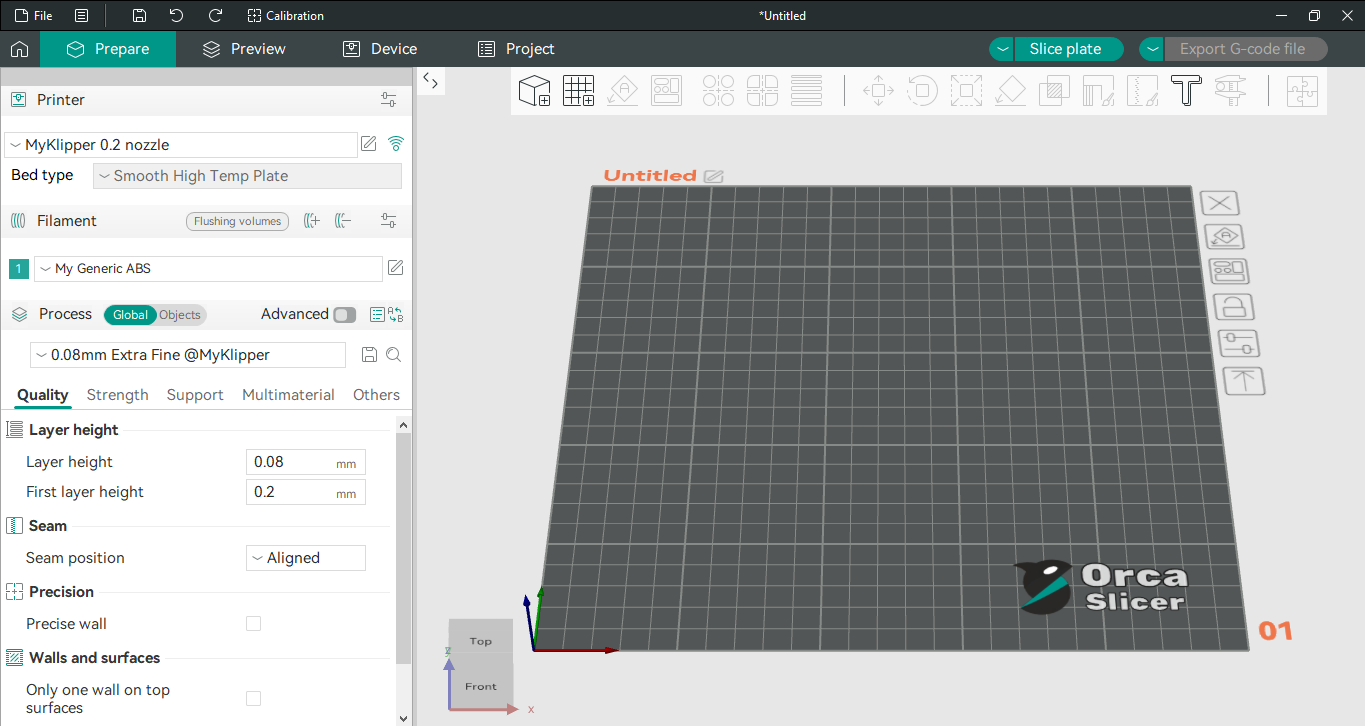
Orca slicer ui image with side bar and 3D viewer

Orca slicer is based on Bambu Studio (slicer for Bambu lab printers) and gives the best of both worlds. It’s an enhanced version of Bambu studio based on Prusa slicer with a more user-friendly interface, wide support for printers and regular updates.

3D Print Troubleshooting - Stringing

· 7 min read

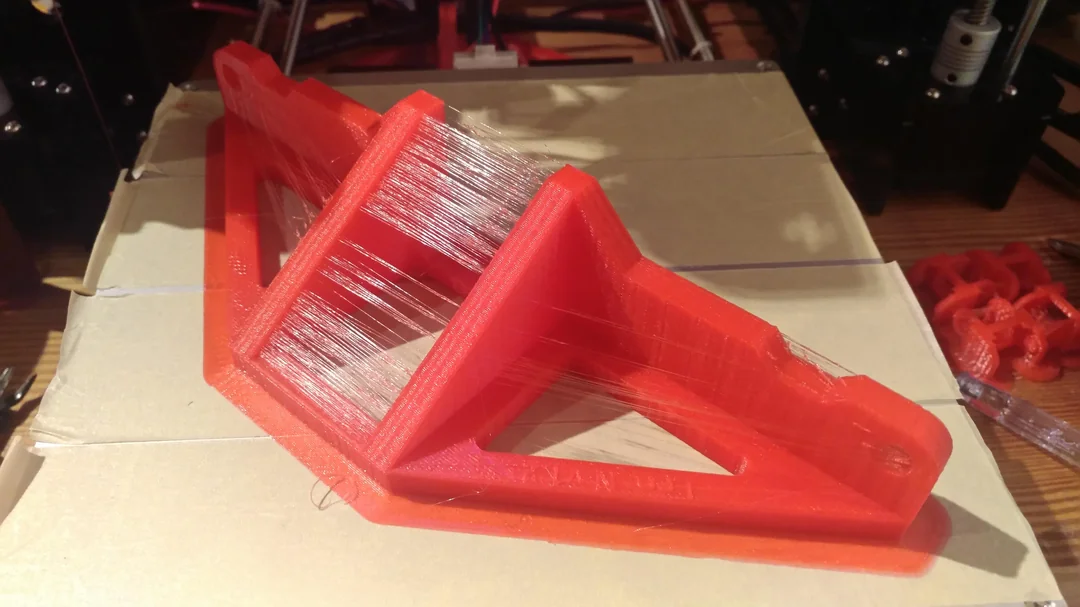
Stringing can be a very frustrating print problem to troubleshoot. It can depend a lot on the geometry of your print; some models may have problems with stringing while others may not even if you slice using the same settings. In this article, we'll go over the causes of strining, and what you can do about it.

Lots of Stringing

3D Print Troubleshooting - Bed Adhesion

· 6 min read

If you've ever done any metal machining, you already know that rigidly attaching your stock material to the machine is one of the most important steps in the process. In 3D printing, this is also true. Rigidly attaching the base of your part to the print bed, also known as bed adhesion, is one of the most critical parts of the printing process.

When this fails, it can be difficult and frustrating to debug. The reasons why bed adhesion fails are sometimes not obvious and can be finnicky to reproduce and rectify.

Bed Adhesion Failure

Best 3D Printing Slicers for Beginners (2025 Edition)

· 10 min read

Getting started with 3D printing, you’d expect to simply connect your 3D printer and send your 3D models for printing. Much like plug and play–except you’d need to slice your 3D model first.

3D printing works by printing layers, the slicer among many things, converts the 3D model into layers for the printer. The choice of printing slicer not only determines the quality but also the success rate of prints.

This guide will help you decide the best 3D printing slicer, whether just unpacking your 3D printer or looking to streamline your workflow.

What Is a 3D Printing Slicer?

A slicer gives a preview of your print, adjusting position and checking any errors on the build plate. It also gives you control over 3D printing parameters like print resolution, infill density, structures for overhangs, temperature controls, and any brims for adhesion. 

A 3D printing slicer works by detecting your 3D printer and using information like extruder, print material, and any inputs like nozzle diameter, creating an appropriate G-code from the print-ready STL file.

What Makes A Beginner-Friendly Slicer?

Several slicer features are essential for beginners to get started with printing projects. These criteria will help you identify the must-have features.

Ease of Use

A beginner friendly slicer should have a decluttered interface that makes it easy to navigate essential options and at the same time, offer the flexibility to switch between beginner and advanced modes.

Some slicers color code their printing settings and options to green, yellow, and red, (🟢🟡🔴) guiding users to toggle or change parameter settings.

Novice 3D enthusiasts can tinker with the green settings and advanced users modify the yellow and red parameters.
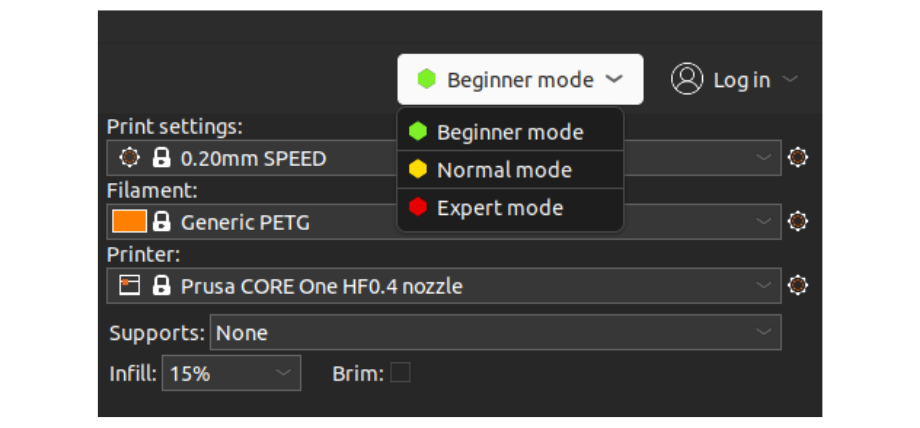

3D printer slicer modes

Gonggi Game - How to 3D Print and Play

· 3 min read

Season Two of the popular Netflix show Squid Game recently introduced international audiences to the Korean game of Gonggi: a fun, simple game similar to the classic American schoolyard game Jacks. The game involves throwing stones in the air, but the stones are often substituted for colorful plastic pieces - plastic pieces that could be made using a 3D printer! In this post, we'll walk you through the basic rules of the game, as well as how to 3D print your own set of Gonggi stones.

How to play

At it's core, the game consists of throwing one stone into the air and picking up varying amounts of other stones off a surface. At level one, the player repeatedly throws a stone into the air, picking up a single stone off the surface before catching the thrown stone. At level two, the player does this with two stones per throw. This continues until level four, at which point the maximum number of stones is reached. At level five, the player throws the stones into the air and catches them on the back of their hand, often performing tricks like clapping their hands before catching the thrown stones. Early versions of this game used actual stones, but modern players use plastic sets instead.

For more variations on this game, see here.

Gonggi by PIETROMULLER on Cults3D

by PietroMuller

Since this game was featured in Squid Game, many users have created model sets that match the aesthetic of the pieces shown in the show. This design is great because, since the symbols on top are raised, users without multi-material support can swap their colored filament for white to get the desired symbol contrast.