Next-Gen AI

Failure Detection Private Beta

AI Failure Detection Beta

50 posts tagged with "3D Printing"

View All Tags

Every 3D printing enthusiast — from first-time Ender 3 owners to seasoned Voron builders — runs into print quality problems. The difference between a frustrating hobby and a rewarding one is knowing how to diagnose and fix issues quickly.

This guide covers every common 3D printing defect with clear symptoms, root causes, and step-by-step fixes. Use the table of contents below to jump to your specific problem, or read through to build a complete troubleshooting toolkit.

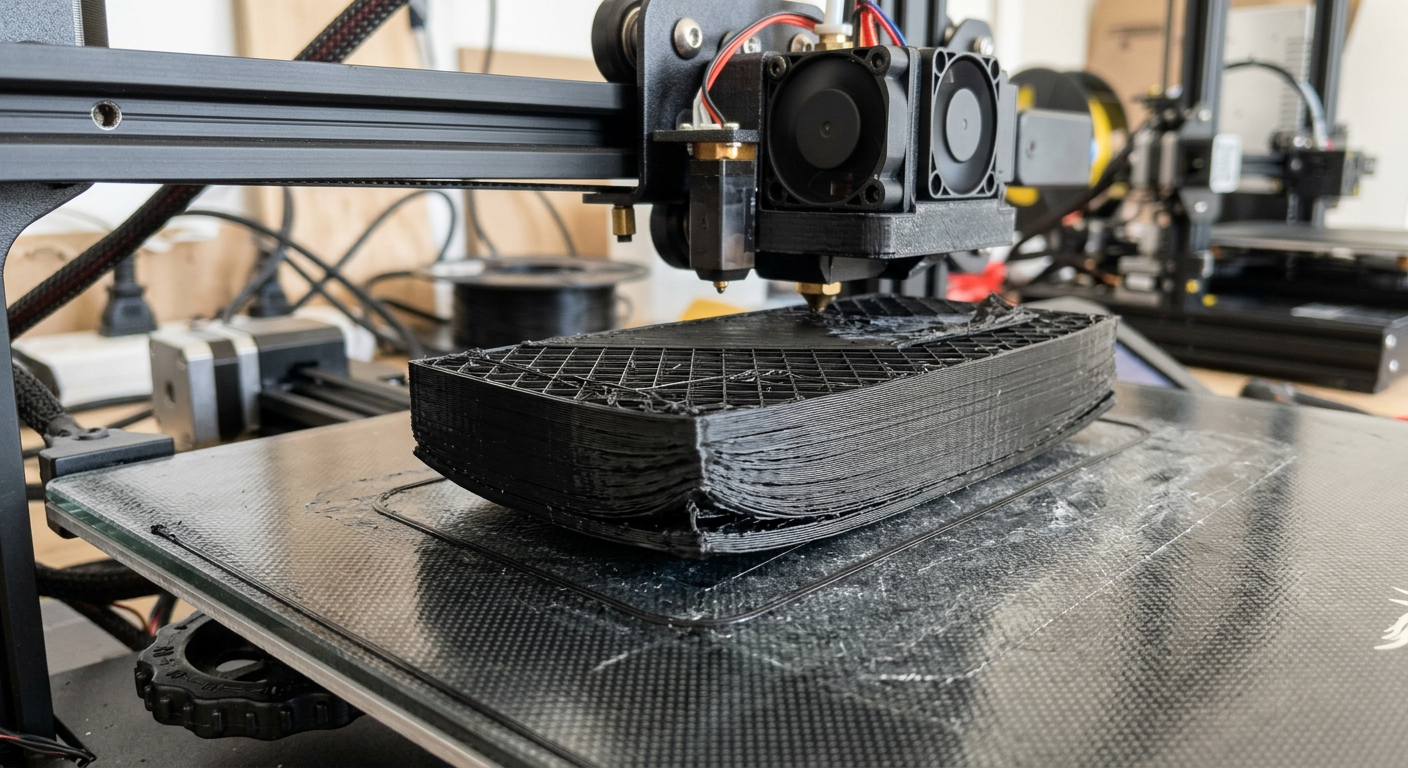
3D print quality problems — warping, stringing, layer shifting and more

Pro Tip: Catch Problems Before They Waste Filament

Many of these issues — especially spaghetti, layer shifting, and detachment — can be caught mid-print by Obico's AI failure detection. It monitors your print via webcam and alerts you (or pauses the print) when it detects something going wrong. Free tier available.

Nobody wants to come back to their 3D printer and find a failed print — especially after hours of waiting. That's why 3D printer failure detection has become one of the most important features in modern 3D printing. But which tools actually work, and how do they compare?

In this guide, we'll compare every major 3D printer failure detection solution available in 2026 — from AI-powered cloud monitoring to built-in hardware sensors — so you can choose the best option for your setup.

Quick Comparison

ToolDetection MethodPrinter CompatibilityAuto-PausePriceOpen Source
ObicoAI camera visionOctoPrint, Klipper, Bambu LabFree tier + $4/mo Pro
Bambu Lab Built-inLidar + cameraBambu Lab onlyIncluded
OctoEverywhere GadgetAI camera visionOctoPrint, Klipper$2.50-5/mo
PrintWatchAI camera visionOctoPrintFree tier + paid
Spoolman + runout sensorHardware sensorAny (DIY)$5-15 hardware
Manual monitoringWebcam + human eyesAnyFreeN/A

If you've ever walked back to your 3D printer only to find a tangled mess of plastic instead of your model, you've experienced what the 3D printing community calls "spaghetti." It's one of the most common and frustrating 3D printing failures — your printer keeps extruding filament, but the plastic has nowhere to go, creating a bird's nest of wasted material.

The good news? Spaghetti is almost always preventable once you understand what causes it. In this guide, we'll cover every cause of spaghetti in 3D printing and give you step-by-step fixes for each one.

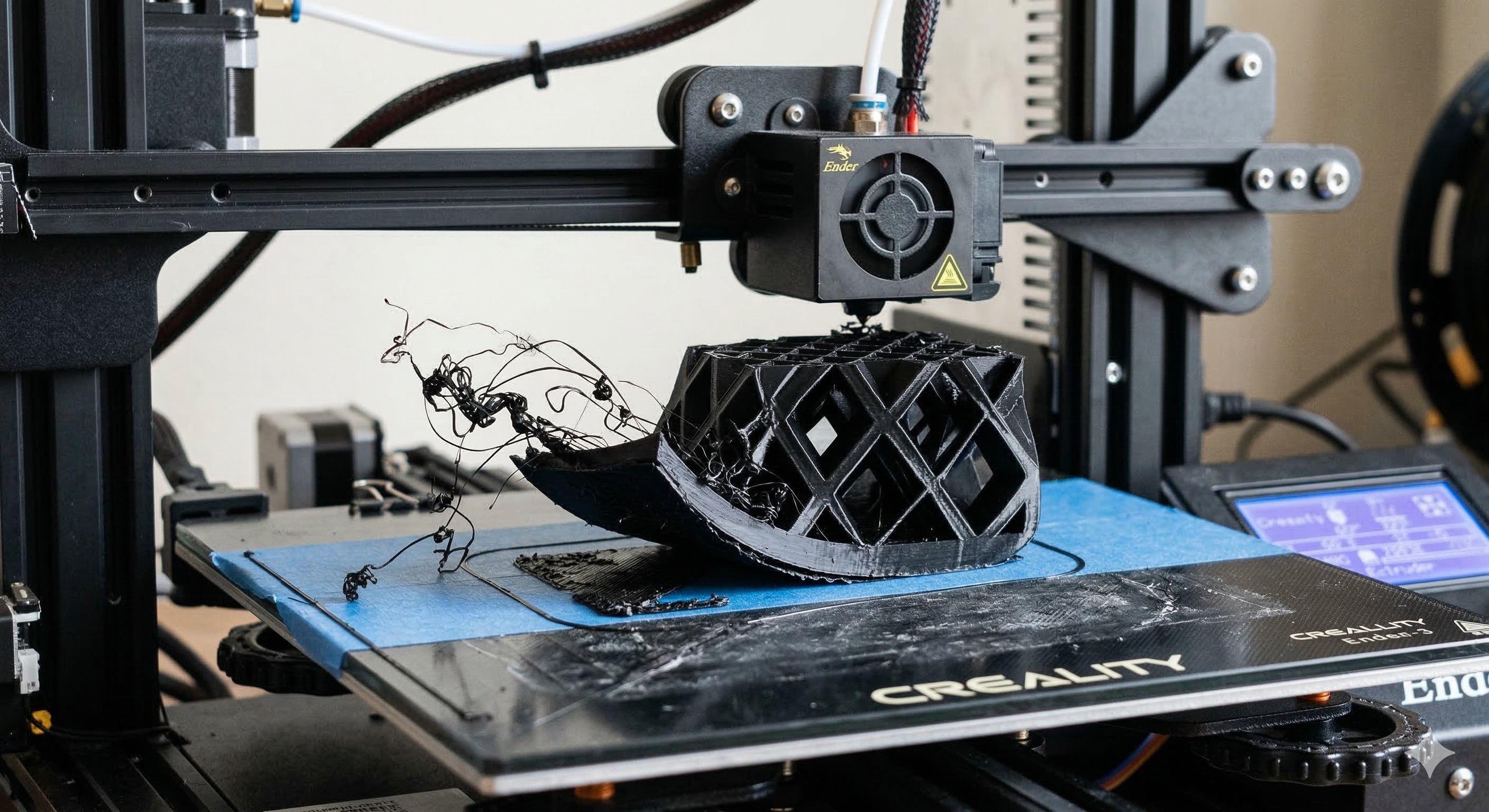
Spaghetti 3D printing failure — print detached from bed mid-print

Back in 2020, we pioneered AI-powered failure detection for 3D printing. We called it The Spaghetti Detective. It was a little bit magic, a little bit sci-fi, and it saved a whole lot of print jobs from turning into plastic pasta.

Since then, we never stopped innovating. We launched Nozzle Ninja (our first-layer AI sentinel), and even introduced JusPrin to handle the slicing for you.

But today? Today is about going back to our roots and making them stronger.

We are officially reinventing our core failure detection with a next-generation AI model.

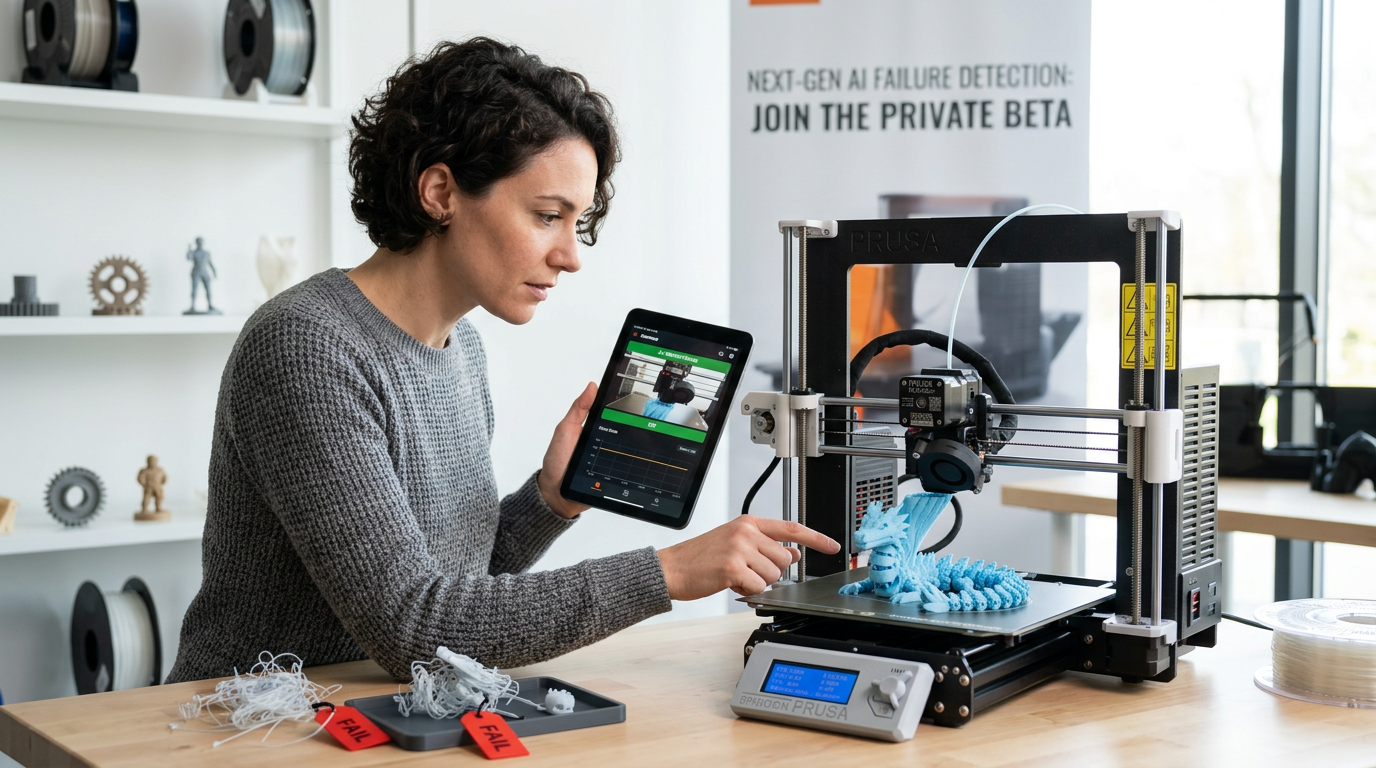
Next-Gen AI Failure Detection: Join the Private Beta

Introduction: Navigating the Hidden Complexity of OrcaSlicer Profiles

For many 3D printing enthusiasts, OrcaSlicer stands out as a powerful and versatile tool, offering granular control over print settings and advanced calibration features. However, the journey to achieving perfect prints is often marred by a common and deeply frustrating challenge: managing profiles. What might appear to be a straightforward administrative task—organizing, backing up, and migrating printer, filament, and process settings—frequently becomes a significant source of wasted time, repeated calibrations, and a pervasive sense of insecurity regarding the integrity of painstakingly configured settings. This is particularly true for those operating multiple 3D printers or experimenting with a wide array of custom filaments.

This pervasive difficulty can be attributed to what can be described as the "Hidden Complexity" of OrcaSlicer's profile management system. The underlying file structure and the inheritance model of profiles are often not intuitive, making it challenging to understand how settings are stored, linked, and affected by software updates or account interactions. This handbook aims to demystify these complexities, providing an authoritative, step-by-step guide to mastering OrcaSlicer profiles. From understanding their core architecture and implementing robust organization strategies to creating custom filament profiles, executing reliable backups, and troubleshooting the perplexing issue of disappearing profiles, this guide offers a clear roadmap to empower you and enhance your 3D printing journey.

Frustrated with "subjective" flow rate calibration in OrcaSlicer? This quick guide will help you ditch the guesswork and objectively master your flow rate for consistently perfect prints.

Why Flow Rate Matters (The Short Version)

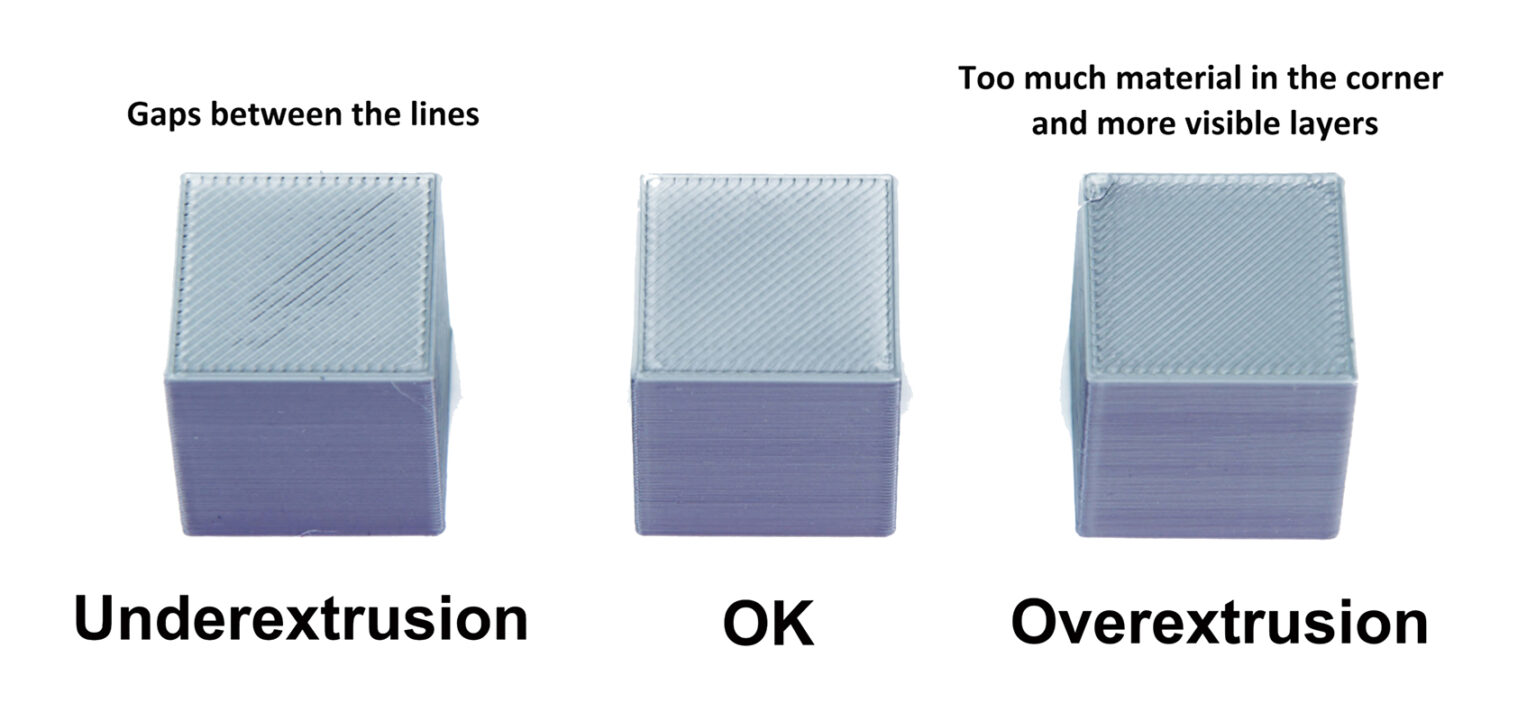
Flow rate (Extrusion Multiplier, EM) controls how much filament your nozzle extrudes. Get it right, and your prints are strong, dimensionally accurate, and smooth. Get it wrong, and you'll face issues like:

  • Over-extrusion: Wasted material, blobs, stringing, rough surfaces, weakened parts.
  • Under-extrusion: Gaps, weak layers, poor surface finish, holes.

Side-by-side comparison of over-extrusion vs. under-extrusion on a simple cube, highlighting common visual artifacts for each. Source: help.prusa3d.com

Achieving high-quality 3D prints relies heavily on precise printer calibration. Without it, you'll encounter common issues like stringing, poor bed adhesion, and inaccurate dimensions. Calibration is the foundation for consistent, reliable, and excellent print results.

OrcaSlicer is an advanced, open-source slicing software with powerful built-in calibration tools. This guide will help you use the latest stable releases of OrcaSlicer (typically versions 2.3.0 or recent 2.3.1 nightly builds) to fine-tune your printer. We'll cover Temperature, Flow Rate, Pressure Advance, Retraction, Tolerance, Max Volumetric Speed, and Vertical Fine Artifacts (VFA) calibrations. These tests are designed to be performed in a specific order, progressively improving your print quality.

Understanding OrcaSlicer: Your Calibration Hub

OrcaSlicer offers advanced features like precise wall control, "sandwich mode" for better surface finish, "polyholes conversion" for complex geometries, and seamless integration with Klipper, OctoPrint, and PrusaLink. It provides granular control while remaining user-friendly with drag-and-drop design and pre-made printer profiles.

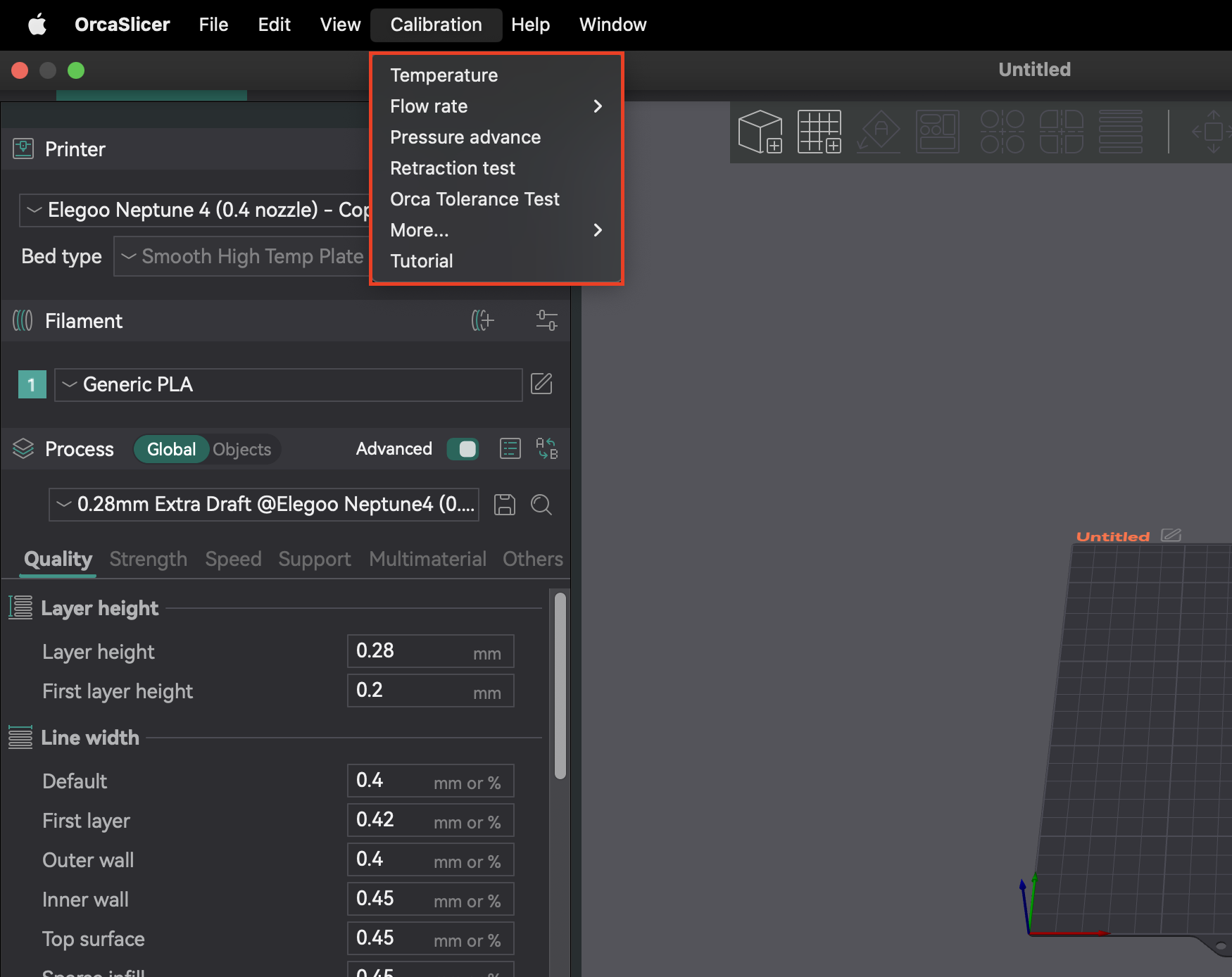
Accessing Calibration Tools in OrcaSlicer

Most calibration features are in the "Calibration" menu. After completing any calibration test, always create a new project. This ensures OrcaSlicer exits calibration mode and resets parameters for your next prints.

OrcaSlicer "Calibration" menu dropdown

The Obico team is no stranger to AI-powered innovation in 3D printing. We previously created The Spaghetti Detective, the first open-source AI project to monitor and detect failed 3D prints using computer vision.

Now, we're excited to lead again in the Generative AI era—this time with JusPrin.

👉 No slicing. Just print.

🧠 Why We Built JusPrin

3D printing remains unnecessarily complex for most users—especially the slicing step. While slicing software has become more capable, it's still filled with technical jargon, countless parameters, and trial-and-error guesswork.

JusPrin was born out of a vision:

What if we could delegate slicing expertise to an AI assistant that's always available and personalized to your printer and filament?

Rather than tweaking supports, brims, speeds, or infill manually, we dreamed of an interface where you could simply describe your goal (e.g., "I want this deer to stand steadily with nice antlers"), and the AI figures out the best slicing strategy.

Getting started with 3D printing, you’d expect to simply connect your 3D printer and send your 3D models for printing. Much like plug and play–except you’d need to slice your 3D model first.

3D printing works by printing layers, the slicer among many things, converts the 3D model into layers for the printer. The choice of printing slicer not only determines the quality but also the success rate of prints.

This guide will help you decide the best 3D printing slicer, whether just unpacking your 3D printer or looking to streamline your workflow.

What Is a 3D Printing Slicer?

A slicer gives a preview of your print, adjusting position and checking any errors on the build plate. It also gives you control over 3D printing parameters like print resolution, infill density, structures for overhangs, temperature controls, and any brims for adhesion. 

A 3D printing slicer works by detecting your 3D printer and using information like extruder, print material, and any inputs like nozzle diameter, creating an appropriate G-code from the print-ready STL file.

What Makes A Beginner-Friendly Slicer?

Several slicer features are essential for beginners to get started with printing projects. These criteria will help you identify the must-have features.

Ease of Use

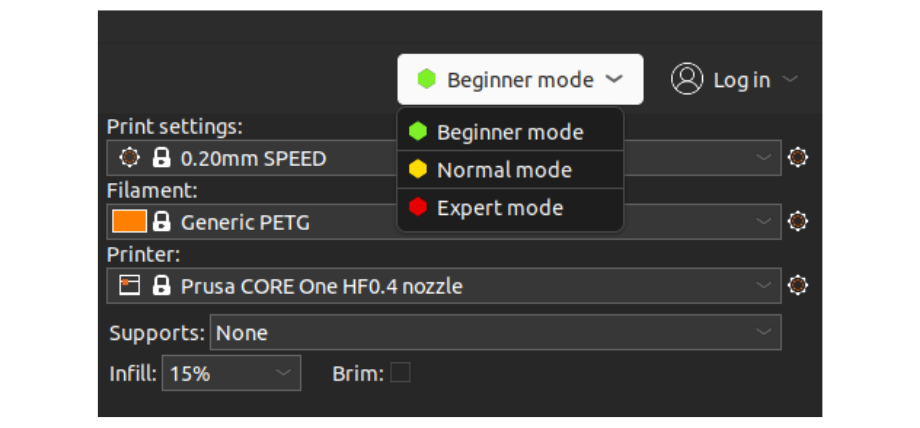
A beginner friendly slicer should have a decluttered interface that makes it easy to navigate essential options and at the same time, offer the flexibility to switch between beginner and advanced modes.

Some slicers color code their printing settings and options to green, yellow, and red, (🟢🟡🔴) guiding users to toggle or change parameter settings.

Novice 3D enthusiasts can tinker with the green settings and advanced users modify the yellow and red parameters.

3D printer slicer modes

If you've been using 3D printers for a while, you'll know there's a way to remotely control prints, check on progress, and perhaps even optimize your printer's movement for smoother running.

But how exactly can you do that?

It's impossible without getting slightly technical, but it's all worth the faster print times and advanced motion control. The quickest answer is–Klipper firmware.

Klipper is an open-source firmware based on Python developed to handle the advanced changes in 3D printing hardware. Normally, 3D printers come with a standard firmware hardcoded onto the on-board memory and any configuration change requires firmware installation, like solving a labyrinth. Instead, Klipper firmware can be edited, and modified and a simple device restart applies the changes.

It's compatible with many 3D printers and you can check the complete list here. Klipper pairs with these common printers:
  • Creality

  • Sovol

  • Pursa

  • Anycubic

    You have set up Klipper and the Moonraker API correctly, and it is connected to your printer. An interface such as Mainsail/Fluidd is highly recommended.

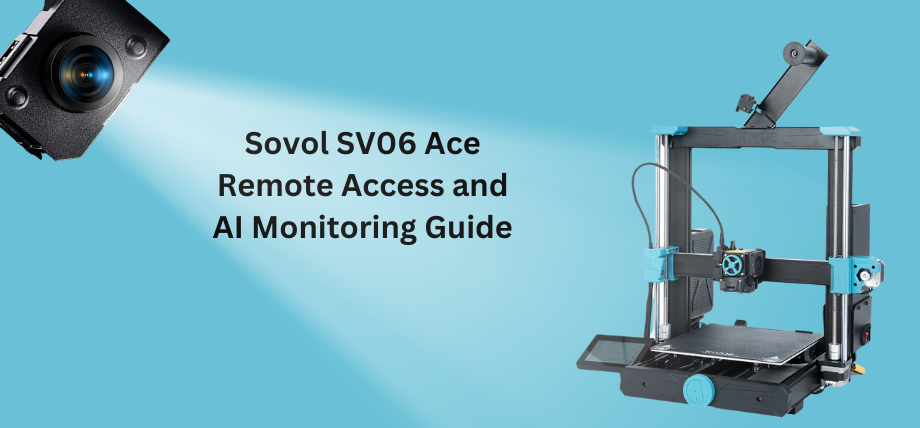
Sovol SV06 Ace - Klipper remote control and AI

What Is Remote Access Using Klipper?

Remote access or remote controlling your 3D printer allows you to monitor (in real-time), control, manage print files, and receive updates about your print from a distance. Remote access using Klipper works through a web-based interface requiring your phone or computer and a 3D printer connected to the internet.

That's slightly unsecure, but there are other ways like port forwarding and bots and then there's Obico.

Obico offers everything that comes with remote access plus, smart monitoring, AI error detection, print optimization, file management, and cloud-based storage. It's entirely open-source and you can even set up your own local server and have hybrid access or a fall-back option.

SOVOL SV06 ACE Klipper Integration

Previous Sovol printers like the SV06 are based on a Marlin control board which runs entirely on the printer's micro-controller. Marlin is the old architecture for 3D printers and faces performance issues because Marlin firmware does not meet the advanced hardware capabilities of printers.

There are ways to upgrade to a Klipper firmware which involves using a Raspberry Pi controller, or a tablet. However, now you can also use Klipper touchscreens such as the one provided by Sovol which simplifies the upgrade.

Sovol SV06 ACE comes with pre-installed Klipper integration, so you don't have to go through the Raspberry Pi guides found on the internet for your Sovol printer.

Klipper Integration