Next-Gen AI

Failure Detection Private Beta

AI Failure Detection Beta

14 posts tagged with "Obico"

View All Tags

TL;DR — How Obico AI detection works

Obico's AI analyzes webcam frames during printing to detect failures like spaghetti, print detachment, layer shifts, and nozzle blobs. It's trained on hundreds of thousands of images and has caught over 800,000 real failures across our community. It's not perfect — false positives happen, especially in difficult lighting or with unusual print geometries. We're honest about that, and we've built sensitivity controls and a 2nd-generation model to address the most common issues.

I built Obico (originally The Spaghetti Detective) because I had a print fail overnight and wanted a way to catch that kind of thing automatically. What started as a personal project has grown into a platform with over 800,000 detected failures across our user community.

In that time, we've learned a lot about what AI-based failure detection can and can't do — and we want to share that honestly.

TL;DR — Yes, Obico is free

Obico has a permanent free plan that includes AI failure detection (10 hours/month), remote printer access, webcam streaming, and mobile app support for 1 printer. No credit card required. A Pro plan is available at $4/month (billed annually) for more AI hours, unlimited tunnel data, and multi-printer support. There's also a completely free self-hosted option with no limits at all.

One of the most persistent misconceptions we see about Obico is that it "requires a paid subscription." It doesn't. We've offered a free tier since day one, and we intend to keep it that way.

This guide breaks down exactly what you get at every pricing tier so you can decide what's right for your setup.

TL;DR — What you need to know about Obico and privacy

Obico collects standard account data (email, usage) and processes webcam images to power AI failure detection. We use aggregated, anonymized data to improve the AI model — we do not sell your data to third parties. If you prefer zero data leaving your network, Obico is fully open-source and can be self-hosted on your own hardware.

When you connect a webcam to a cloud service, privacy is a legitimate concern. We want to be straightforward about exactly what Obico collects, why we collect it, and what choices you have.

This isn't a legal document — it's a plain-English explanation of how we handle your data.

Back in 2020, we pioneered AI-powered failure detection for 3D printing. We called it The Spaghetti Detective. It was a little bit magic, a little bit sci-fi, and it saved a whole lot of print jobs from turning into plastic pasta.

Since then, we never stopped innovating. We launched Nozzle Ninja (our first-layer AI sentinel), and even introduced JusPrin to handle the slicing for you.

But today? Today is about going back to our roots and making them stronger.

We are officially reinventing our core failure detection with a next-generation AI model.

If you've been using 3D printers for a while, you'll know there's a way to remotely control prints, check on progress, and perhaps even optimize your printer's movement for smoother running.

But how exactly can you do that?

It's impossible without getting slightly technical, but it's all worth the faster print times and advanced motion control. The quickest answer is–Klipper firmware.

Klipper is an open-source firmware based on Python developed to handle the advanced changes in 3D printing hardware. Normally, 3D printers come with a standard firmware hardcoded onto the on-board memory and any configuration change requires firmware installation, like solving a labyrinth. Instead, Klipper firmware can be edited, and modified and a simple device restart applies the changes.

It's compatible with many 3D printers and you can check the complete list here. Klipper pairs with these common printers:
  • Creality

  • Sovol

  • Pursa

  • Anycubic

    You have set up Klipper and the Moonraker API correctly, and it is connected to your printer. An interface such as Mainsail/Fluidd is highly recommended.

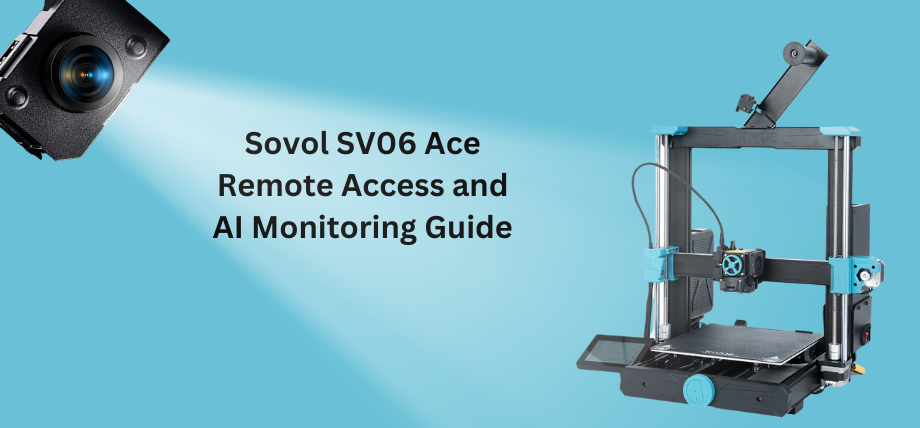
Sovol SV06 Ace - Klipper remote control and AI

What Is Remote Access Using Klipper?

Remote access or remote controlling your 3D printer allows you to monitor (in real-time), control, manage print files, and receive updates about your print from a distance. Remote access using Klipper works through a web-based interface requiring your phone or computer and a 3D printer connected to the internet.

That's slightly unsecure, but there are other ways like port forwarding and bots and then there's Obico.

Obico offers everything that comes with remote access plus, smart monitoring, AI error detection, print optimization, file management, and cloud-based storage. It's entirely open-source and you can even set up your own local server and have hybrid access or a fall-back option.

SOVOL SV06 ACE Klipper Integration

Previous Sovol printers like the SV06 are based on a Marlin control board which runs entirely on the printer's micro-controller. Marlin is the old architecture for 3D printers and faces performance issues because Marlin firmware does not meet the advanced hardware capabilities of printers.

There are ways to upgrade to a Klipper firmware which involves using a Raspberry Pi controller, or a tablet. However, now you can also use Klipper touchscreens such as the one provided by Sovol which simplifies the upgrade.

Sovol SV06 ACE comes with pre-installed Klipper integration, so you don't have to go through the Raspberry Pi guides found on the internet for your Sovol printer.
Klipper Integration

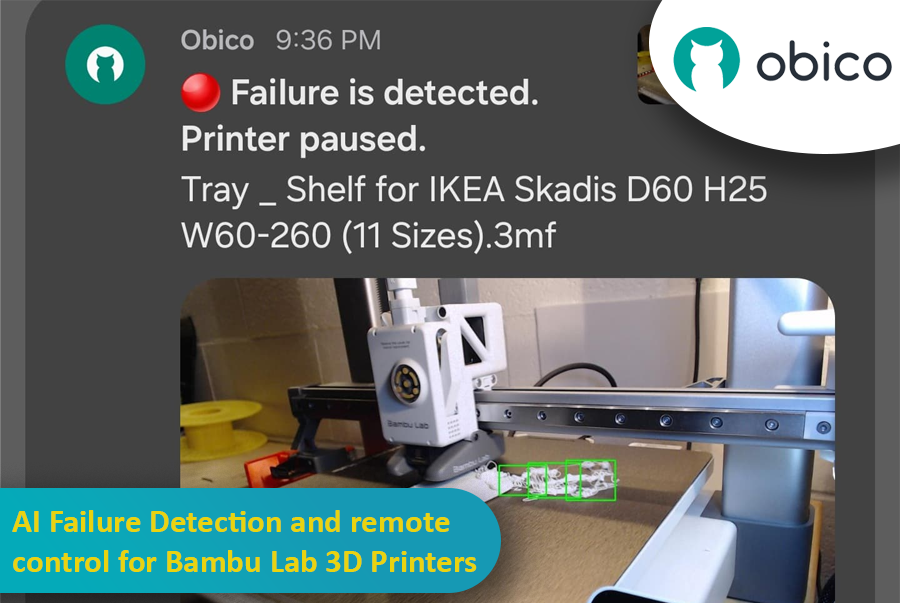
So, you’ve got a Bambu Lab 3D printer—maybe a fancy X1 Carbon, or maybe a more modest A1 or P1P—and you’re absolutely in love with how quickly and smoothly it prints. These machines are kind of like the Ferraris of the consumer 3D printing world, right? Super-fast, often come with neat features like built-in cameras, enclosed builds, multi-color printing capabilities, and even some AI-based magic that tries to detect when your print turns into the dreaded “spaghetti monster.” You know what I’m talking about: that moment when your once-promising print becomes a pile of tangled filament resembling something you’d serve with meatballs.

 AI Failure Detection and Remote Control for Bambu Lab 3D Printers

But here’s the catch: Not all Bambu Lab printers have the same level of AI detection built in. Models like the Bambu X1 Carbon are decked out with advanced AI spaghetti detection and even LiDAR to inspect that first layer. Meanwhile, other models—like the Bambu A1 series or the P1P—lack AI features altogether. Maybe you went from a Creality printer that you’d meticulously set up with OctoPrint and had all sorts of plugins running, including advanced failure detection. Then you jumped ship to a Bambu Lab machine and realized you miss that robust ecosystem. Or maybe you just love tinkering and want to integrate Obico’s AI-based spaghetti detection and remote monitoring into your Bambu workflow.

Well, good news: With a bit of creativity, a spare single-board computer (like a Raspberry Pi or Orange Pi), a camera (such as a trusty old Logitech C920), and some software tweaking, you can get AI failure detection working via Obico on your Bambu printer—no matter which model you have. This can transform your Bambu printer setup into something that feels both luxurious and smart, catching failures before they waste days of print time and tons of filament.

In this “case study” or super-long how-to, I’ll walk you through a scenario: Let’s imagine you have a Bambu A1 printer. You love it, but you want AI failure detection similar to what you might have had with other printers integrated with Obico. We’ll talk about using OctoPrint as a virtual “bridge,” installing plugins, setting up a camera, and linking everything to Obico’s cloud so you can watch your prints from anywhere, get notifications if something goes wrong, and even pause or stop the printer remotely. And if you’re on a higher-tier Bambu like the X1 Carbon, you might not need this as much—but it’s still super cool to have another layer of AI detection from Obico’s machine-learning setup.

I’ll also share some links to relevant GitHub repos, documentation pages, and other helpful guides.

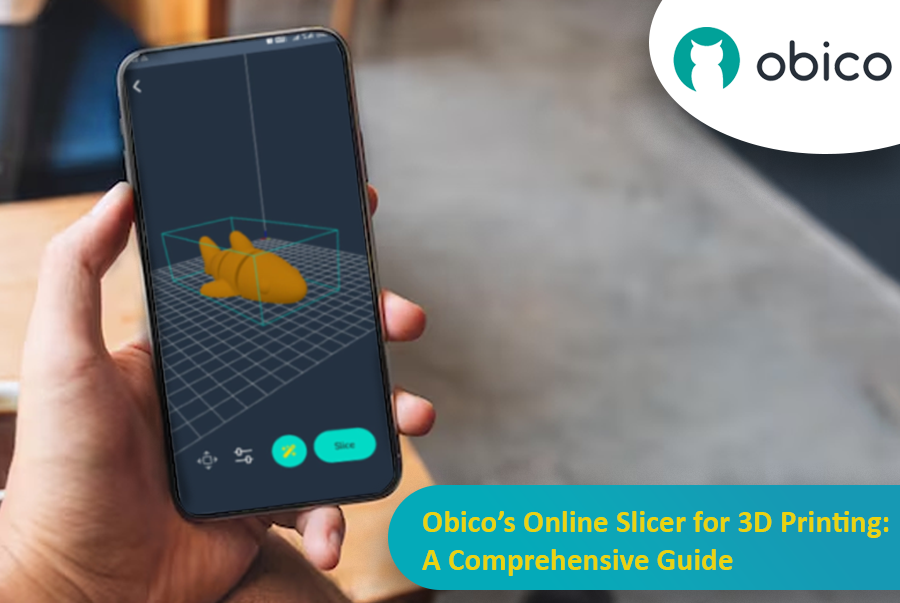
When you first get into 3D printing, the process of turning a digital model into a physical object can be both exhilarating and overwhelming. Every project starts with an idea, which is then turned into a digital 3D model that needs to go through the process of "slicing." Slicing is a crucial part of 3D printing, as it breaks down a 3D model into layers and converts them into instructions that a 3D printer can follow. But for this to be as smooth as possible, you need a good slicing tool, and that’s where Obico online slicer comes in.

Obico Online Slicer for 3D Printing

Obico offers an online slicing solution that’s easy, powerful and accessible from anywhere. This makes it perfect for both beginners and advanced users who want flexibility, control, and ease of use.

In this article, we’ll go into detail about Obico’s online slicer, from its features to a step-by-step guide on how to use it. Whether you want to print functional objects or creative sculptures, we’ll take you through the entire slicing process with Obico so you can get from model to print in no time.

Introduction

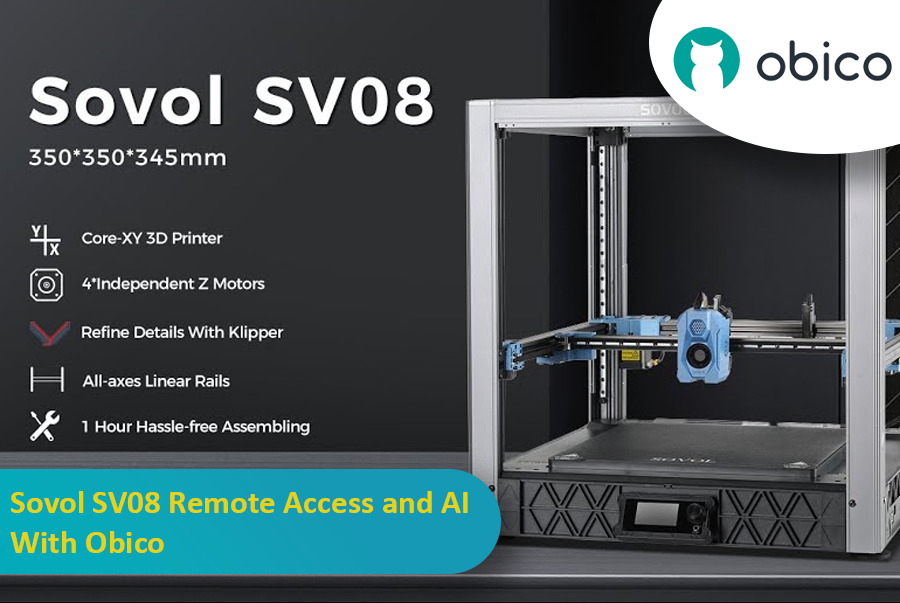
The Sovol SV08 is a standout 3D printer in the current market, offering a mix of advanced features, precision, and versatility that caters to both beginners and experienced makers. By integrating it with the Obico platform, an AI-powered, open-source system, users can significantly enhance their 3D printing experience through remote monitoring, control, and AI failure detection.

Sovol SV08 Remote Access and AI With Obico

This guide will take you through setting up your Sovol SV08 with Obico, including firmware updates, WiFi connections, and integrating the Obico system. We will also look at some advanced features provided by Obico, like Nozzle Ninja AI, which takes first-layer monitoring to another level, as well as the new built-in online slicer.

Introduction

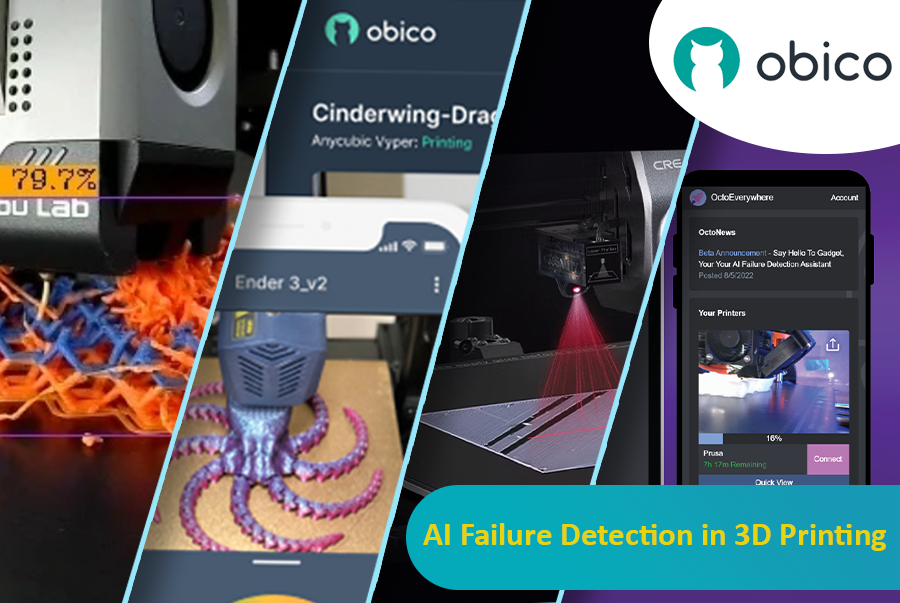
The technology of 3D printing has revolutionized the manufacturing process by enabling the production of intricate designs and personalized parts with relative ease of operation. However, like all technologies, 3D printing has its fair share of challenges. Print failure is one of the most significant, leading to material waste as well as a loss of time and money.

AI Failure Detection in 3D Printing

Fortunately, advanced artificial intelligence (AI) systems have come up with new techniques for early detection and prevention of such failures, which can be done by alerting users, modifying the print depending on the intensity of the error, or even stopping it completely before wasting more resources. Here we will go through some AI-based failure detection solutions for 3D printing provided by Obico, Bambu Lab, Creality, Octoprint Nexus AI, and OctoEverywhere.

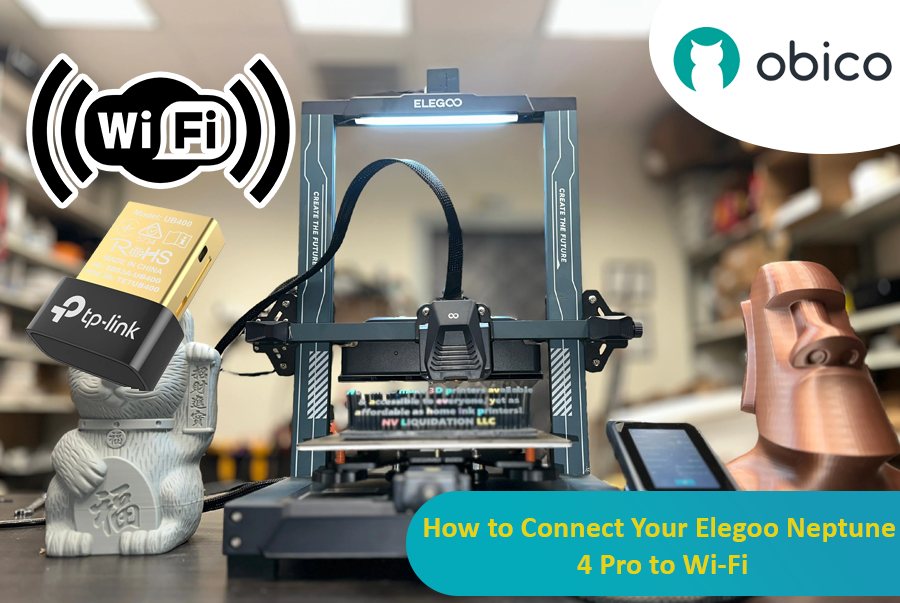
The Neptune 4 Pro of Elegoo is an impressive 3D printer that comes with pre-installed Klipper firmware and Fluidd interface for remote control, providing many advanced features at a budget price. However, one common point of discussion among reviewers and users is its lack of built-in Wi-Fi.

How to Connect Your Elegoo Neptune 4 Pro to Wi-Fi

This article will show you how to add Wi-Fi capability to your Elegoo Neptune 4 Pro along with step-by-step instructions that can make your 3D printing experience better. Even if you are a beginner or an expert, this guide covers every stage in a very easy-to-follow manner.