3D Print Troubleshooting: The Ultimate Guide to Fix Every Common Problem [2026]

Every 3D printing enthusiast — from first-time Ender 3 owners to seasoned Voron builders — runs into print quality problems. The difference between a frustrating hobby and a rewarding one is knowing how to diagnose and fix issues quickly.
This guide covers every common 3D printing defect with clear symptoms, root causes, and step-by-step fixes. Use the table of contents below to jump to your specific problem, or read through to build a complete troubleshooting toolkit.
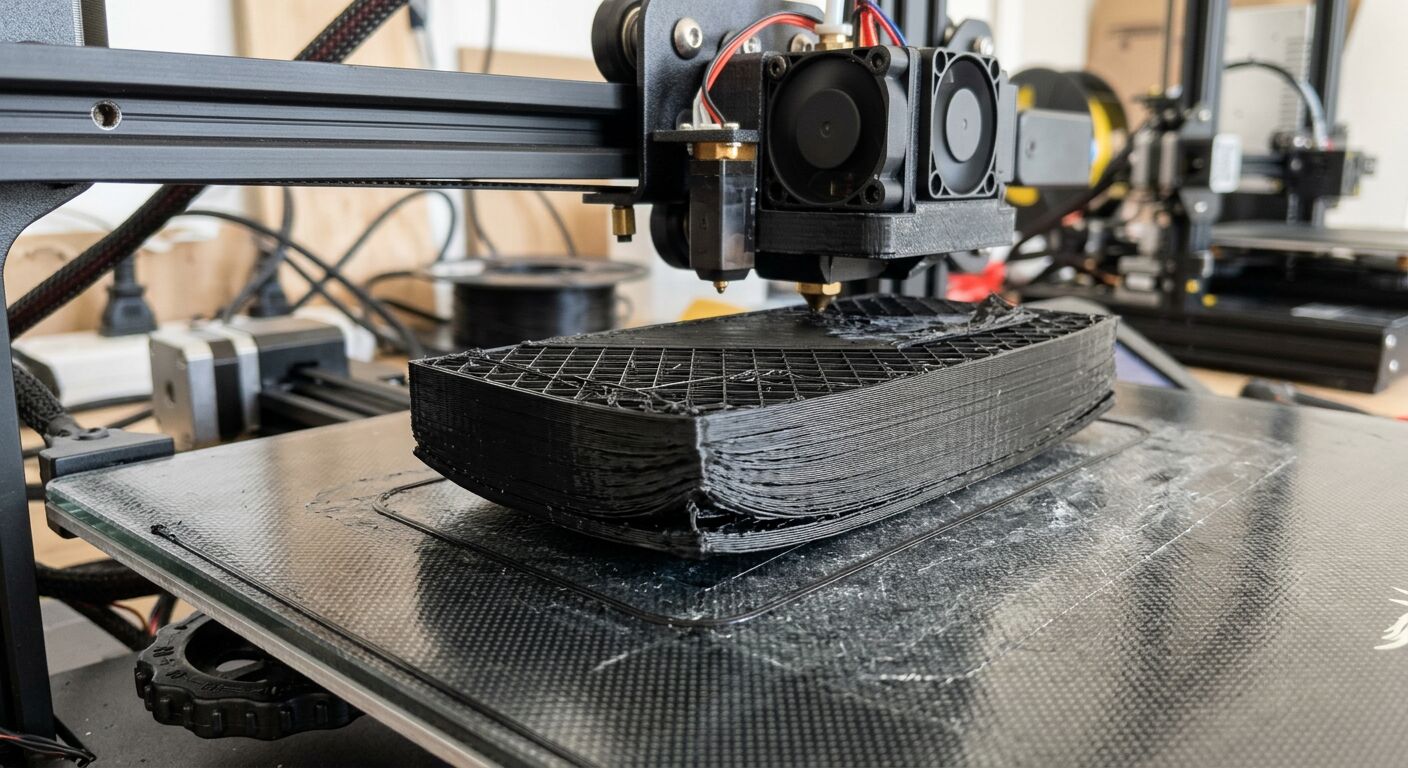
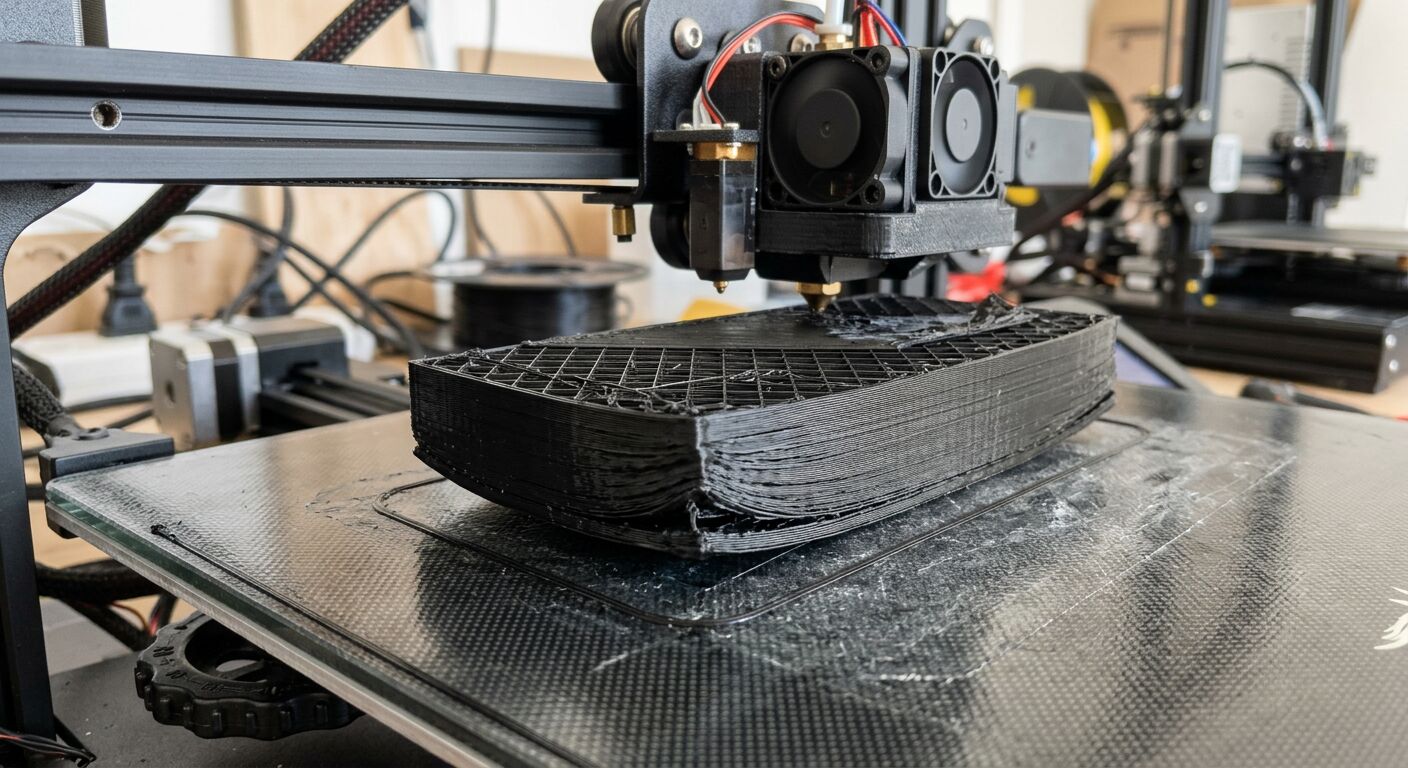
Many of these issues — especially spaghetti, layer shifting, and detachment — can be caught mid-print by Obico's AI failure detection. It monitors your print via webcam and alerts you (or pauses the print) when it detects something going wrong. Free tier available.
Quick Reference: Identify Your Problem
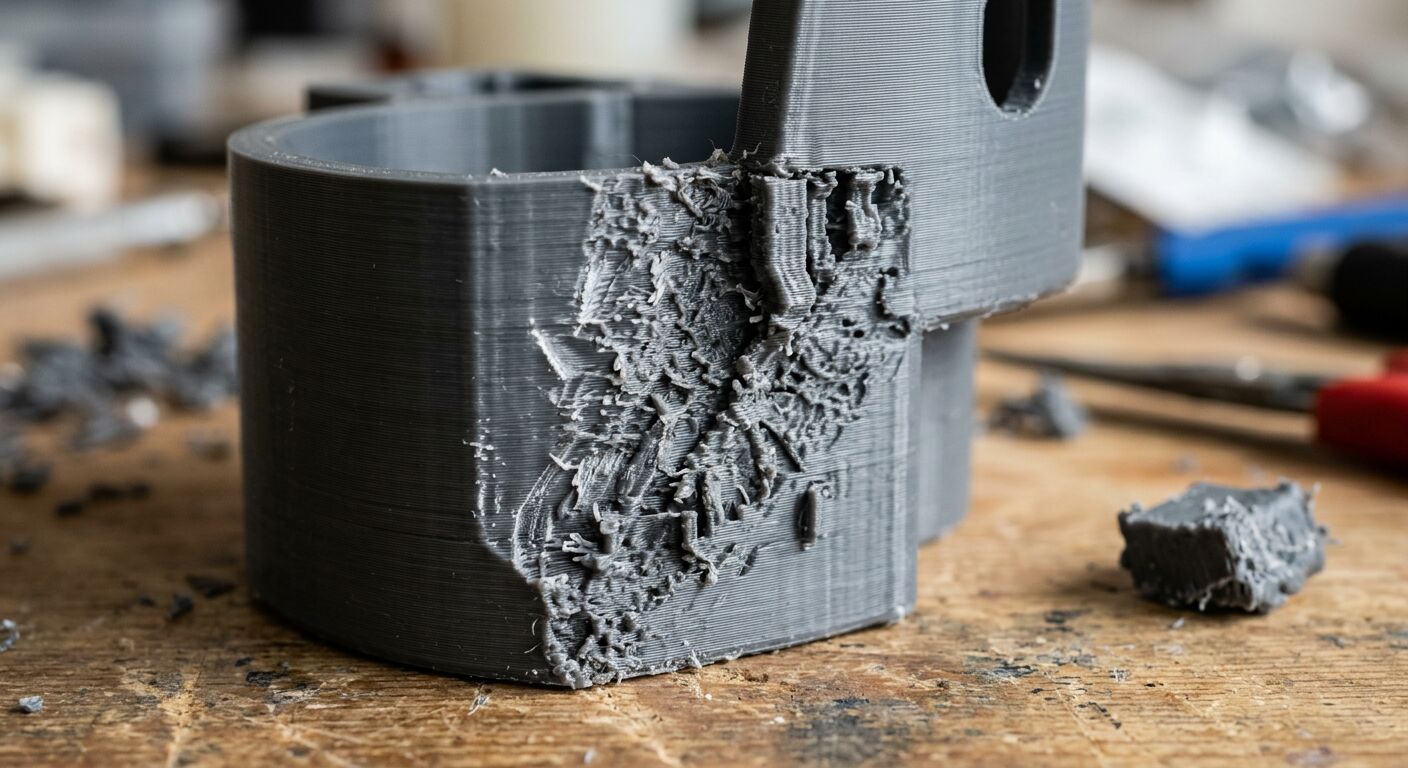
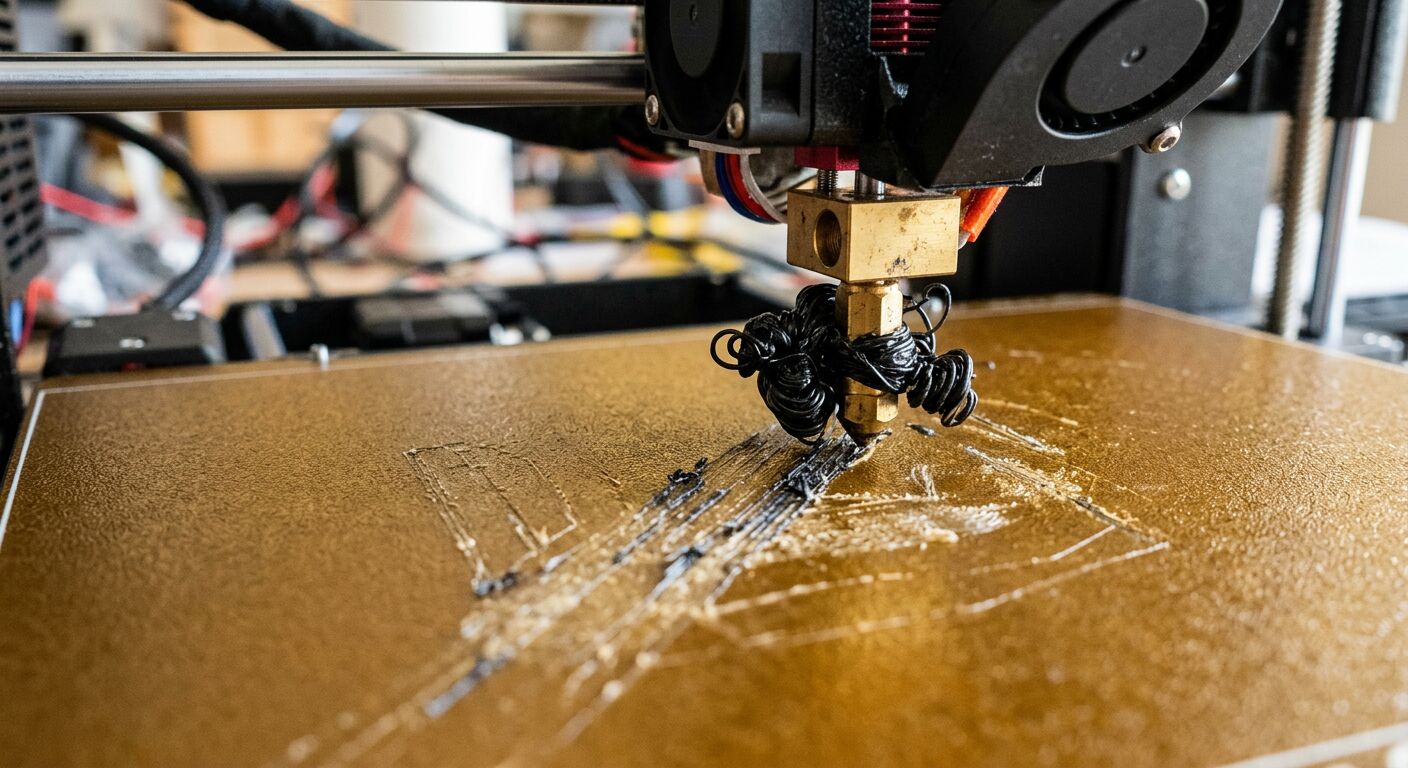
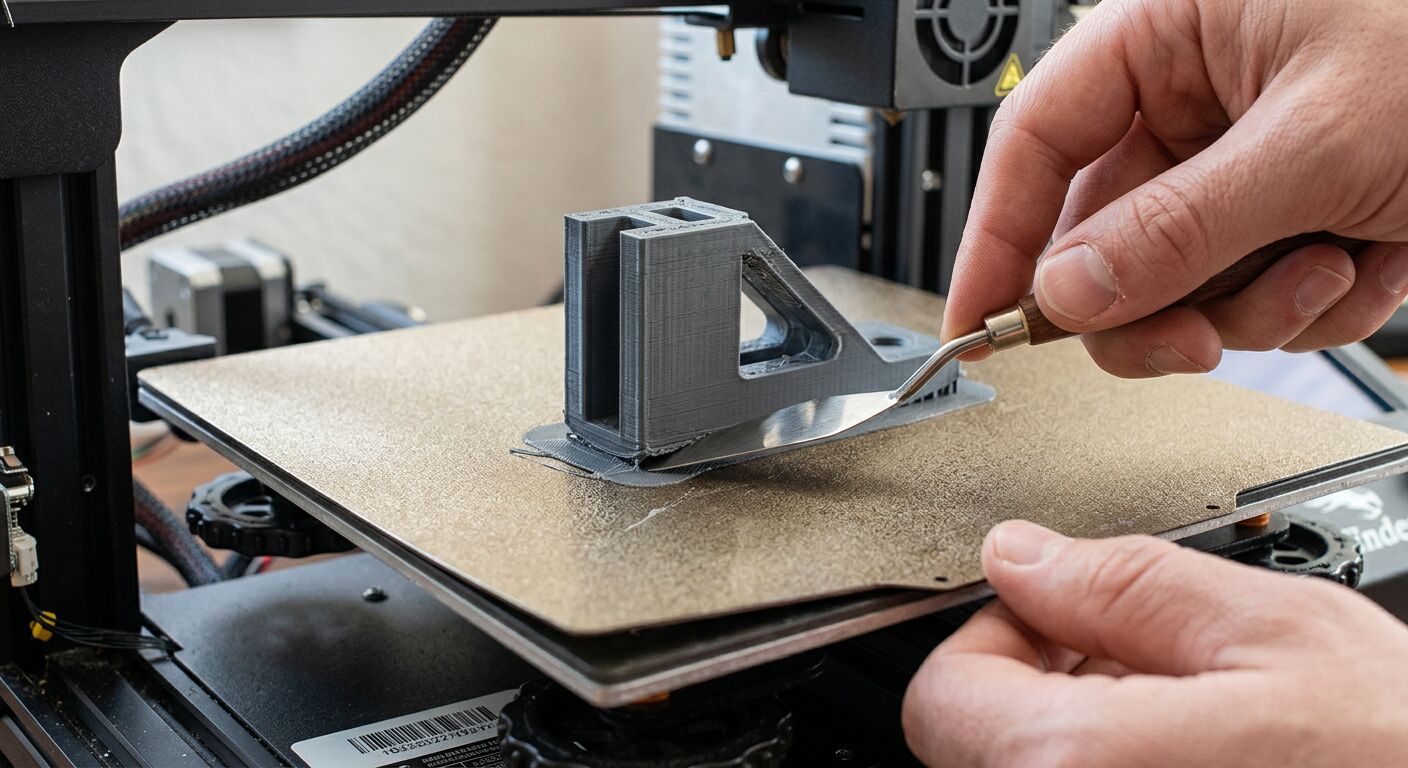
First Layer & Bed Adhesion Problems
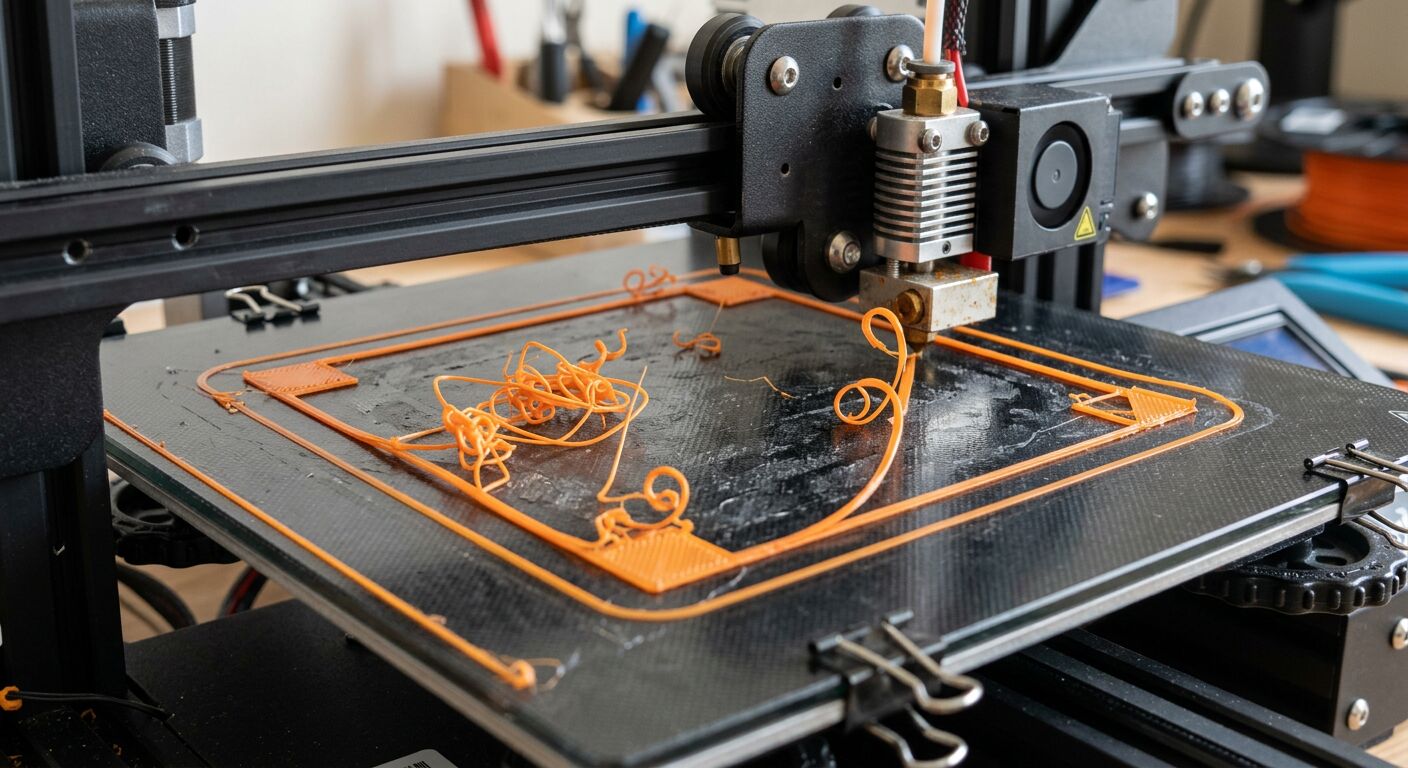
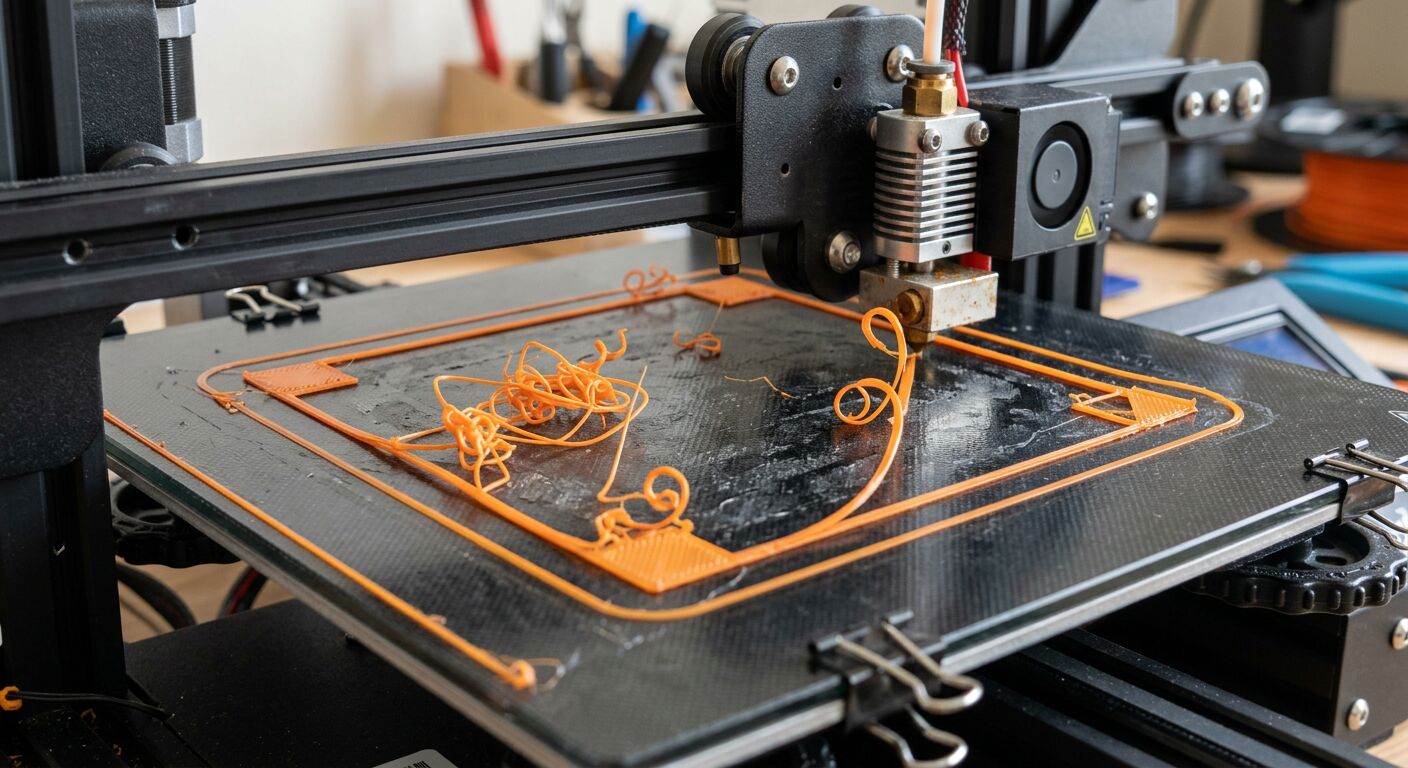
The first layer is the foundation for everything. If it fails, the entire print fails. This is the single most common category of 3D printing problems.
Symptoms
- Print doesn't stick to the bed at all
- First layer is rough, uneven, or has gaps
- Corners start lifting during the first few layers
- Filament doesn't squish flat — appears rounded or barely attached
Causes & Fixes
1. Bed not level (most common)
- Run your printer's bed leveling routine (manual mesh or ABL probe)
- Use the "paper test" — a sheet of paper should drag slightly between nozzle and bed at all four corners and center
- For Klipper users: run
BED_MESH_CALIBRATEand check the variance. Anything over 0.3mm needs adjustment
2. Nozzle too far from bed
- Lower your Z offset in 0.02mm increments
- The first line of your skirt/brim should be flat and slightly transparent — not round
- Use baby-stepping during the first layer to dial it in live
3. Nozzle too close to bed
- First layer looks smeared or extremely thin
- Filament curls up and sticks to the nozzle
- Raise Z offset in 0.02mm increments
4. Wrong bed temperature
- PLA: 55-65°C (or ambient with PEI)
- PETG: 70-85°C
- ABS/ASA: 100-110°C
- TPU: 45-60°C
5. Dirty or worn build surface
- Clean with 91%+ isopropyl alcohol before every print
- For PEI sheets: scuff lightly with fine sandpaper (2000 grit) every few weeks
- Replace worn surfaces — PEI and BuildTak lose adhesion over time
6. Printing too fast on first layer
- Slow down the first layer to 20-30 mm/s regardless of your normal speed
- Increase first layer flow rate by 5-10% if using a textured surface
- Brim: Best for parts with small footprints or sharp corners prone to warping
- Raft: Use as a last resort — adds material waste and leaves a rough bottom surface
- Glue stick / hairspray: Effective for glass beds and difficult materials (ABS, Nylon)
Related detailed guides: Troubleshooting Bed Adhesion · Glue Stick for Bed Adhesion · Ender 3 Bed Leveling
Warping & Corner Lifting
Warping occurs when the lower layers of a print cool and contract faster than the upper layers, causing corners and edges to pull upward off the bed.
Symptoms
- Corners lift off the bed during printing
- Base of the print is curved or bowed
- Parts crack or split at the lower layers
- Most common with ABS, ASA, Nylon, and large PLA prints
Causes & Fixes
1. Insufficient bed temperature
- Increase bed temp by 5°C increments
- ABS needs 100-110°C; PETG needs 75-85°C; large PLA prints benefit from 65°C
2. Drafts and temperature fluctuations
- Use an enclosure for ABS/ASA/Nylon — even a cardboard box helps
- Keep windows, doors, and AC vents away from your printer
- Avoid placing the printer in drafty areas (garages, near exterior doors)
3. First layer adhesion is too weak
- See First Layer & Bed Adhesion above
- Add a brim (5-10mm wide) — the extra material holds corners down
4. Part cooling fan too aggressive on early layers
- Reduce fan speed to 0% for the first 3-5 layers
- For ABS/ASA: keep the fan off entirely or at 10-20% max
5. Print geometry contributes to warping
- Large flat surfaces warp more than small or curved ones
- Reorient the part to minimize flat contact area
- Consider splitting large parts and assembling post-print
Related detailed guide: Warping and Splitting Layers
Stringing & Oozing
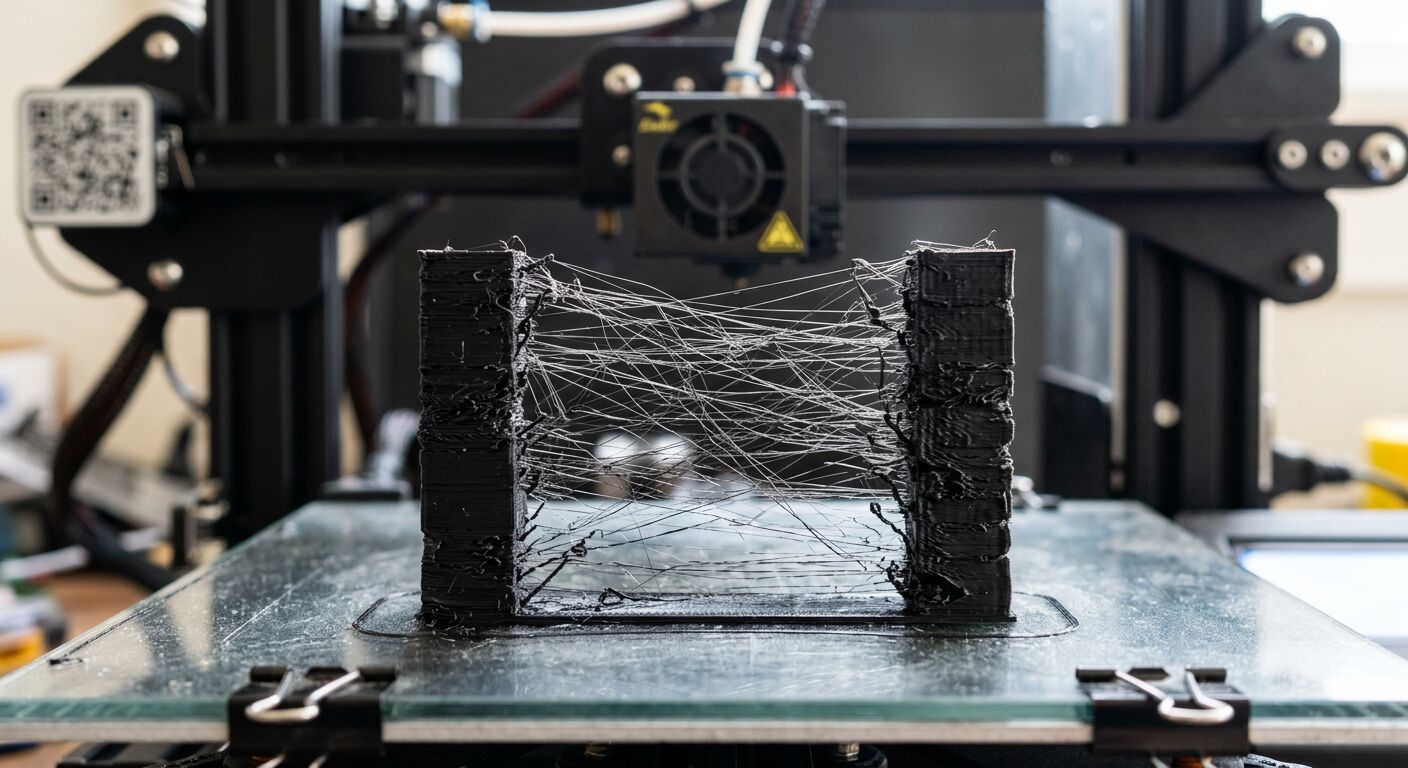
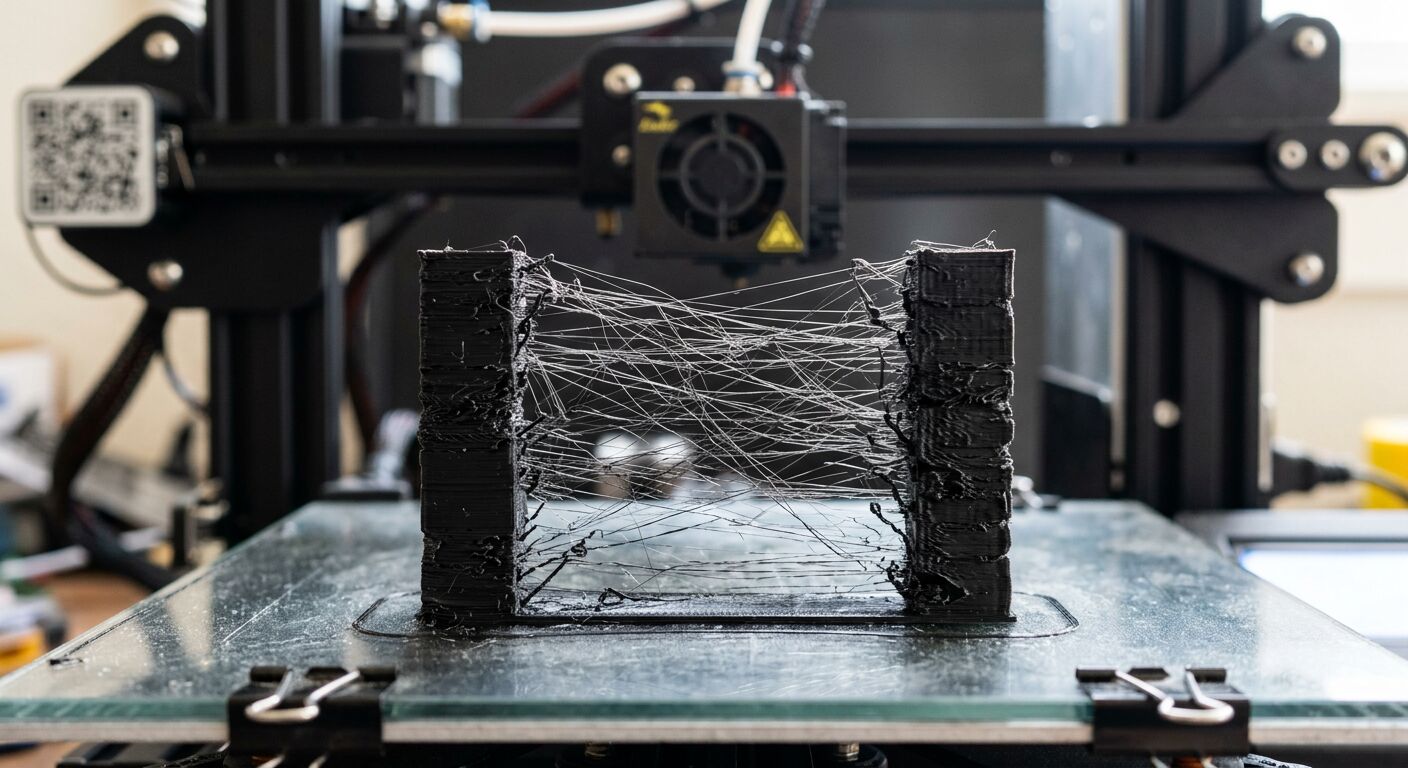
Stringing happens when melted filament leaks from the nozzle during travel moves (when the nozzle moves without extruding), leaving thin wisps of plastic between parts of the print.
Symptoms
- Thin hair-like threads between separate sections of a print
- Cobweb-like mess on prints with multiple towers or pillars
- Blobs where the nozzle starts a new section after traveling
Causes & Fixes
1. Retraction not enabled or insufficient
- Enable retraction in your slicer (it should be on by default)
- Direct drive extruders: Start with 0.5-2mm retraction distance, 25-45mm/s speed
- Bowden extruders: Start with 4-7mm retraction distance, 40-60mm/s speed
- Increase distance in 0.5mm increments until stringing stops
2. Nozzle temperature too high
- Lower by 5°C increments — try a temperature tower test
- Lower temperatures increase viscosity, reducing ooze
- Don't go below the filament manufacturer's minimum (risk of under-extrusion)
3. Travel speed too slow
- Increase travel speed to 150-250mm/s — faster moves give filament less time to ooze
- Enable "avoid crossing perimeters" in your slicer to reduce visible stringing
4. Wet filament
- Moisture in filament creates steam → more oozing and popping
- Dry your filament: PLA 45°C for 4h, PETG 65°C for 6h, Nylon 70°C for 12h
- Store filament with desiccant in airtight containers
5. Worn or oversized nozzle
- A worn nozzle (especially brass after printing abrasives) has a larger orifice
- Replace the nozzle — they're cheap and high-impact
While minor stringing is cosmetic, severe stringing can snowball into blob-outs and print failures. Obico's AI failure detection can spot these developing issues and alert you before they waste an entire print.
Related detailed guides: Stringing Issues · Troubleshooting Stringing · Retraction Test in OrcaSlicer
Under-Extrusion
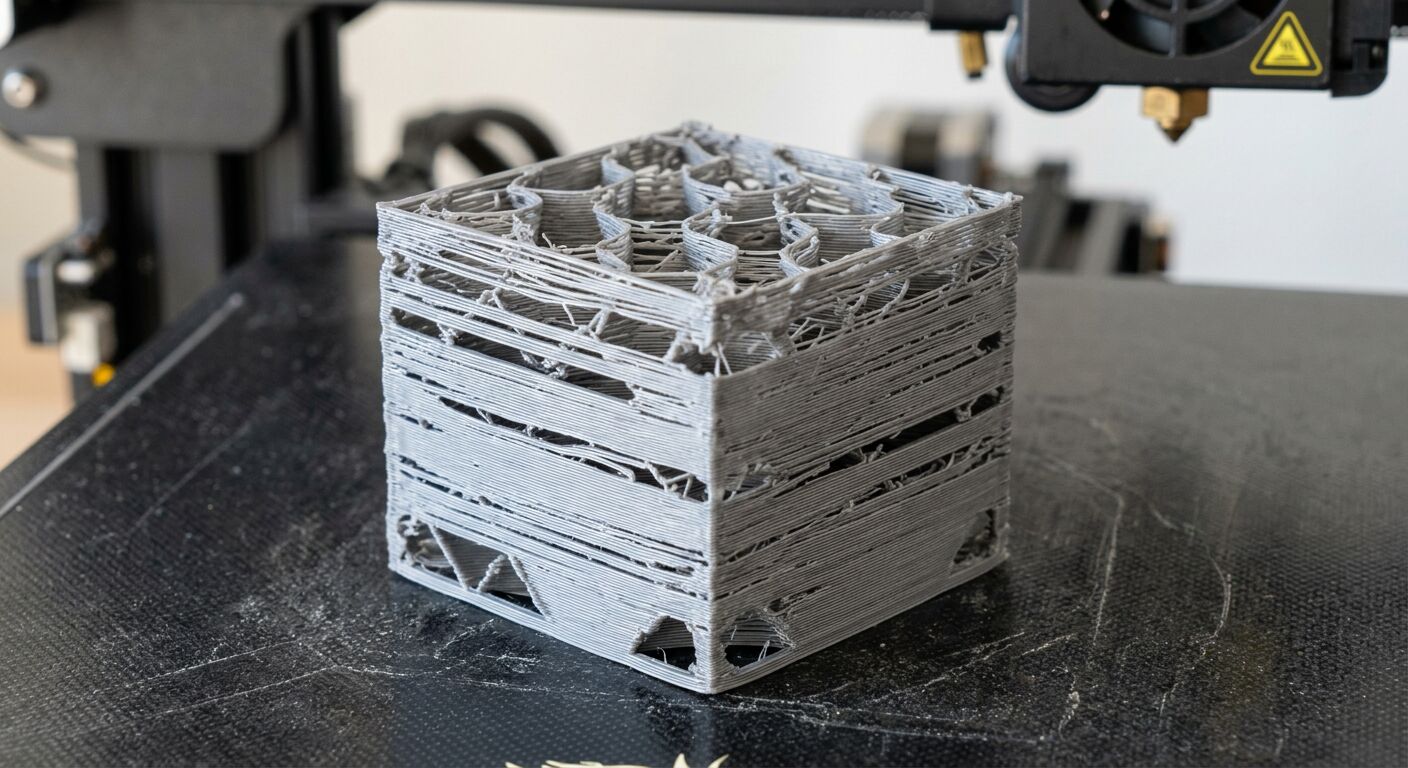
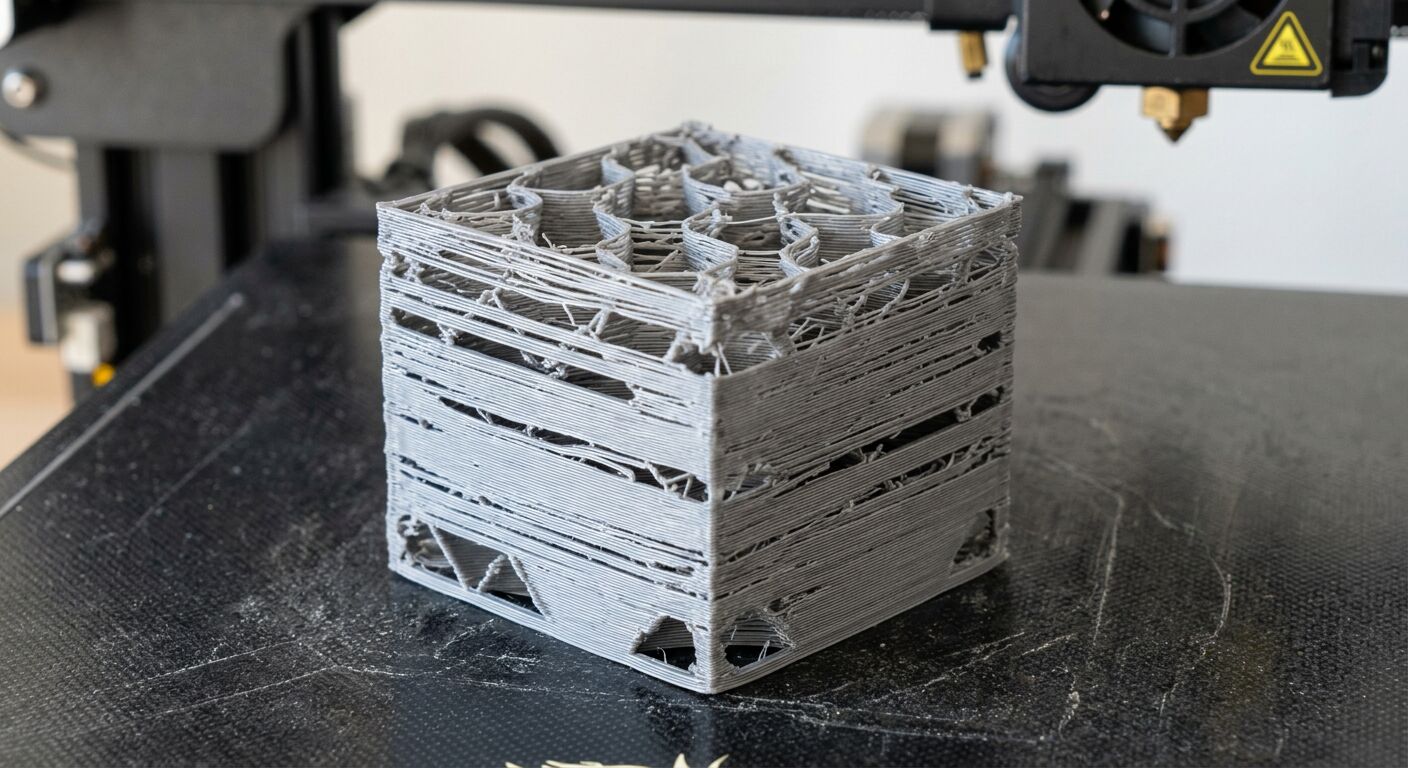
Under-extrusion means the printer isn't pushing enough filament through the nozzle. The result is thin, weak walls, visible gaps between lines, and generally poor print quality.
Symptoms
- Thin, translucent walls that should be solid
- Gaps between infill lines and perimeters
- Missing layers or incomplete layer fills
- Clicking or grinding sounds from the extruder motor
Causes & Fixes
1. Incorrect filament diameter in slicer
- Measure your filament with calipers at 3+ points — enter the average in your slicer
- Most filament is 1.75mm but actual diameter varies (1.72-1.78mm is normal)
2. Extruder tension or gear issues
- Tighten the extruder spring/idler arm — the gear should grip the filament firmly
- Check the drive gear teeth for worn or clogged teeth (clean with a brush)
- For BMG/dual-gear extruders: ensure both gears are meshing properly
3. Clogged or partially clogged nozzle
- See Clogged Nozzle section below
- A partial clog reduces flow without stopping it entirely — sneaky and frustrating
4. Printing too fast for the hotend
- Your hotend can only melt filament so fast (limited by volumetric flow)
- Reduce speed by 25% and see if the issue improves
- Check your slicer's max volumetric speed setting (typical: 8-15 mm³/s for standard hotends)
5. E-steps not calibrated
- Command the extruder to push 100mm; measure what actually came through
- Adjust E-steps:
new_steps = current_steps × (100 / actual_distance) - For Klipper: update
rotation_distancein your config
Related detailed guides: Under-Extrusion · Correcting Under-Extrusion · Flow Rate Calibration in OrcaSlicer
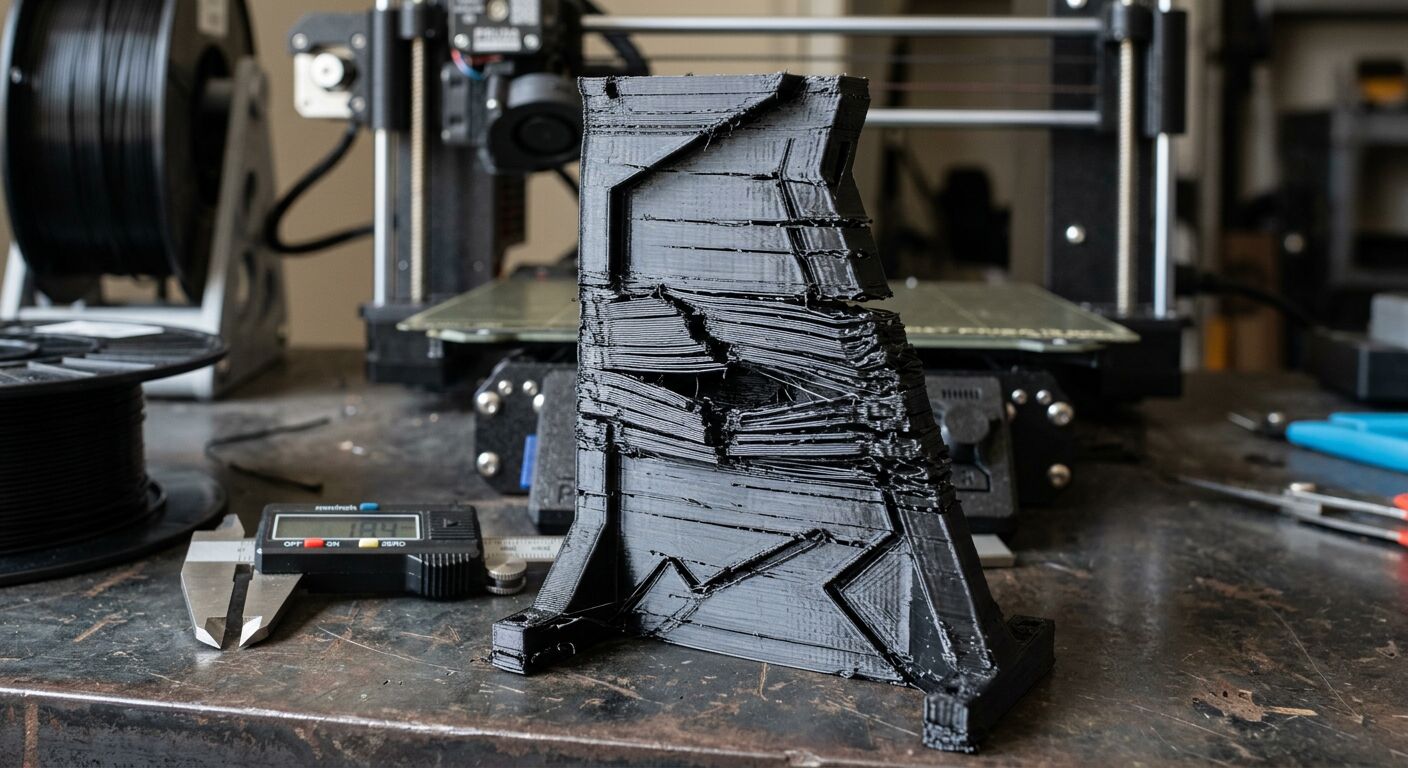
Layer Shifting
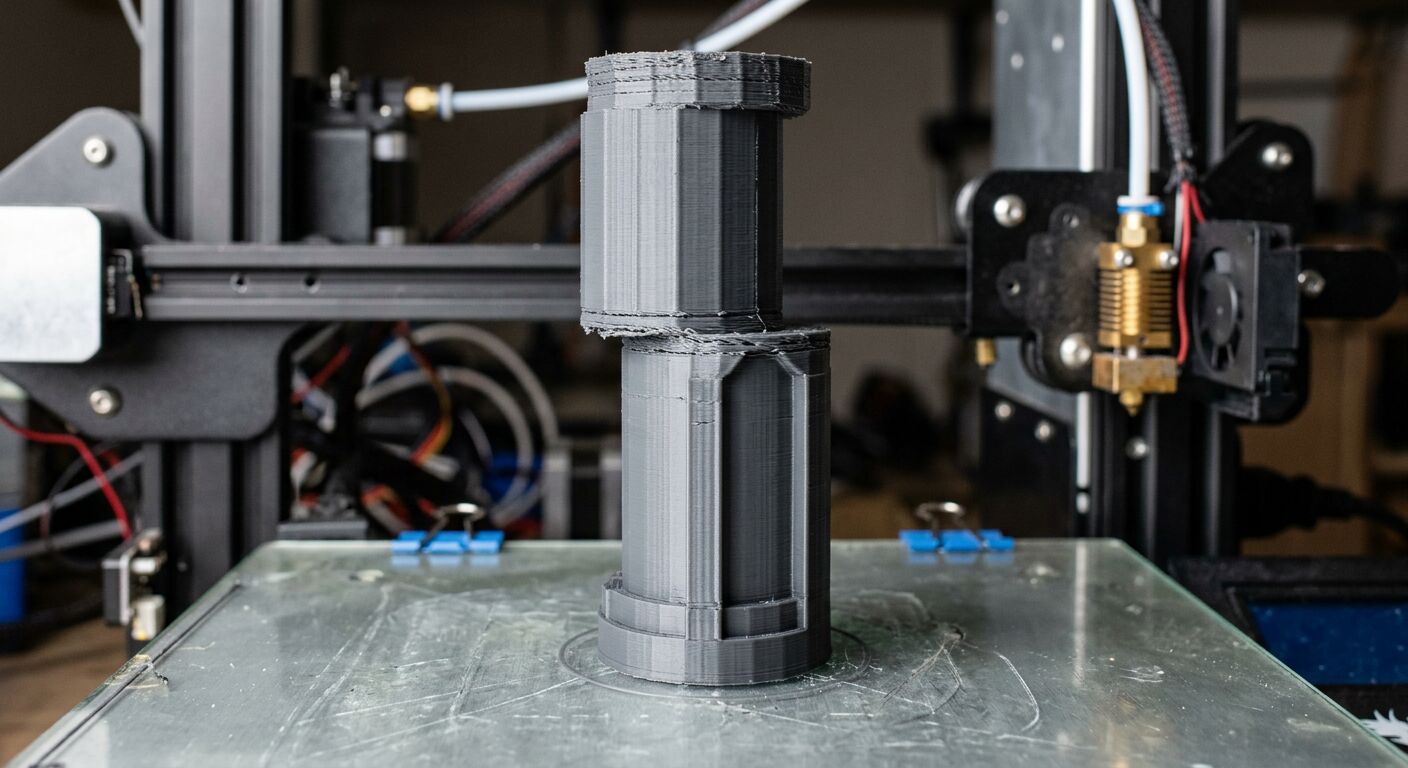
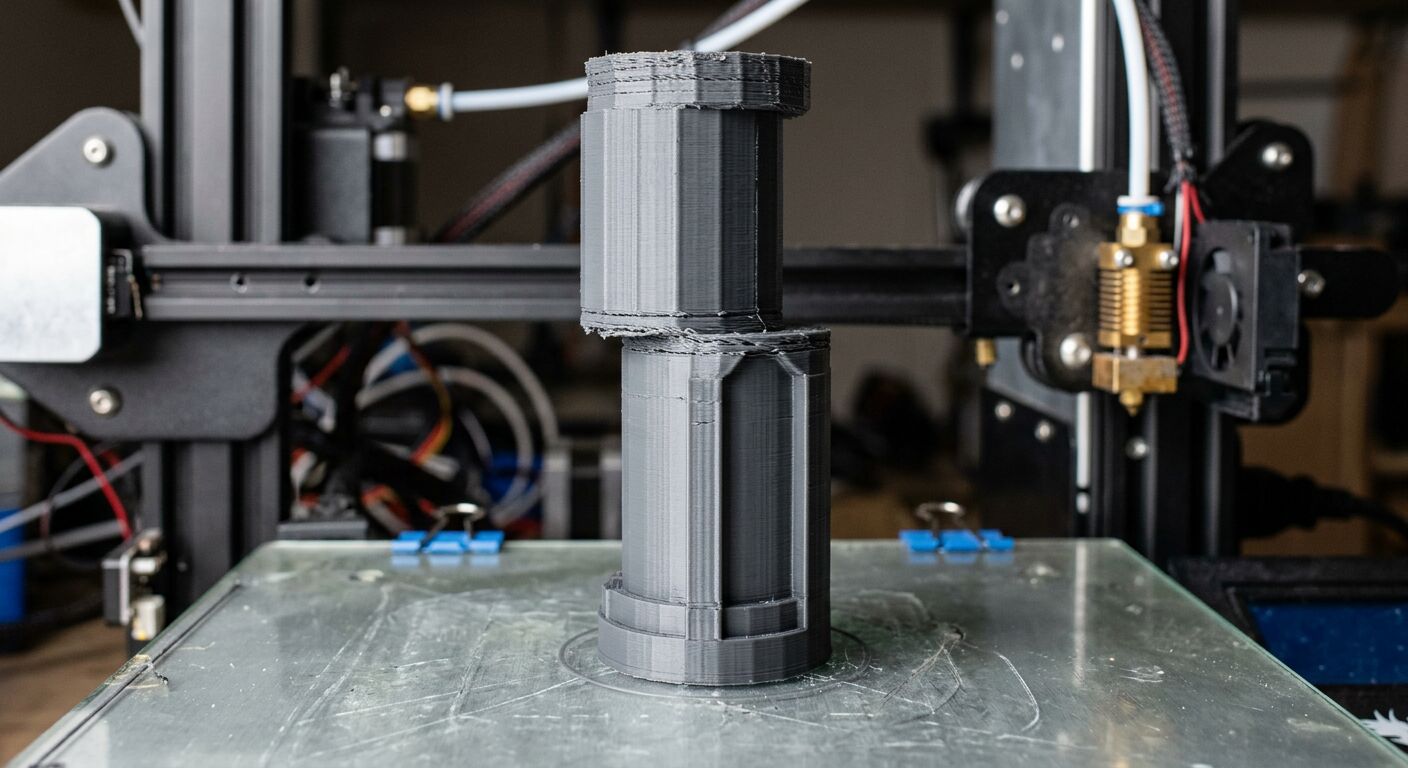
Layer shifting occurs when one or more layers are offset from the rest of the print, creating a visible "step" or lean in the part. The print continues building on the shifted position, so everything above the shift is misaligned.
Symptoms
- Visible horizontal offset/step in the middle of a print
- Print appears to "lean" in one direction
- Usually happens on one axis only (X or Y)
- Can happen once or repeatedly at different heights
Causes & Fixes
1. Loose belts
- Check X and Y belt tension — they should be taut with a slight "twang" when plucked
- Tighten the belt tensioners or reposition the belt if it's stretched
- Replace belts that show visible wear or fraying
2. Stepper motor overheating
- Touch the motor (carefully) — it should be warm, not too hot to touch
- Reduce stepper driver current (Vref) if motors are excessively hot
- Add small heatsinks to stepper drivers if your board doesn't have them
- Enable StealthChop mode if available (cooler operation)
3. Print head hitting the print
- Enable Z-hop in your slicer (0.2-0.5mm lift during travel)
- Reduce print speed to minimize vibration and overshoot
- Check for warping or curling that creates high spots
4. Pulley set screws loose
- The small grub screws on GT2 pulleys can work loose over time
- Tighten both set screws on each pulley (X and Y motors + idlers)
- Use threadlocker (blue Loctite) for a permanent fix
5. Excessive speed or acceleration
- Lower acceleration values (try 1000-2000 mm/s² for Cartesian printers)
- Reduce jerk/junction deviation settings
- CoreXY printers can typically handle higher values than bed-slingers
A single layer shift ruins the entire print — and it often happens hours into a long print. Obico's AI can detect the visual signature of a layer shift and pause your printer or alert you, saving filament and time.
Related detailed guide: Layer Shifting
Blobs & Zits
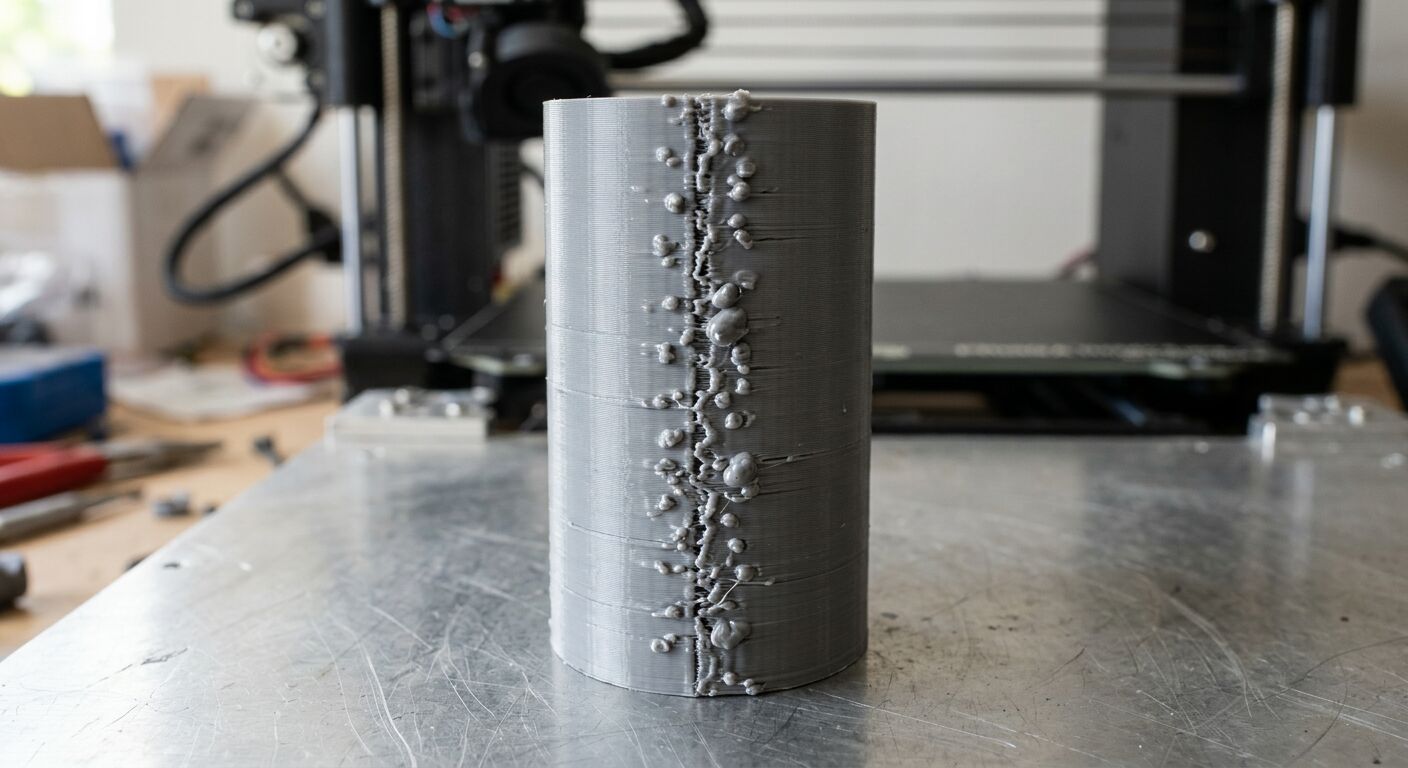
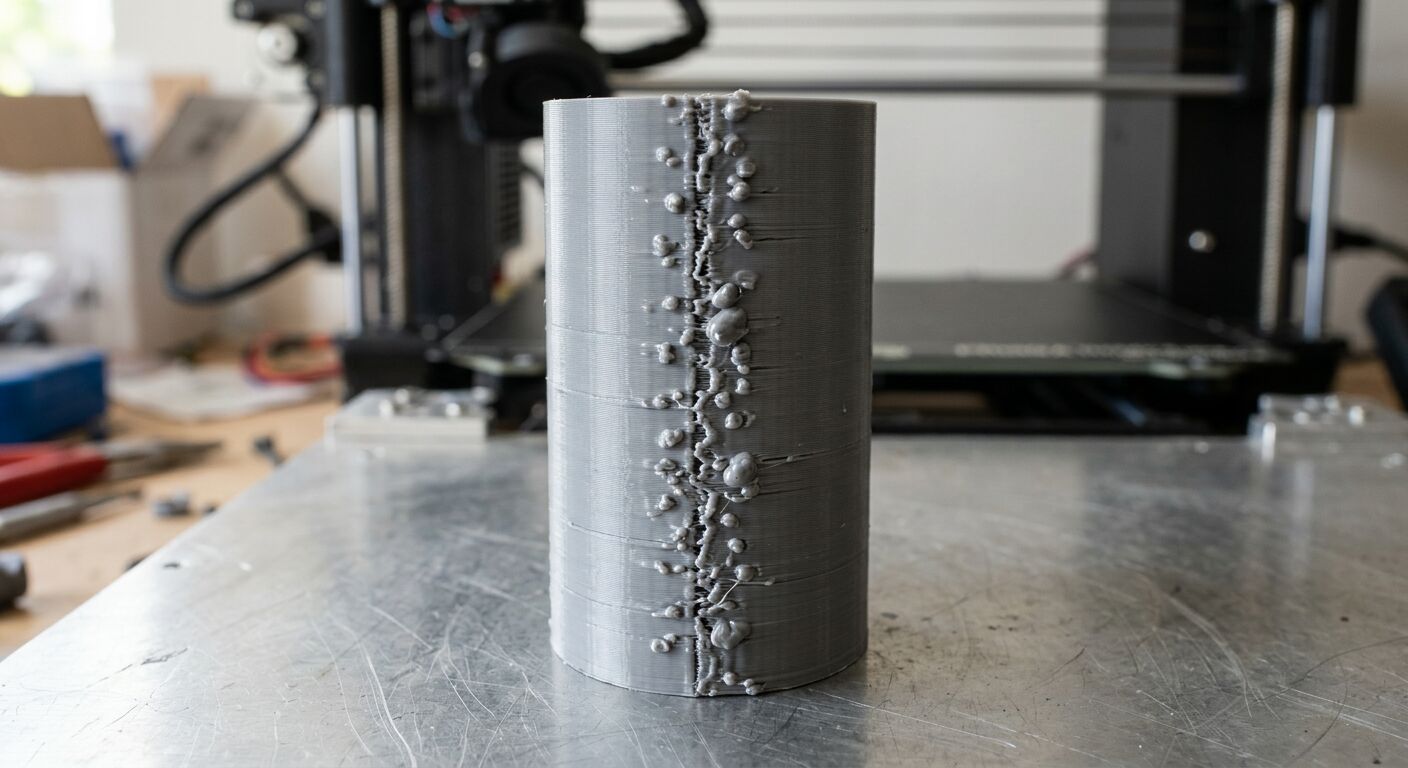
Blobs and zits are small bumps that appear on the outer surface of a print, usually at the start/end point of each layer (the "seam") or at travel move endpoints.
Symptoms
- Small raised bumps along a vertical line on the print (seam blobs)
- Random pimples scattered across surfaces
- Larger blobs where the nozzle pauses or changes direction
Causes & Fixes
1. Seam placement and retraction
- Set seam position to "sharpest corner" or "rear" in your slicer to hide it
- Enable "wipe" settings (0.5-2mm wipe distance after each perimeter)
- Tune retraction at layer change — small retraction (0.2-0.5mm) at the seam point helps
2. Over-extrusion at seam
- Reduce "extra restart distance" to a small negative value (-0.02 to -0.05mm)
- This slightly under-extrudes at the start of each perimeter, compensating for the pressure-built blob
3. Coasting
- Enable coasting in your slicer (stops extrusion slightly before the end of each perimeter)
- Start with 0.2-0.5mm³ coasting volume and adjust
4. Pressure advance / linear advance
- Enable pressure advance (Klipper) or linear advance (Marlin)
- This compensates for pressure buildup/release in the nozzle during speed changes
- Run a calibration test to find the right value for your setup
5. Wet filament
- Steam from moisture creates random blobs and popping sounds
- Dry the filament and test again
Related detailed guide: Blobs and Zits · Pressure Advance Calibration
Spaghetti (Print Detachment)
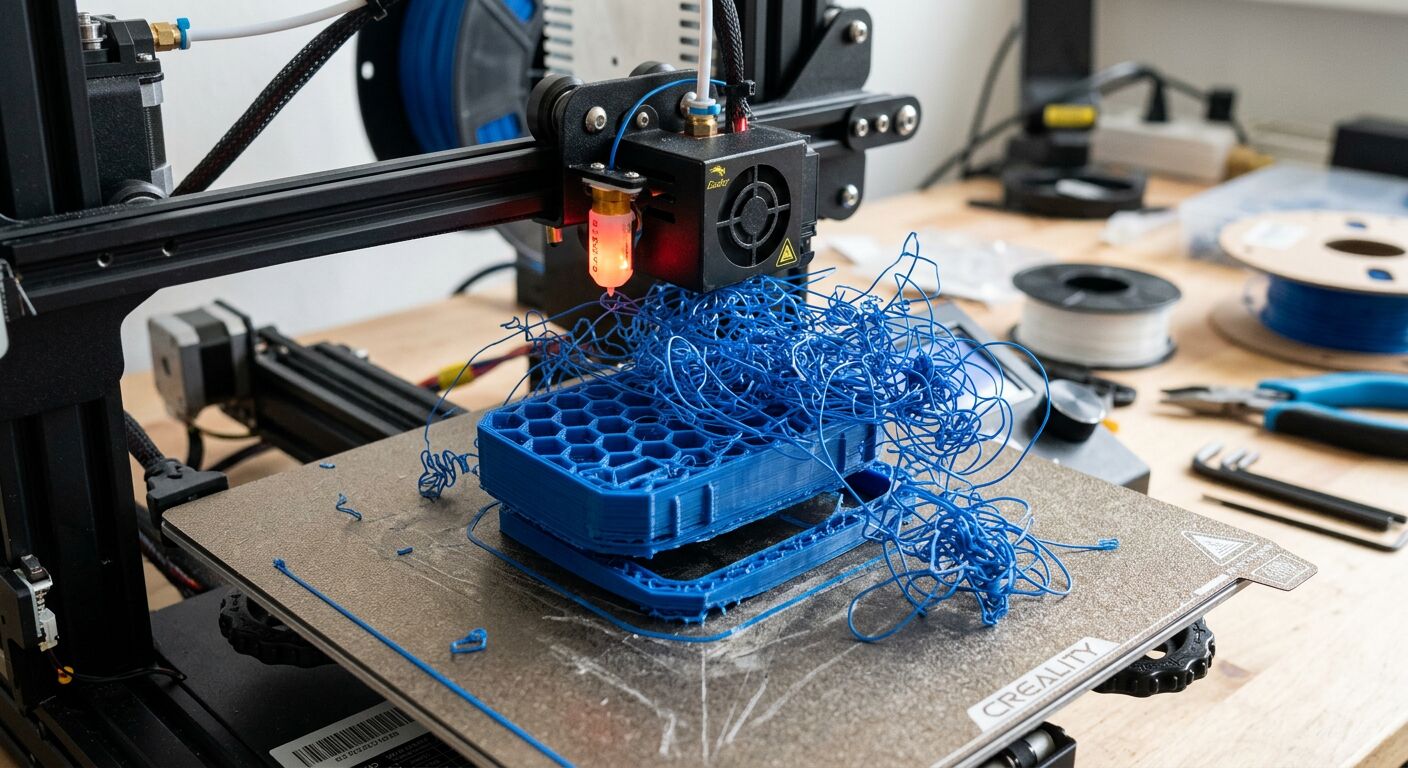
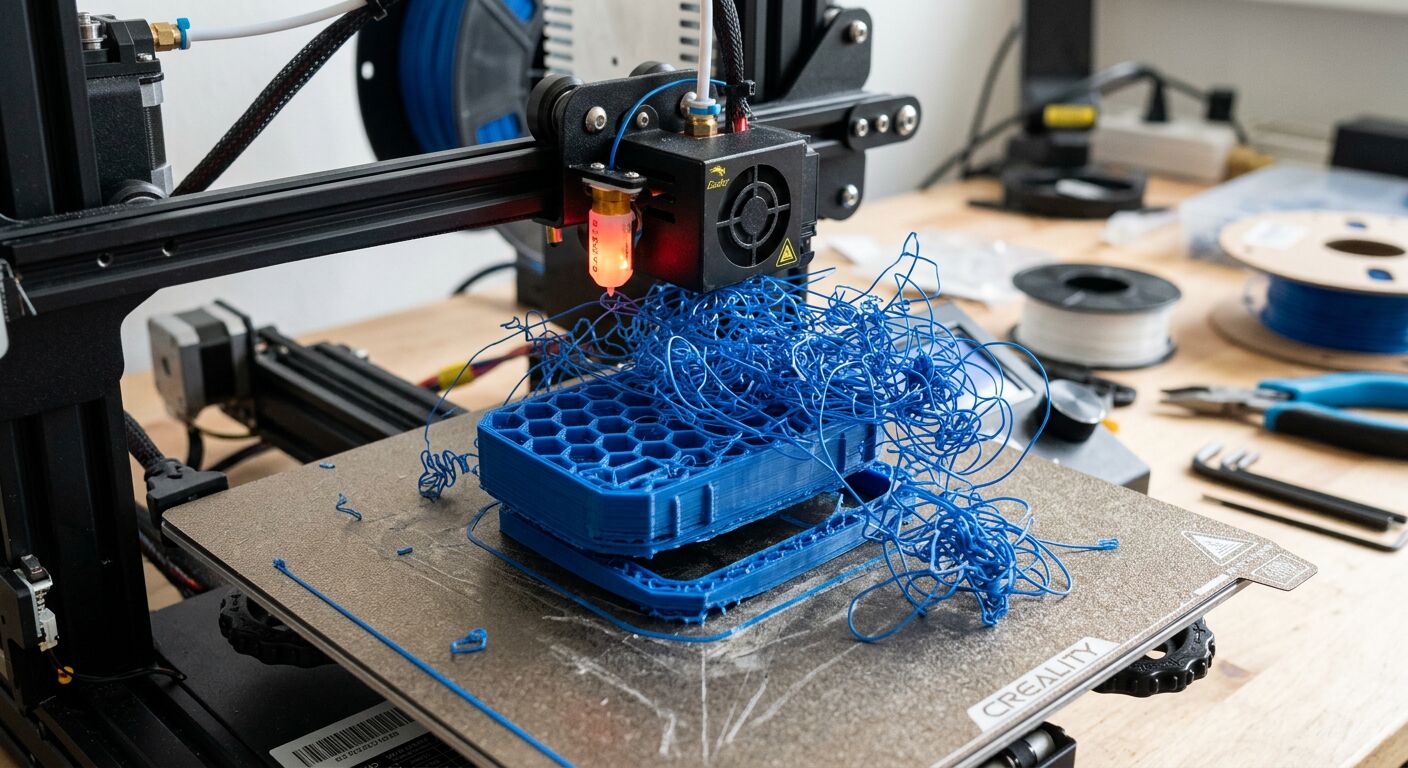
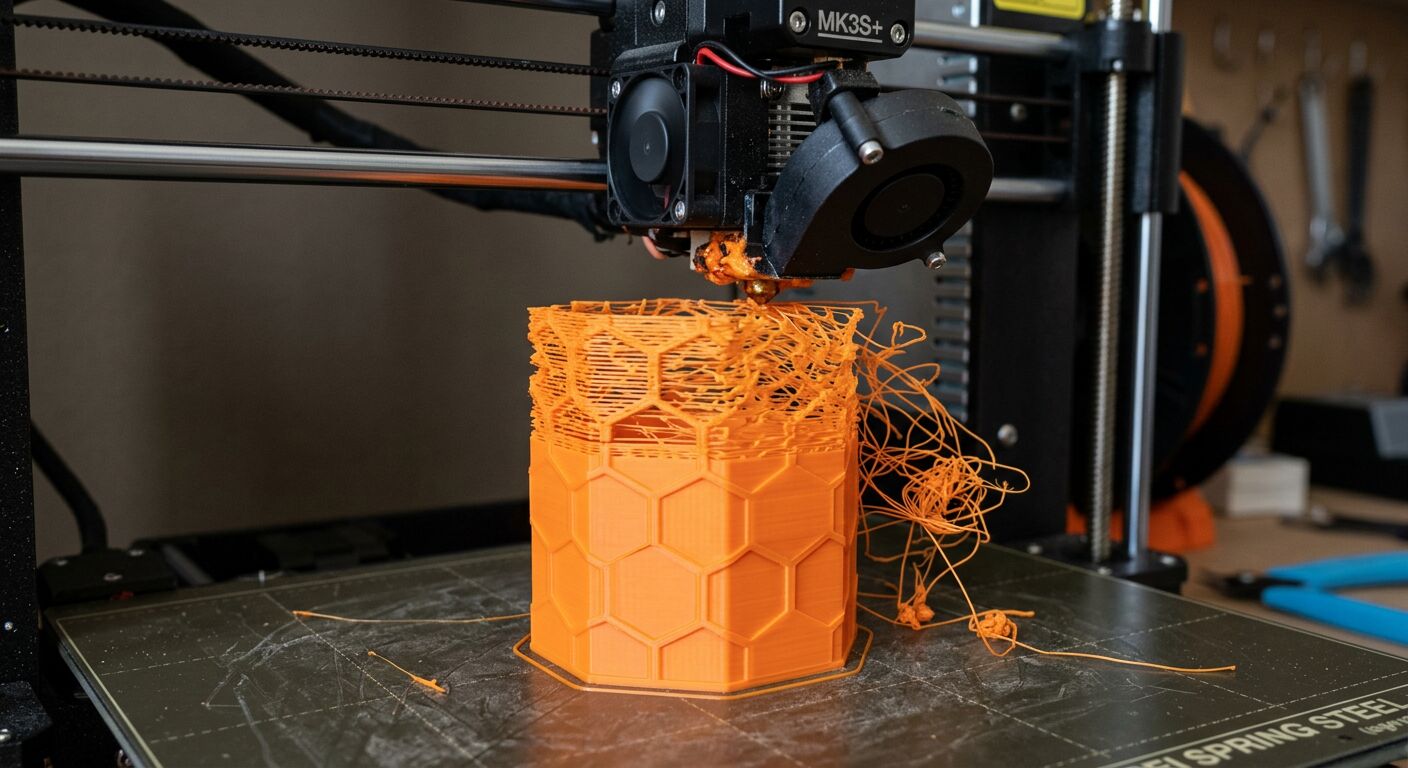
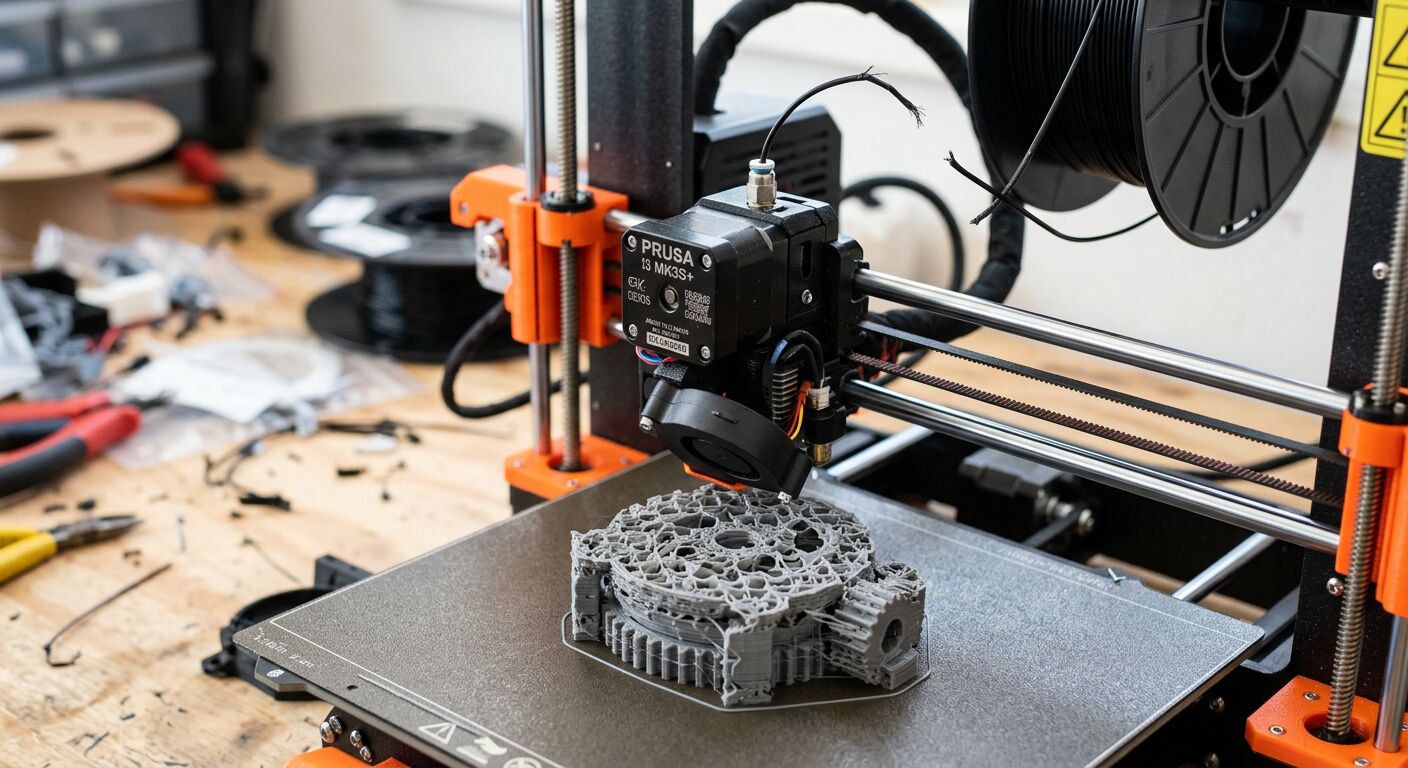
Spaghetti is what happens when a print detaches from the bed or a section breaks off mid-print. The printer keeps extruding into thin air, creating a tangled bird's nest of filament.
Symptoms
- Tangled mass of filament on or around the print
- Print partially completed with a mess on top
- Base of the print may show signs of lifting before detachment
Causes & Fixes
Spaghetti is always a secondary failure — something else caused the print to detach or collapse. Find and fix the root cause:
1. Bed adhesion failure → See First Layer & Bed Adhesion
2. Support structure failure → Increase support density, use better support patterns (tree supports), ensure supports touch the build plate
3. Nozzle clog mid-print → See Clogged Nozzle
4. Overhangs too steep → See Poor Bridging & Overhangs — add supports for angles greater than 45-50°
5. Layer shifting knocked print off → See Layer Shifting
6. Filament ran out or broke → See Filament Breakage — enable your printer's filament runout sensor if it has one
By the time you see spaghetti, you've already wasted filament and hours of print time. Obico's AI failure detection monitors your webcam in real-time and can detect the early signs of spaghetti formation — alerting you or auto-pausing the print. It's the single most effective way to prevent spaghetti waste. Set up free in 5 minutes.
Related detailed guide: How to Fix Spaghetti in 3D Printing
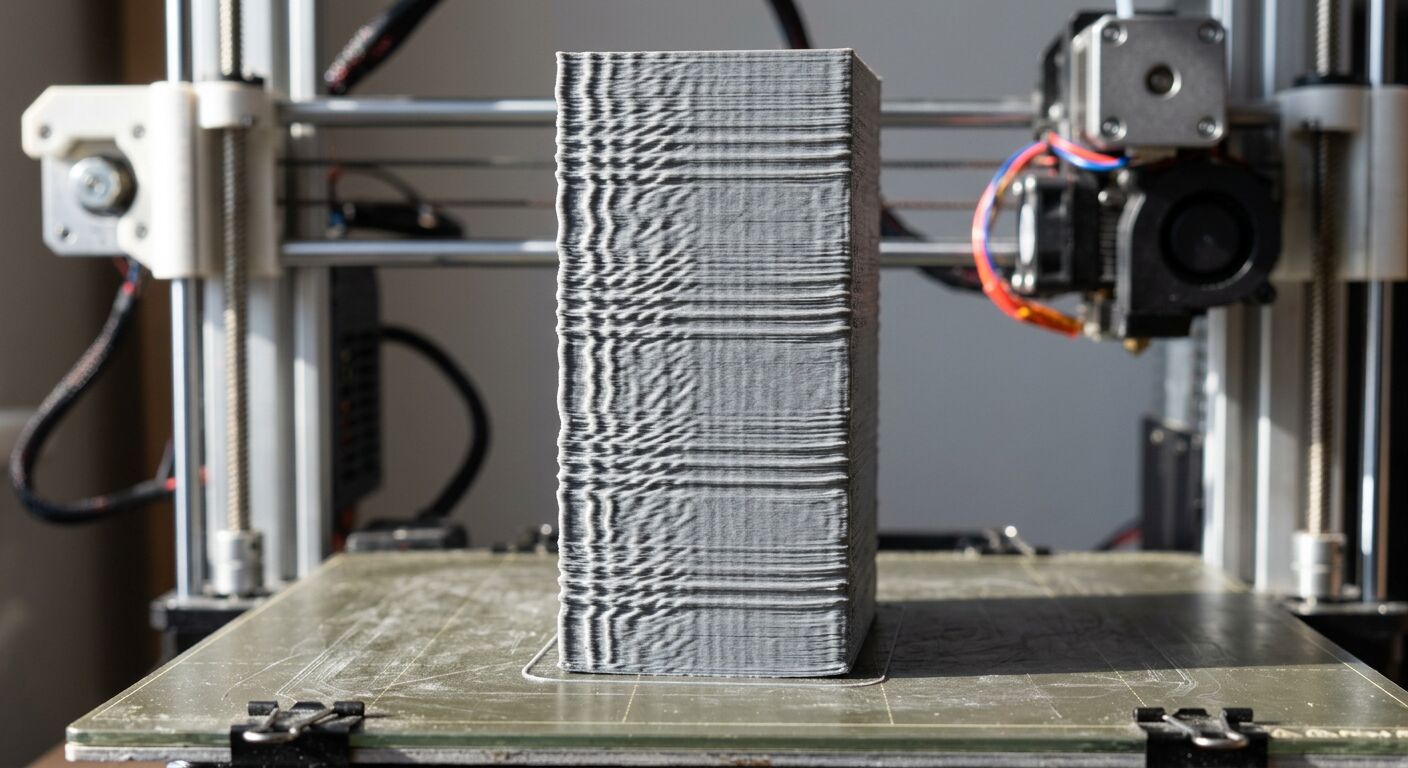
Z-Banding & Visible Layer Lines
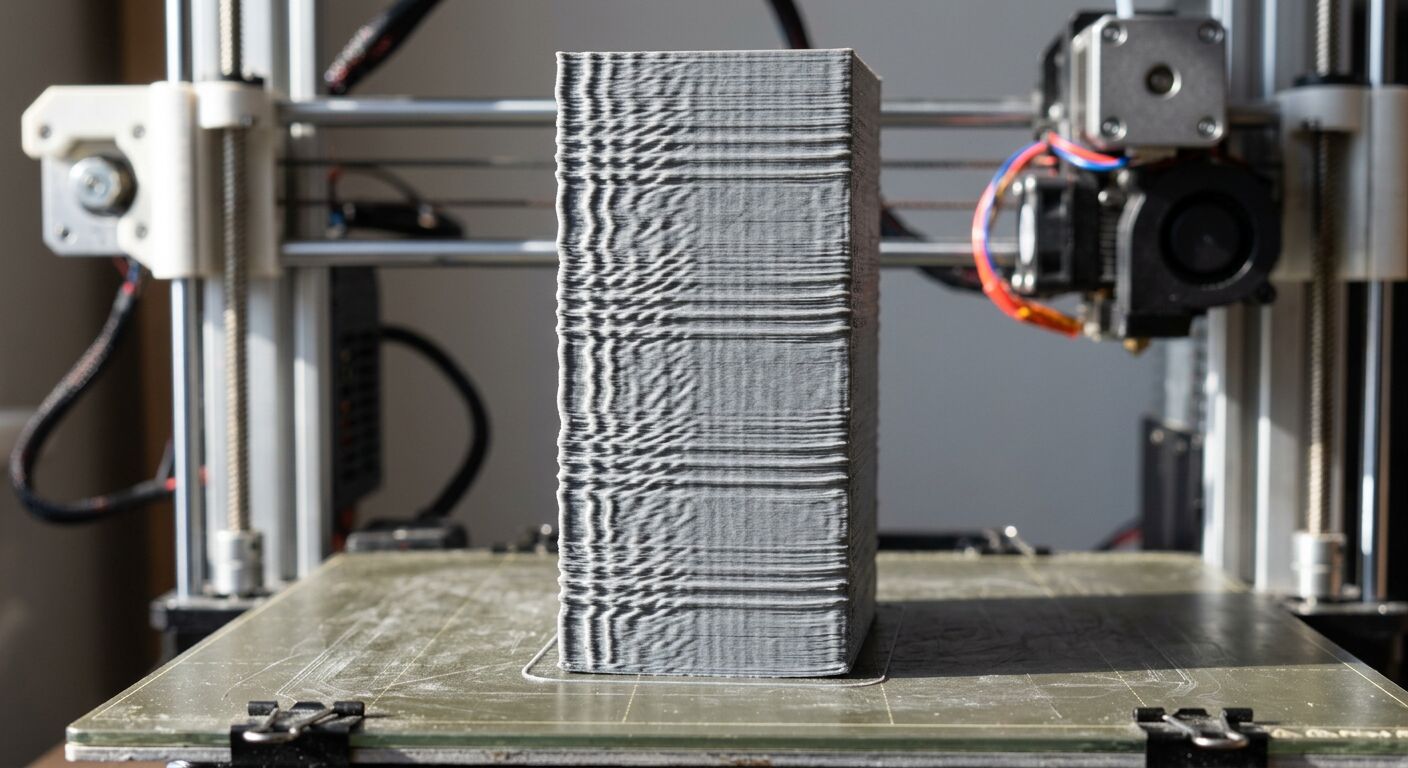
Horizontal lines or ridges that appear at regular intervals on the surface of a print. Unlike normal layer lines, Z-banding creates inconsistent, uneven ridges that catch light and feel rough.
Symptoms
- Regular horizontal ridges or banding pattern on walls
- Surface quality varies between "bands" — some areas smooth, others rough
- Pattern repeats at consistent intervals (often matching lead screw pitch)
Causes & Fixes
1. Lead screw issues (most common on Cartesian printers)
- Clean the lead screw with a dry cloth, then apply a thin layer of PTFE-based lubricant
- Check for a bent lead screw — roll it on a flat surface and look for wobble
- Ensure the lead screw coupler is properly aligned — flexible couplers help absorb misalignment
- Anti-backlash nuts can reduce inconsistency
2. Z-axis binding
- Loosen the Z-axis motor mount slightly to let the lead screw self-align
- Ensure linear rails or rods move freely without resistance
- Check for debris on Z-axis guide rails
3. Inconsistent extrusion
- Calibrate E-steps and flow rate
- Check extruder gear for wear
- Ensure consistent filament diameter (measure at multiple points)
4. Temperature fluctuations
- PID tune your hotend: Klipper
PID_CALIBRATE HEATER=extruder TARGET=210 - Check that the heater cartridge and thermistor are seated properly
- A drafty environment can cause cyclic temperature swings
5. Mechanical resonance (VFA — Vertical Fine Artifacts)
- Some stepper motor + driver combinations create visible artifacts at certain speeds
- Try changing print speed by ±10mm/s to shift the resonance frequency
- TMC2209 drivers in StealthChop mode can reduce VFA
Related detailed guide: Fixing Z-Banding/Wobble
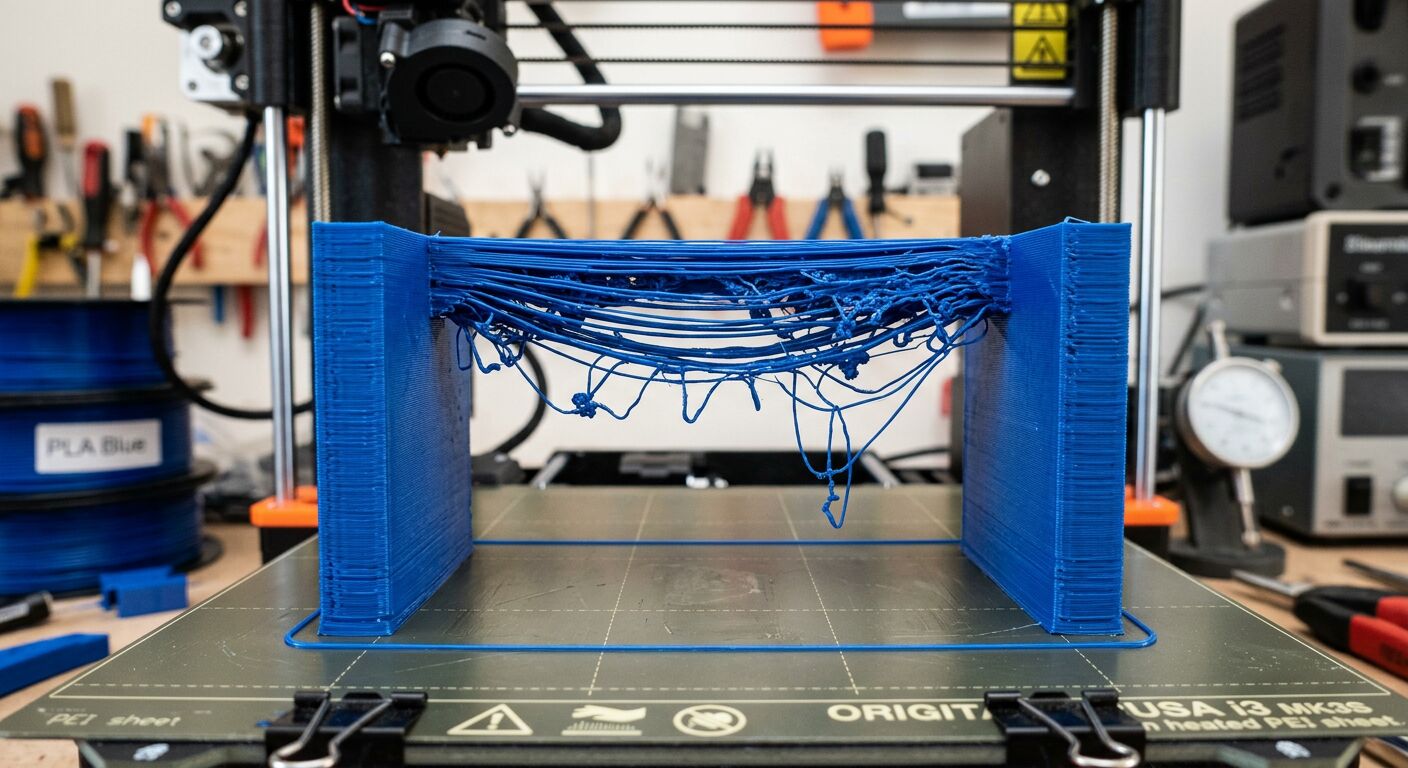
Poor Bridging & Overhangs
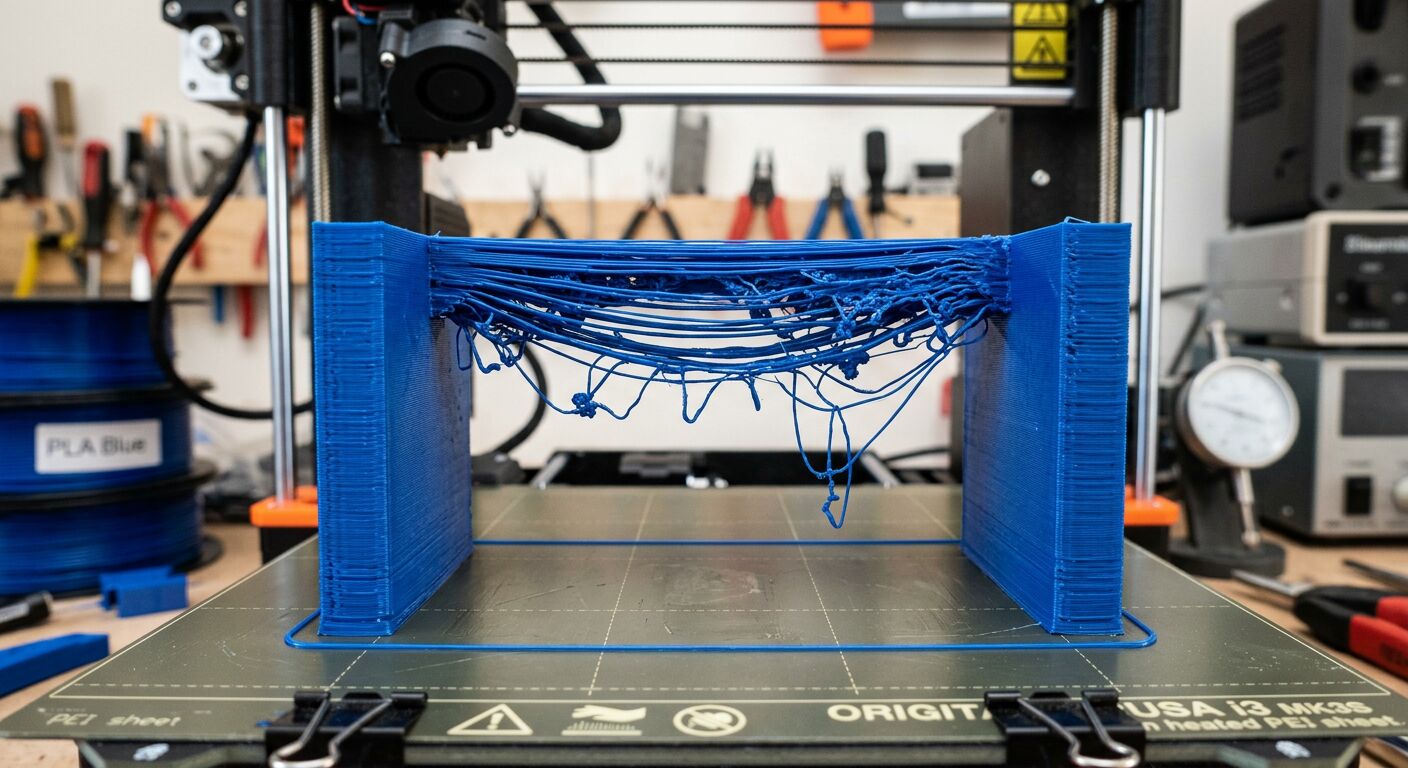
Bridging is when the printer lays filament across a gap with no support underneath. Overhangs are areas that extend outward from the existing print at steep angles. Both are challenging because filament wants to sag under gravity.
Symptoms
- Sagging or drooping filament between two supported points
- Rough, blobby undersides on overhangs greater than ~45°
- Strings and droops hanging from unsupported areas
Causes & Fixes
1. Part cooling fan not effective enough
- Bridges need maximum cooling — set fan to 100% for bridging layers
- Check that your fan duct directs air at the nozzle tip, not above it
- Upgrade to a dual-fan setup or better duct design if cooling is inadequate
2. Bridge speed too fast
- Slow down bridge speed significantly (15-25 mm/s)
- Some slicers have dedicated bridge speed settings — use them
3. Bridge flow rate too high
- Reduce bridge flow to 80-95% — less material sags less
- OrcaSlicer and PrusaSlicer have per-feature flow adjustments
4. Overhangs need supports
- As a rule of thumb, angles >50° from vertical need support
- Tree supports minimize surface scarring
- Paint-on supports let you target exactly where you need them
5. Print orientation matters
- Rotate the model to minimize unsupported overhangs
- Sometimes splitting a model and printing in two orientations gives better results
Related detailed guide: Poor Quality Bridges
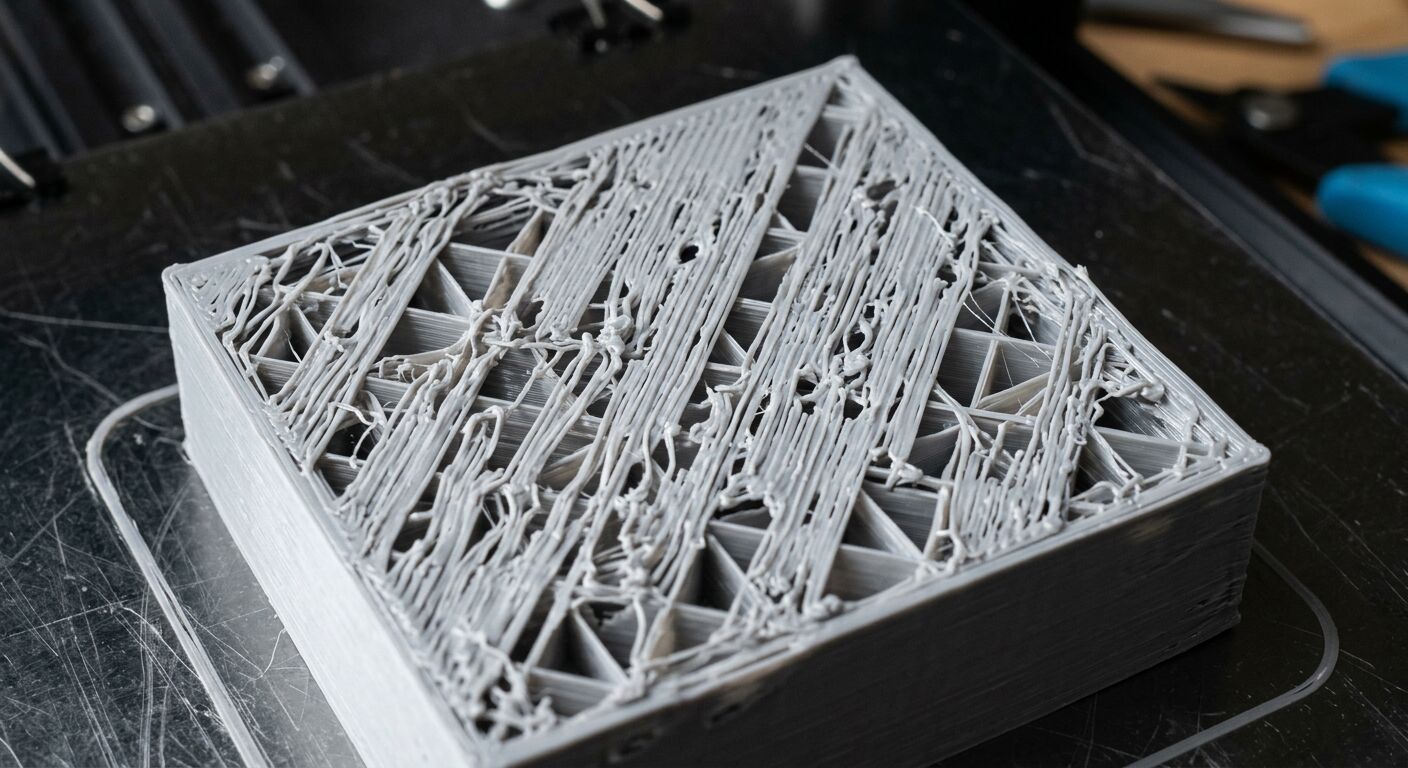
Gaps in Print Surfaces
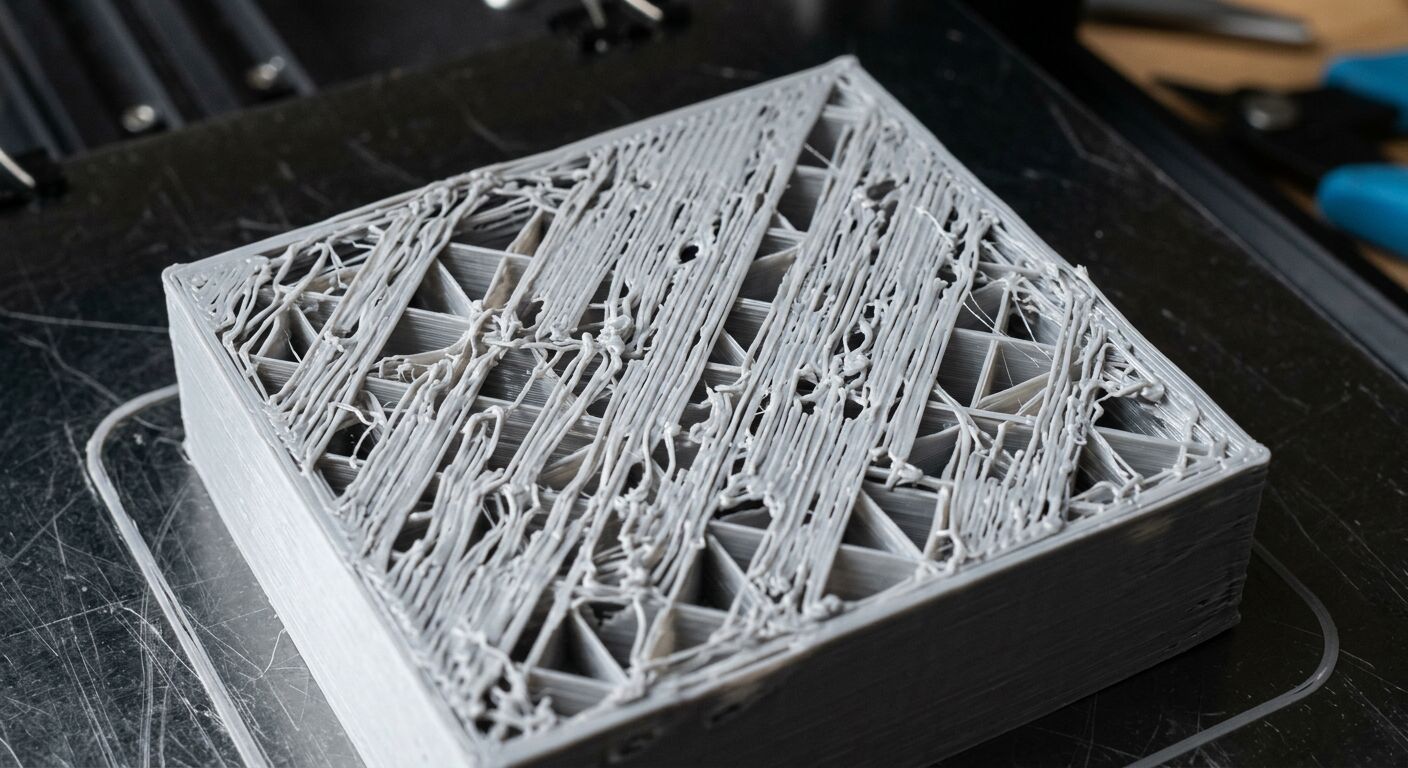
Gaps appear as holes, spaces, or incomplete fill areas on the top or bottom surfaces of a print, and sometimes between perimeters and infill.
Symptoms
- Visible holes in top layers (pillowing)
- Gaps between infill and perimeter walls
- Incomplete layer coverage on top surfaces
Causes & Fixes
1. Not enough top layers
- Increase top layers to at least 5-6 (or 1.2mm top thickness)
- For large flat surfaces, consider 8+ top layers
2. Under-extrusion
- See Under-Extrusion section
- Even slight under-extrusion becomes visible on top surfaces
3. Infill percentage too low
- Top layers bridge over infill gaps — if infill is too sparse, they sag
- Use at least 20% infill for functional parts
- Increase to 30-40% if top surfaces still show gaps
4. Insufficient overlap between perimeters and infill
- Increase the "infill/perimeter overlap" setting in your slicer (try 15-25%)
- This ensures infill lines connect to the wall lines
5. Ironing enabled but misconfigured
- If using ironing (top surface smoothing), ensure flow rate and speed are correct
- Too little flow during ironing creates gaps; too much creates over-extrusion
Related detailed guide: Gaps in Print Surfaces
Layer Separation & Delamination
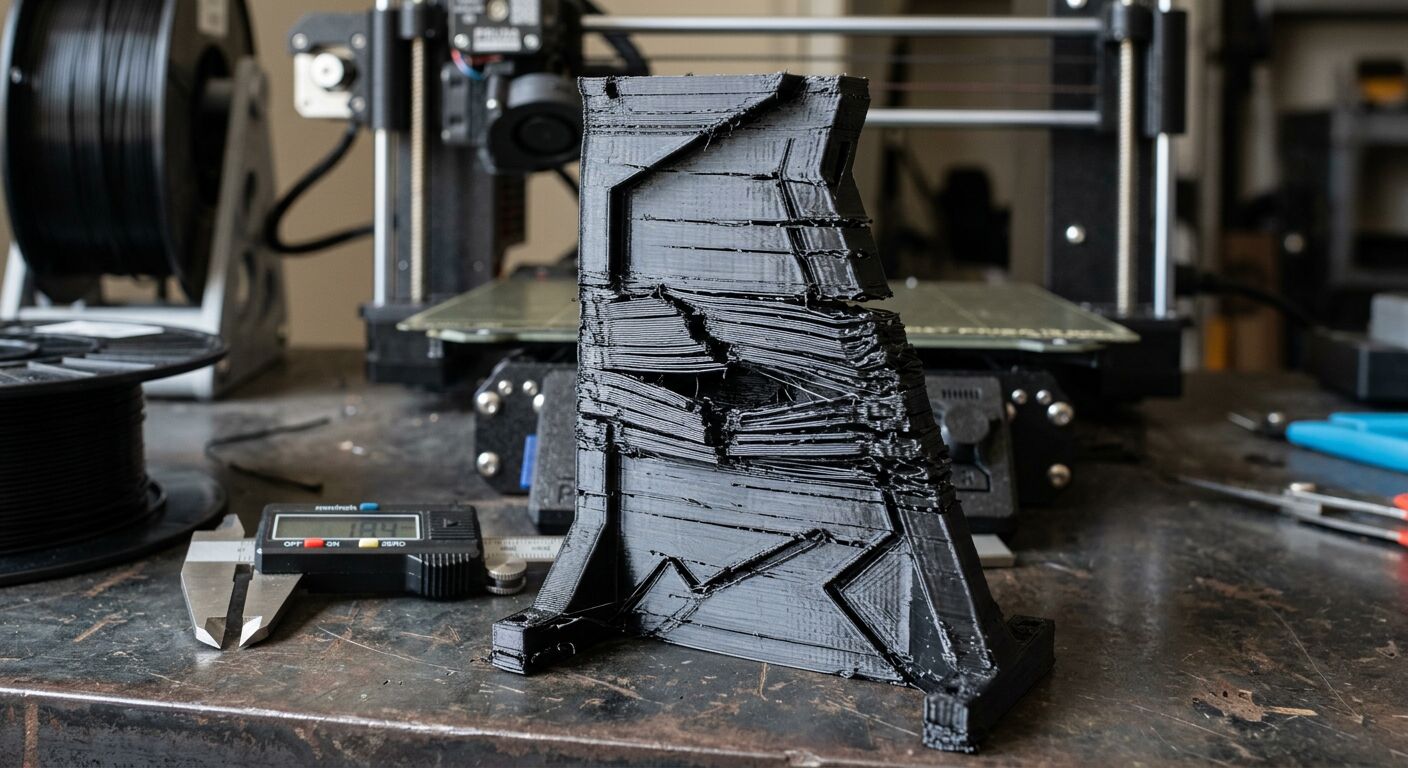
When layers don't bond properly to each other, the print can crack or split apart along horizontal planes. This is a structural issue — delaminated prints are weak and may break in use.
Symptoms
- Visible cracks or splits between layers
- Layers peel apart easily when stressed
- Most common with ABS, ASA, and high-temperature materials
- Can happen at any height in the print
Causes & Fixes
1. Nozzle temperature too low
- Higher temps = better inter-layer adhesion
- Increase by 5-10°C and print a test
- ABS and ASA need adequate chamber temperature too
2. Part cooling fan too high
- Excessive cooling prevents layers from bonding properly
- For ABS/ASA: fan off or minimal (0-15%)
- For PETG: 30-50% fan is usually ideal
3. Layer height too large for nozzle
- Max layer height ≈ 75% of nozzle diameter
- For a 0.4mm nozzle, don't exceed 0.3mm layer height
- Lower layer heights improve adhesion but increase print time
4. Printing in a drafty environment
- Enclose the printer for temperature-sensitive materials
- Consistent ambient temperature = consistent bonding
5. Wet filament
- Moisture creates micro-steam-bubbles that weaken layer bonding
- Dry your filament — this is especially critical for Nylon, PETG, and polycarbonate
Related detailed guides: Warping and Splitting Layers · Layer Adhesion Tips
Elephant's Foot
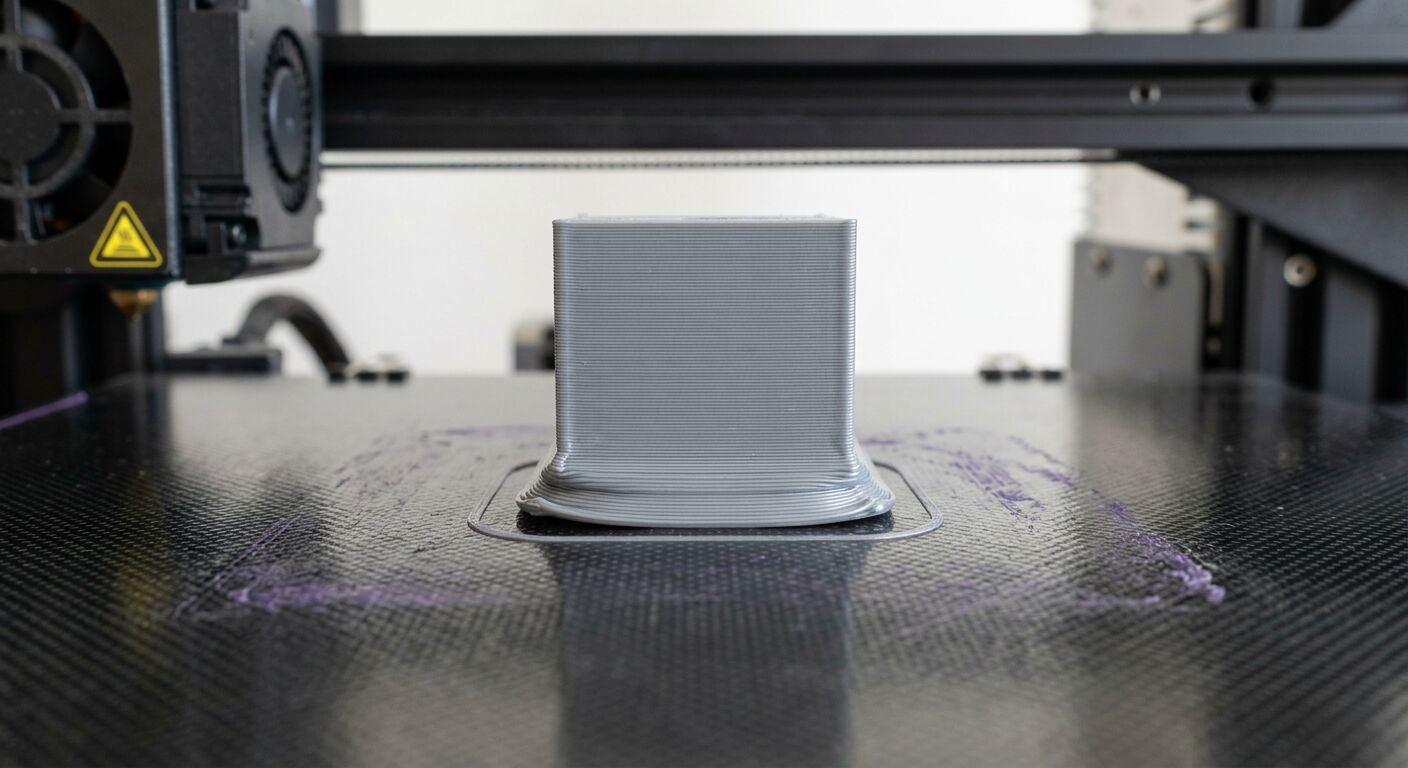
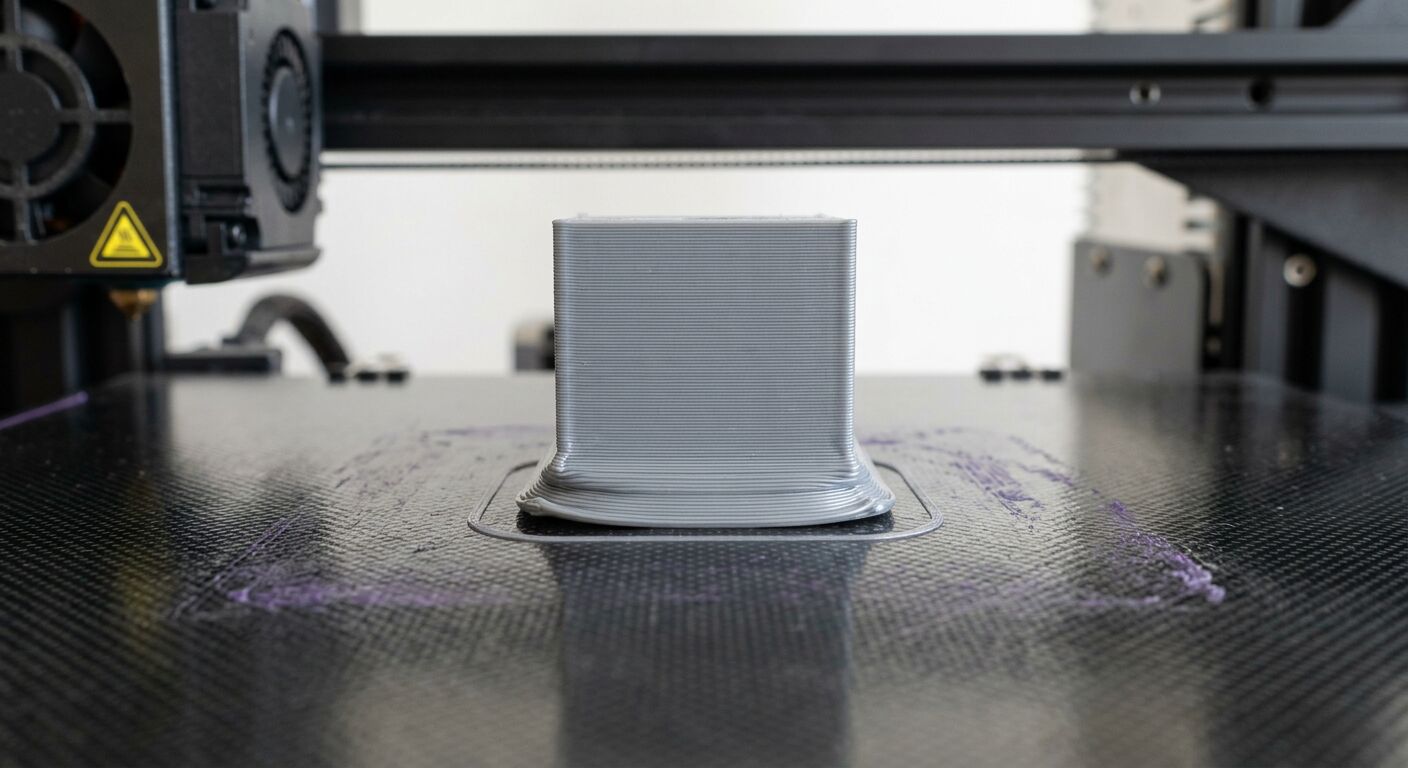
Elephant's foot is a bulge at the very bottom of a print where the first layer or two are wider than they should be, creating a visible "foot" that makes the base of the part inaccurate.
Symptoms
- First 1-3 layers are wider than the rest of the print
- Parts don't fit into slots or assemblies designed for exact dimensions
- Visible outward bulge at the base
Causes & Fixes
1. Nozzle too close to bed
- The most common cause — the first layer gets squished too flat
- Raise Z offset by 0.02-0.04mm increments
- You want the first layer to be slightly flat, not paper-thin
2. Bed temperature too high
- Excessive bed heat softens the first few layers, causing them to spread
- Lower bed temperature by 5°C and test
- Some slicers let you reduce bed temp after the first layer
3. First layer flow rate too high
- Reduce first layer flow to 95-100% (down from the common 105-110%)
- Balance between adhesion and dimensional accuracy
4. Design compensation
- Add a small chamfer (0.4mm × 45°) to the bottom edge of your model
- Some slicers have an "elephant's foot compensation" setting — try 0.1-0.2mm
Dimensional Inaccuracy
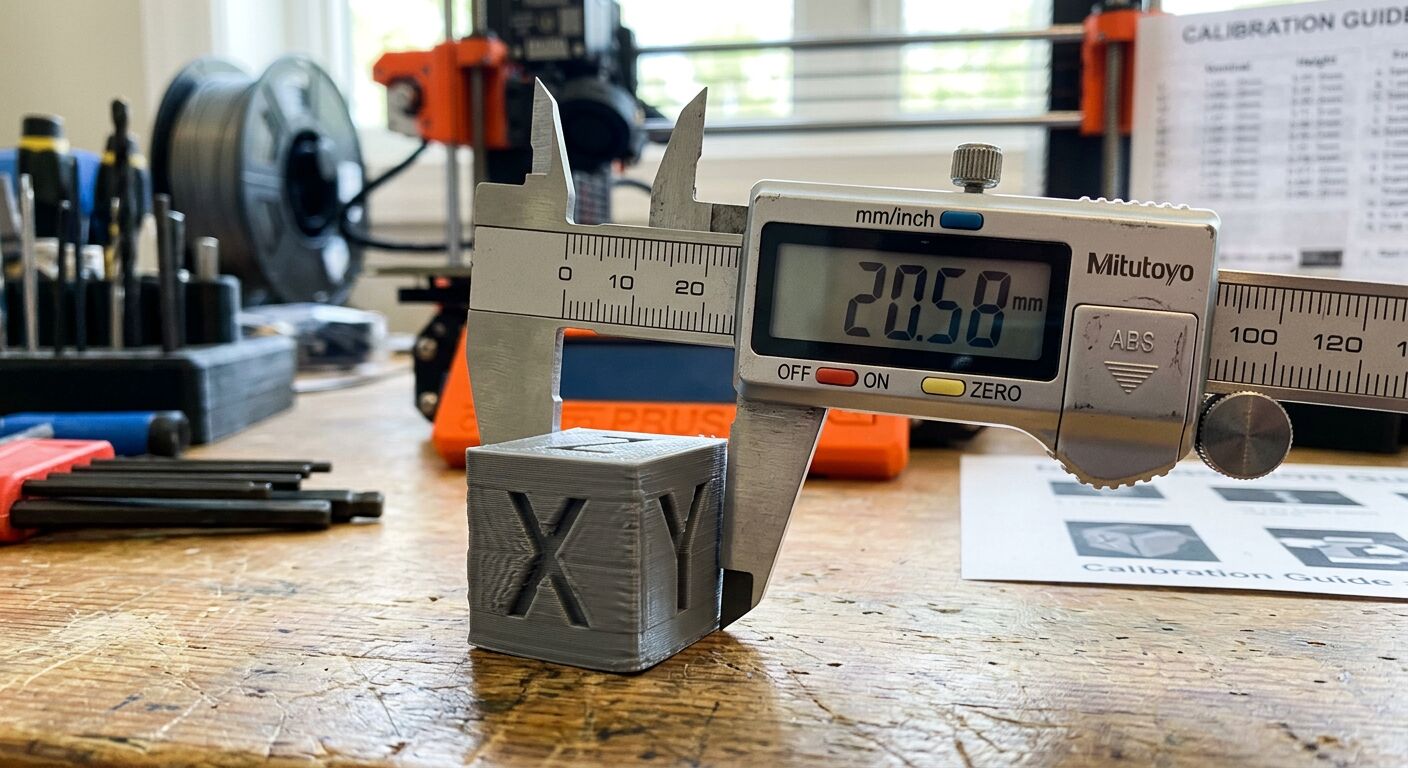
When printed parts don't match the designed dimensions — holes are too small, walls are too thick, and parts don't fit together as intended.
Symptoms
- Holes are smaller than designed
- Parts are slightly too large or too small
- Assemblies don't fit together
- Consistent dimensional error in one axis
Causes & Fixes
1. Flow rate over/under calibrated
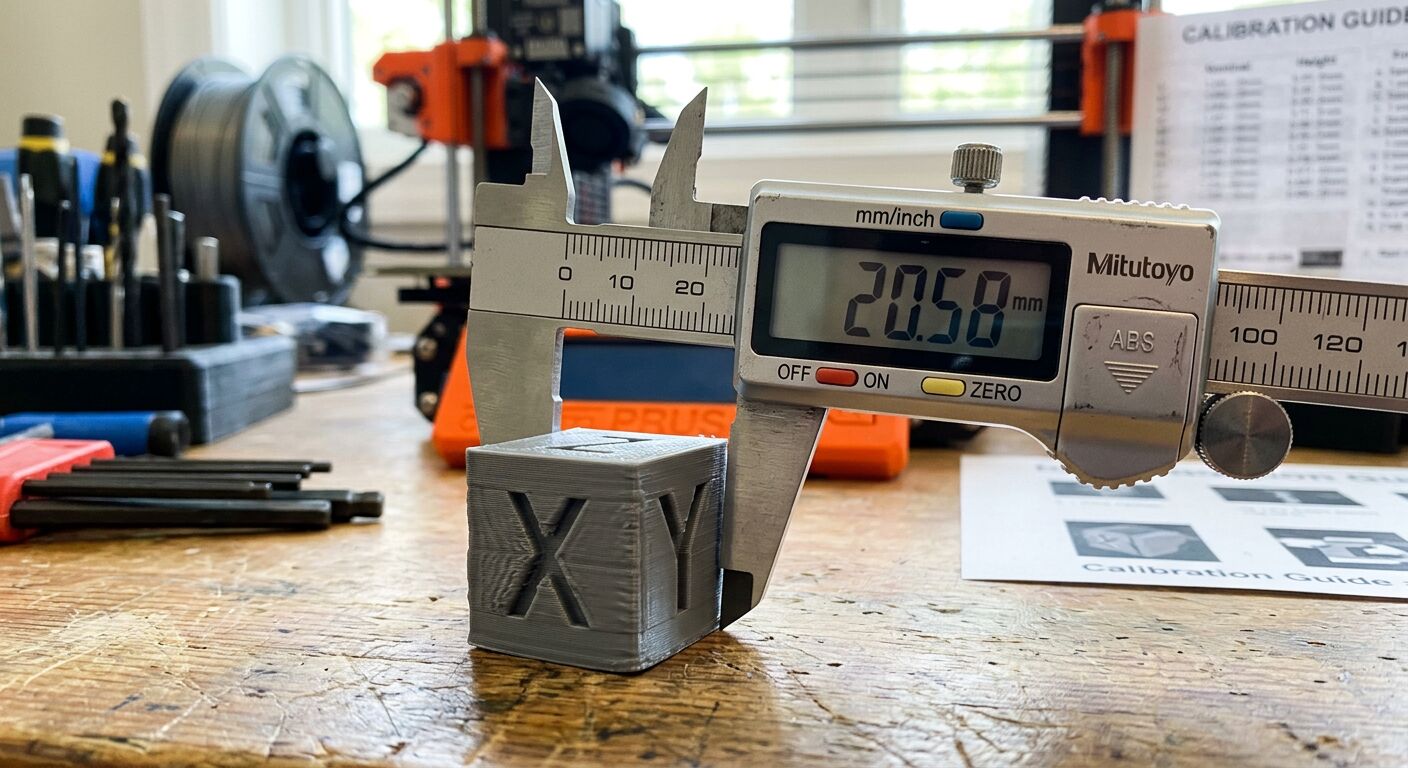
- Print a single-wall cube and measure wall thickness with calipers
- Adjust flow rate until measured thickness matches expected (nozzle diameter × 1 perimeter)
- Over-extrusion makes parts larger; under-extrusion makes them smaller
2. Steps/mm or rotation distance incorrect
- For movement axes: print a 100mm calibration cube and measure each axis
- Adjust steps/mm:
new_steps = current_steps × (100 / measured_distance) - For Klipper: adjust
rotation_distance
3. Horizontal expansion / XY compensation needed
- Most slicers have an "XY compensation" or "horizontal expansion" setting
- Negative values shrink the part; positive values grow it
- Typical: -0.1 to -0.15mm for well-calibrated printers
4. Thermal expansion/contraction
- Some materials (ABS, Nylon) shrink as they cool
- Account for ~0.5-1% shrinkage in your model or slicer settings
- PLA and PETG have minimal shrinkage
5. Elephant's foot affecting bottom dimensions
- See Elephant's Foot above — specifically affects the base
Related detailed guide: Inaccurate Dimensions
Clogged Nozzle
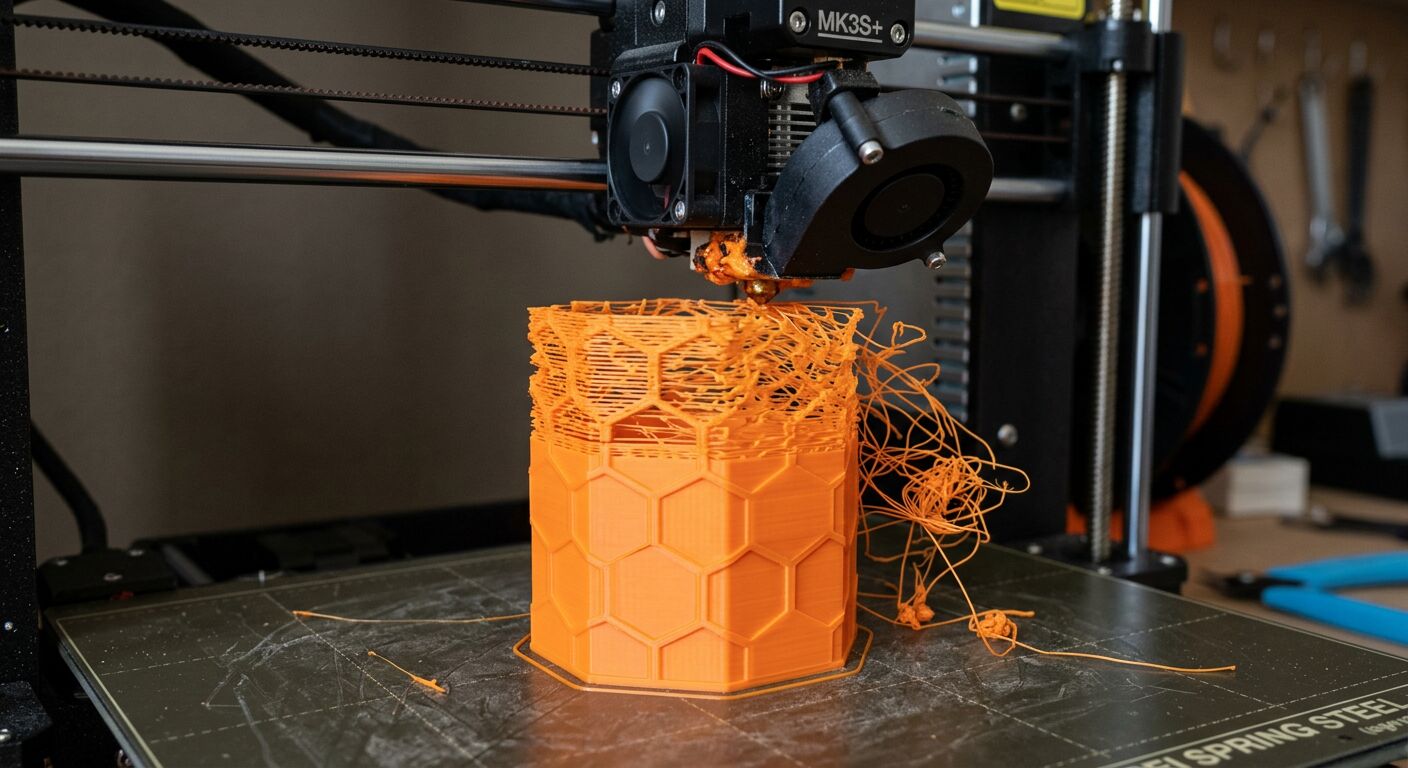
A clogged nozzle partially or fully blocks filament flow. This is one of the most frustrating problems because symptoms can mimic many other issues (under-extrusion, missing layers, stringing).
Symptoms
- No filament extruding at all (full clog)
- Inconsistent, thin extrusion (partial clog)
- Extruder motor clicking or skipping
- Filament curling up around the nozzle instead of laying flat
Causes & Fixes
1. Cold pull / atomic pull (first thing to try)
- Heat to printing temperature, push filament through
- Cool to 90°C (for PLA), then firmly pull the filament out
- The tip should come out with debris — repeat until it comes out clean
- Nylon works best for cold pulls
2. Needle or acupuncture needle
- Heat the nozzle to printing temperature
- Insert a fine needle (0.3mm for a 0.4mm nozzle) from the bottom
- Gently push through to break up the blockage
3. Disassemble and clean
- Remove the nozzle while hot (use a socket wrench and be careful)
- Soak in acetone (for ABS) or heat and clear with a torch
- Replace the nozzle if it's worn — brass nozzles are cheap
4. Prevent future clogs
- Don't switch materials without purging thoroughly
- Keep the nozzle clean — don't let blobs accumulate on the outside
- Use quality filament — cheap filament has inconsistent diameter and additives that clog
- Keep your filament dry — moisture causes partial clogs over time
Related detailed guide: Unclogging Your 3D Printer Nozzle
Filament Breakage Mid-Print
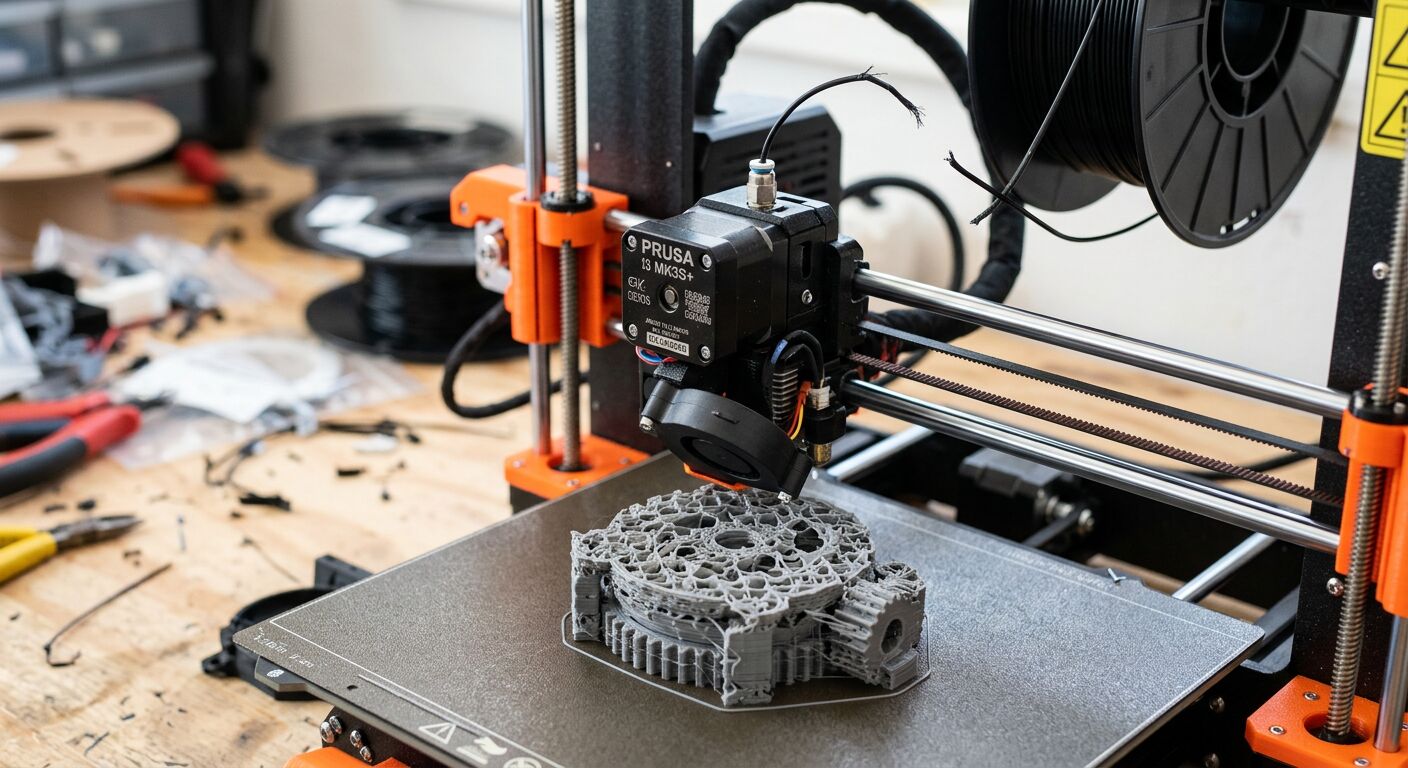
When brittle or poorly stored filament snaps inside the bowden tube or between the spool and extruder, the print stops extruding and eventually fails.
Symptoms
- Print suddenly stops extruding with no clicking or grinding
- Filament broken inside the bowden tube or at the extruder entrance
- Often happens on older or moisture-absorbed spools
Causes & Fixes
1. Filament is old or moisture-absorbed
- Dry the filament before use
- If filament snaps easily when bent, it's too brittle to print reliably
- PLA becomes brittle faster than PETG or ABS when exposed to humidity
2. Tight bowden path or spool friction
- Ensure the bowden tube has no sharp bends
- Use a smooth-spinning spool holder — friction on the spool causes drag that snaps brittle filament
- Consider a filament guide to reduce angle changes
3. Extruder gripping too hard
- Excessive extruder tension can weaken the filament at the grip point
- Reduce idler tension until it just barely grips without slipping
4. Enable filament runout sensor
- If your printer has one, make sure it's enabled
- This pauses the print when filament runs out or breaks, letting you reload
Related detailed guide: Broken Filament · Filament Stops Extruding Mid-Print
Support Surface Quality
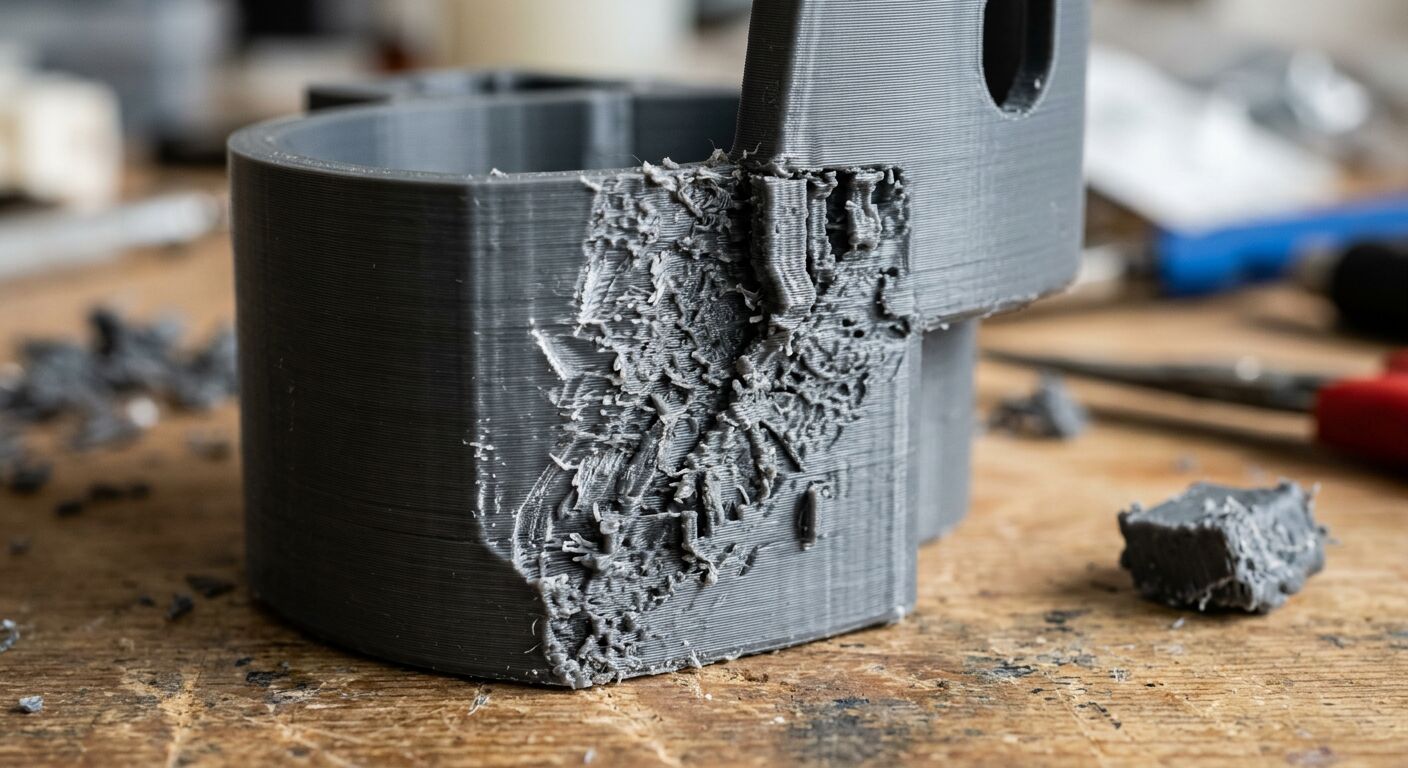
Areas of a print that were in contact with support material often have rough, scarred, or uneven surfaces after support removal.
Symptoms
- Rough or scarred surface where supports were attached
- Pitting or uneven texture on overhanging surfaces
- Support material difficult to remove cleanly
Causes & Fixes
1. Reduce support interface density
- Lower support roof/floor density to 50-75% — less contact = cleaner surface
- Some slicers offer "support interface" patterns — use zig-zag or lines instead of grid
2. Increase support Z distance
- Increase the gap between support and part surface (try 0.2-0.3mm for a 0.4mm nozzle)
- Larger gap = easier removal but worse overhang quality — find your balance
3. Use soluble supports
- PVA (with PLA) or HIPS (with ABS) dissolve in water/limonene
- Requires a dual-extruder setup but gives the cleanest results
4. Try tree supports
- Tree supports touch the part at fewer points and break away more cleanly
- Available in OrcaSlicer, Cura, and PrusaSlicer
5. Post-process the surface
- Light sanding (220-400 grit) removes most support marks
- For PLA: a heat gun (carefully) can smooth support scars
- Filler primer + sanding for cosmetic parts
Related detailed guides: Surface Quality Above Supports · Surface Quality Below Supports
Nozzle Scraping the Bed
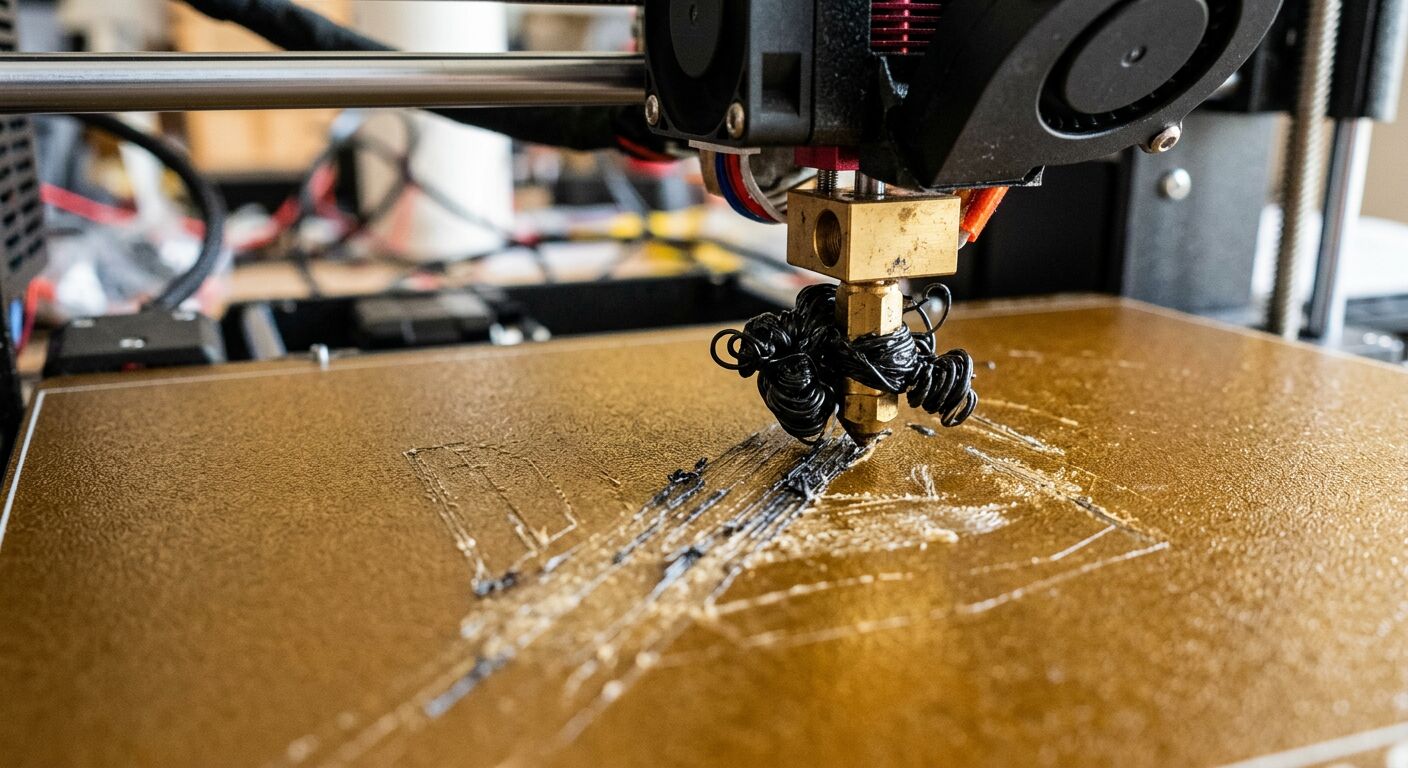
When the nozzle physically drags across the print surface, scratching the bed coating or damaging earlier layers of the print.
Symptoms
- Audible scraping or scratching sounds during printing
- Visible scratches on PEI or BuildTak surfaces
- First layer being destroyed as the nozzle plows through it
- Nozzle collecting melted plastic and dragging it across the print
Causes & Fixes
1. Z offset too low
- Increase Z offset (move nozzle up) by 0.05mm increments
- Re-level the bed if the issue persists
2. Bed not level — high spots
- A warped bed can have high spots the nozzle catches
- Use a bed mesh (ABL) to compensate
- For severely warped beds: glass plate on top to flatten
3. No Z-hop enabled
- Enable Z-hop in your slicer (0.2-0.5mm) — lifts the nozzle during travel moves
- Prevents the nozzle from dragging across already-printed areas
4. Warped or curling print
- If earlier layers curl up, the nozzle will scrape them on the next pass
- Fix the root warping issue (see Warping)
Related detailed guide: Nozzle Scraping Bed Surface
Print Stuck to Bed
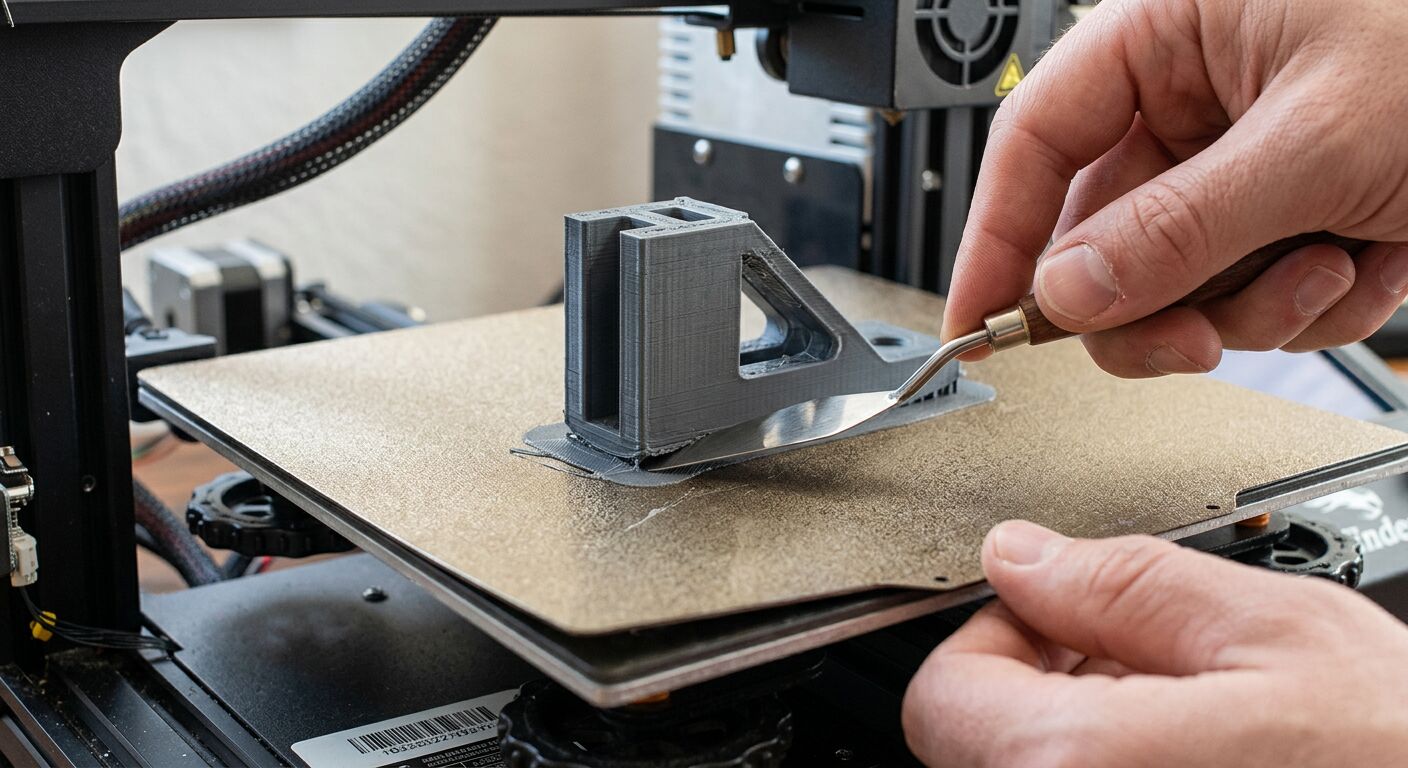
When a finished print is extremely difficult to remove from the build surface. The opposite of adhesion failure — too much adhesion.
Symptoms
- Print won't come off the bed with normal force
- Build surface flexes but print stays stuck
- Risk of damaging the build surface or the print during removal
Causes & Fixes
1. Wait for the bed to cool completely
- Most prints release naturally as the bed cools to room temperature
- PEI sheets in particular release PLA at room temp — don't force it while hot
2. Use a proper removal tool
- A thin, flexible spatula or palette knife
- Work from the edges, not the center
- Never use metal scrapers on PEI — they'll gouge it
3. Reduce adhesion for next time
- Lower bed temperature by 5°C
- Raise Z offset slightly (less first-layer squish)
- For glass beds: reduce or eliminate glue stick — glass alone often provides enough grip
4. Flexible build plate
- Flex magnetic plates pop prints off easily — best quality-of-life upgrade
- Spring steel + PEI is the gold standard for easy removal
Related detailed guide: Prints Difficult to Remove
General Troubleshooting Tips
These tips apply across all print quality issues:
1. Calibrate Before You Troubleshoot
Before chasing print quality issues, make sure your printer is properly calibrated:
- E-steps / rotation distance — the most impactful single calibration
- Flow rate — print a single-wall test and measure with calipers
- PID tuning — stable temperatures = consistent results
- Bed mesh — especially if you've changed anything mechanical
- Pressure advance / linear advance — dramatically improves corners and surface quality
See our Comprehensive Calibration Guide for OrcaSlicer for step-by-step walkthroughs.
2. Change One Variable at a Time
When troubleshooting, only change one setting between test prints. If you change temperature, speed, and retraction simultaneously, you won't know which fix actually worked.
3. Use Test Prints
Don't waste time and filament on full prints while troubleshooting:
- Temperature tower — find the sweet spot for each filament
- Retraction test — dial in retraction distance and speed
- Calibration cube — check dimensional accuracy
- Benchy — the all-in-one benchmark (bridges, overhangs, details, thin walls)
4. Keep a Print Log
Record what works for each filament: temperature, speed, retraction, flow rate. Future you will thank present you.
5. Don't Ignore Filament Quality and Storage
Bad filament causes more problems than bad settings. Buy from reputable brands, store with desiccant, and dry before printing if you suspect moisture. When in doubt, try a fresh spool.
FAQ
What is the most common 3D printing problem?
Bed adhesion failure is the #1 most common issue. If your first layer doesn't stick, nothing else matters. Start with bed leveling, Z offset, and surface preparation.
How do I know if my filament is wet?
Wet filament pops, crackles, or hisses during printing. The surface quality is rough with tiny bubbles. Stringing increases significantly. If you hear crackling, dry your filament immediately.
Should I use a brim or a raft?
Use a brim for most adhesion issues — it adds material around the base without affecting the bottom surface. Only use a raft as a last resort (warped bed, very small footprint, difficult materials like Nylon).
Why do my prints look fine on one side but rough on the other?
This usually indicates an uneven part cooling setup. The fan cools one side more than the other. Dual-fan setups or 360° fan ducts solve this. Rotate the part 180° in the slicer as a quick test.
How often should I replace my nozzle?
Brass nozzles printing standard PLA/PETG: every 3-6 months of regular use. If you print abrasive filaments (carbon fiber, glow-in-the-dark, wood), switch to a hardened steel nozzle — brass will wear out in days.
Can software help me detect print failures automatically?
Yes — Obico uses AI-powered webcam monitoring to detect failures like spaghetti, layer shifts, and detachment in real-time. It can alert you via phone notification or automatically pause the print. Free tier available for one printer.
My print failed but I can't figure out why. What should I do?
Start with the basics: re-level the bed, check the nozzle for clogs, verify your slicer settings haven't changed, and try a test print (Benchy) with known-good filament. If the test print is fine, the issue is with your specific model's geometry or slicer settings, not the printer.