JusPrin 2.1: Run the AI on Your Own Computer with Ollama or LM Studio

Starting with JusPrin 2.1, the AI in JusPrin can run on a model on your own computer. If you already use Ollama or LM Studio, you can point JusPrin at it and chat about your prints without a JusPrin account and without an API key. Nothing is sent to an online AI service, and there is nothing to pay.
What you get, and what you give up
A local model costs nothing to run, and your messages, your project's settings and the picture of your plate stay on your computer.
The trade-off is real, though. Local models are slower than the cloud models, and they make more mistakes. On a laptop, a single answer can take a minute or more. A local model also can't search the web, so it won't look up a printer or filament it doesn't already know.
If you want the best answers, a JusPrin account or your own API key is still the better choice. If you care most about privacy or cost, or you're just curious, a local model is a good way to go.
Before you start
You need two things:
- Ollama or LM Studio, running. In LM Studio, turn on its local server.
- A model that can use tools, with a context length of at least 32k. JusPrin's AI works by calling tools (to read your settings, slice, look at the plate), so a model without tool support can't do anything useful. It also needs room for a long conversation.
To check a model in Ollama, run ollama show <model>. The output lists tools under Capabilities if the model supports them. To give Ollama a 32k context, use the context slider in the Ollama app's settings, or start it with:
OLLAMA_CONTEXT_LENGTH=32768 ollama serve
In LM Studio, set the context length in the model's load settings, or load it from the command line:
lms load <model> --context-length 32768
Set it up in JusPrin
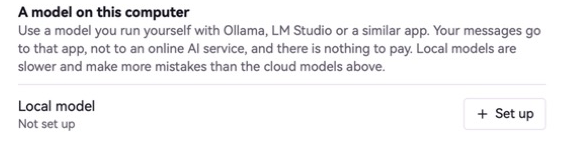
1. Open Preferences › BYOAI. On a Mac, choose Settings… in the JusPrin menu, or press Cmd+,. On Windows and Linux, choose Preferences in the menu beside the File button, or press Ctrl+,. Click BYOAI, then scroll to A model on this computer and click Set up.
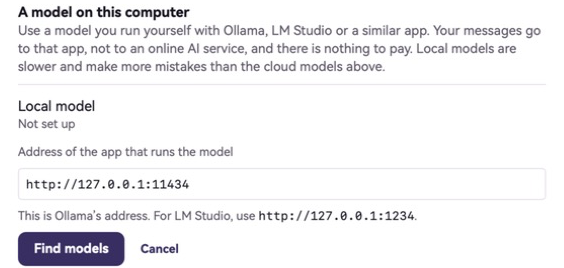
2. Enter the address of the app that runs the model, then click Find models. The address is already filled in with Ollama's. For LM Studio, change it to http://127.0.0.1:1234.
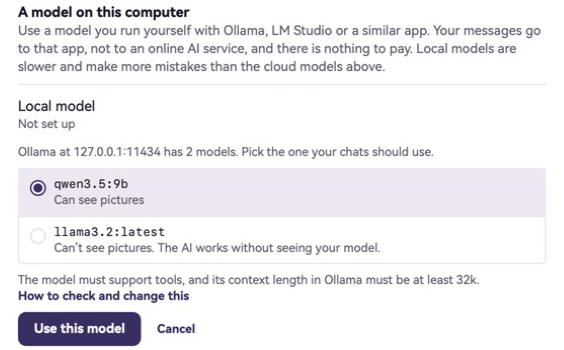
3. Pick a model and click Use this model. JusPrin lists every model the app has. It also tells you which ones can see pictures. A model that can't see pictures still works; the AI just won't see your plate.
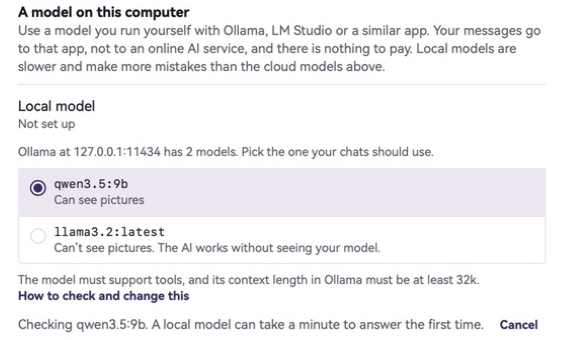
JusPrin then checks the model by actually talking to it. A local model can take a minute to answer the first time, so give it a moment.
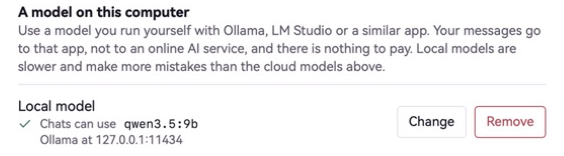
4. Done. When the check passes, you'll see the model you picked and where it runs.
Use it in a chat
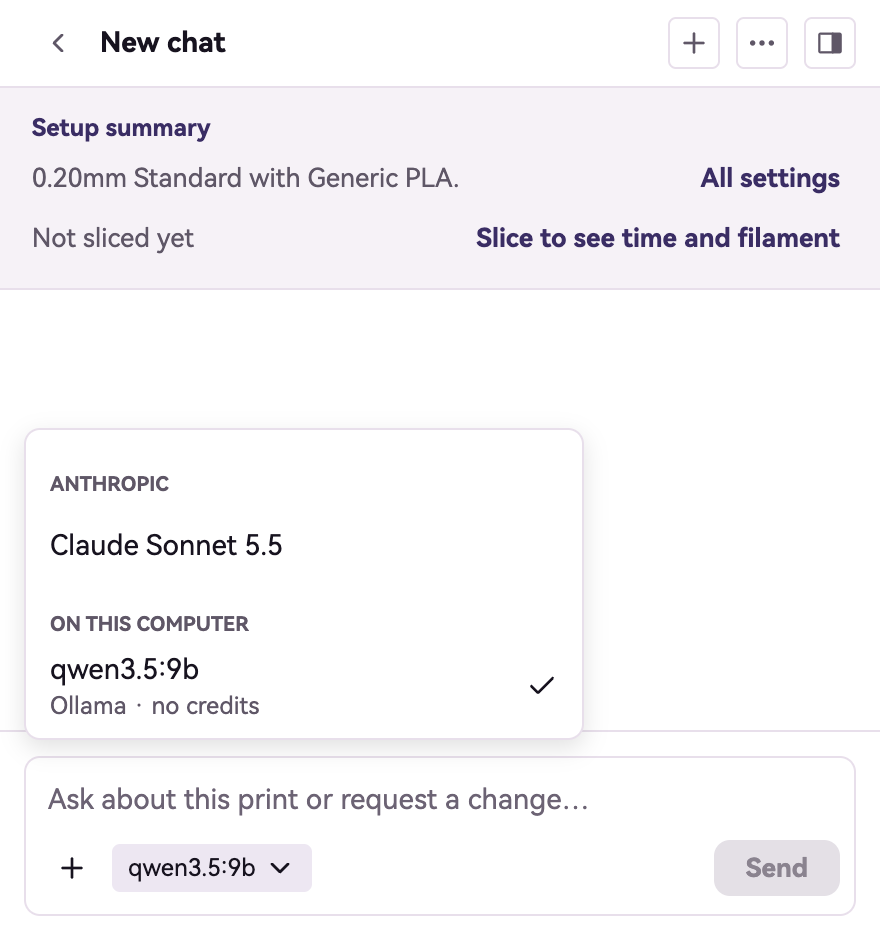
Pick the local model in the model menu next to the message box. It's listed under On this computer.
To make every new chat start with it, choose it under New chats start with at the bottom of the BYOAI section.
A chat keeps the model it started with. To switch an existing project to the local model, start a new chat with the + at the top of the AI panel.
If something goes wrong
- "Nothing is answering at 127.0.0.1:11434." Ollama or LM Studio isn't running, or the address is wrong. Start the app (and, in LM Studio, its local server), then try again.
- "This model can't run the app's tools." Pick a model with tool support, and make sure its context length is at least 32k.
If a model passes the check but gives poor answers, try a bigger one. Smaller models are faster but get more things wrong.
Download JusPrin 2.1, free for Windows, Mac and Linux, and give it a try. We'd love to hear which local models work well for you.