Zum Hauptinhalt springen

Next-Gen AI

Failure Detection General Release

AI Failure Detection Beta

54 Posts getaggt mit "3D Printing"

Alle Tags anzeigen

When you first get into 3D printing, the process of turning a digital model into a physical object can be both exhilarating and overwhelming. Every project starts with an idea, which is then turned into a digital 3D model that needs to go through the process of "slicing." Slicing is a crucial part of 3D printing, as it breaks down a 3D model into layers and converts them into instructions that a 3D printer can follow. But for this to be as smooth as possible, you need a good slicing tool, and that’s where Obico online slicer comes in.
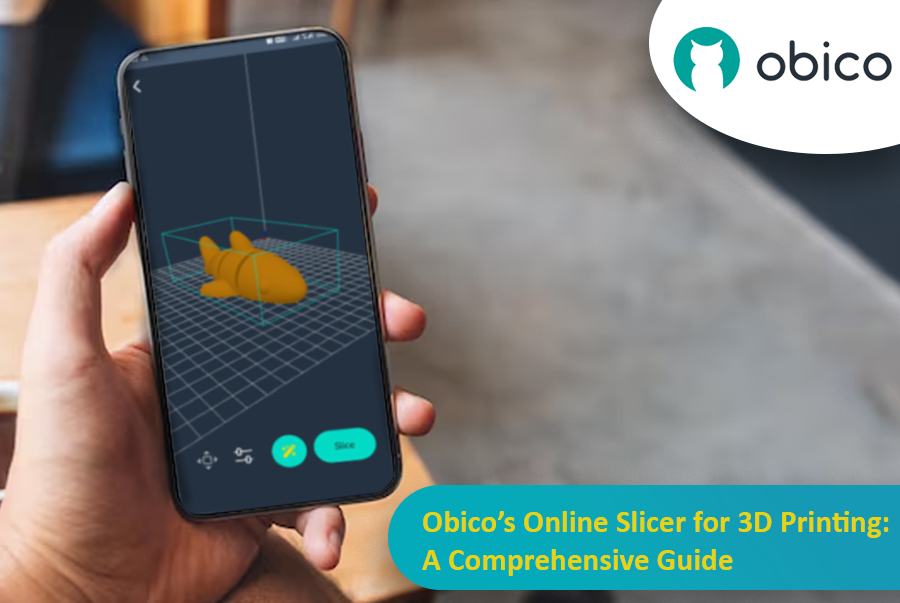
Obico Online Slicer for 3D Printing

Obico offers an online slicing solution that’s easy, powerful and accessible from anywhere. This makes it perfect for both beginners and advanced users who want flexibility, control, and ease of use.

In this article, we’ll go into detail about Obico’s online slicer, from its features to a step-by-step guide on how to use it. Whether you want to print functional objects or creative sculptures, we’ll take you through the entire slicing process with Obico so you can get from model to print in no time.
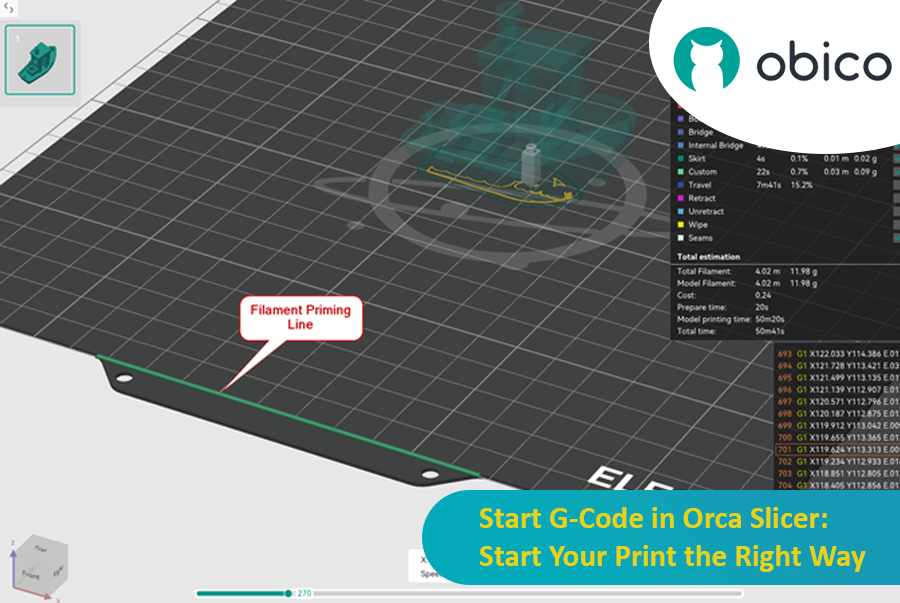
In the 3D printing world, the initial setup of your print is just as important as the model you’re trying to bring to life. One of the most critical and often overlooked components of this setup is the Start G-code, a set of instructions that prepares your 3D printer for the actual print. Whether you use Orca Slicer, a feature-rich slicing software that is based on Bambu Studio and PrusaSlicer, or another slicer, understanding and customizing the Start G-code can be the key to better prints and a smoother workflow.

Start G-Code in Orca Slicer: Start Your Print the Right Way

In this article, we will go deep into what is Start G-code, why it’s important for perfect prints, how to edit it in Orca Slicer, and how to customize it for any 3D printer. We will also explain the Start G-code in the well-known Elegoo Neptune 4 Pro in Orca Slicer as an example for better understanding.

By the end of this article, you will know how Start G-code works, how to tweak it for best results, and how to use advanced techniques like Klipper macros to make your G-code simpler more readable and easier to update.

Als 3D-Druck-Enthusiast kennen Sie sicher das Dilemma zwischen Qualität und Geschwindigkeit. Wir alle kennen das: Man druckt ein wunderschönes Modell mit Kurven und Neigungen, aber nach dem Druck weist die Oberfläche diese verräterischen Stufenstrukturen auf.

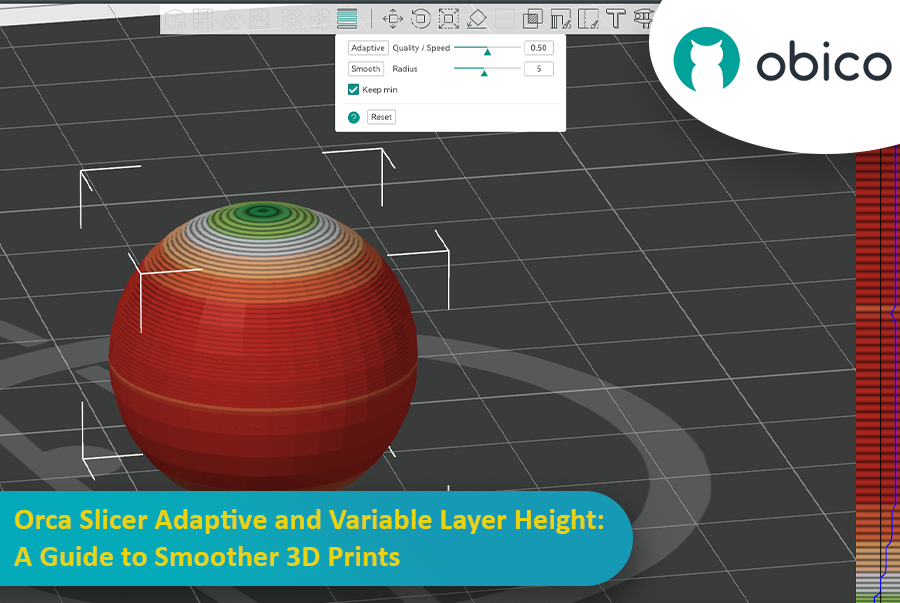
Orca Slicer: Adaptive und variable Schichthöhe – Ein Leitfaden für glattere 3D-Drucke

Hier kommt die adaptive Schichthöhe ins Spiel und sorgt für optimale Ergebnisse, indem sie Geschwindigkeit und Präzision in Einklang bringt. Orca Slicer bietet ein fantastisches Tool zur Feinabstimmung der Schichthöhen für glattere Druckergebnisse in kürzerer Zeit.

Dieser Leitfaden behandelt alles, was Sie wissen müssen, um die adaptive Schichthöhe zu beherrschen und bessere 3D-Drucke zu erzielen.

Introduction

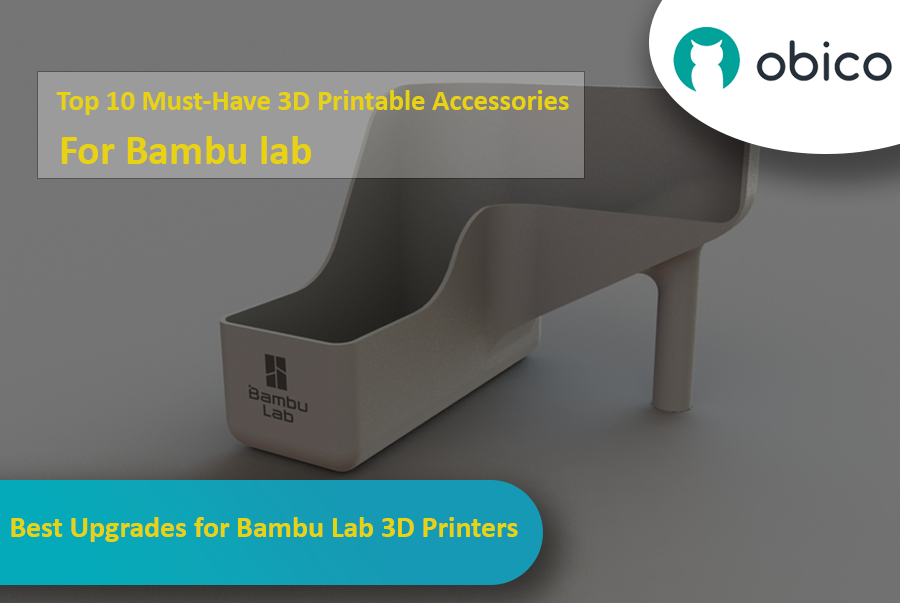
If you have a Bambu Lab 3D printer, you’ve already opened the door to a world of creativity, precision, and innovation. Bambu Lab printers are known for being reliable and high quality, so they’re a favorite among users all around the world.

But even great printers can be made better with a bit of customization. With the right printable accessories, you can make your Bambu Lab printer even more efficient, more versatile, and more fun to use. In this guide, we’ll take a look at some of the best 3D printable accessories to get the most out of your Bambu Lab 3D printer.

Best Upgrades for Bambu Lab 3D Printers

Whether you want to reduce vibrations, manage your filament better, or tweak your AMS system, these upgrades offer practical and easy-to-print solutions that you can print directly with your Bambu Lab printer.

Let’s get started and see how these upgrades can improve your 3D printing experience.

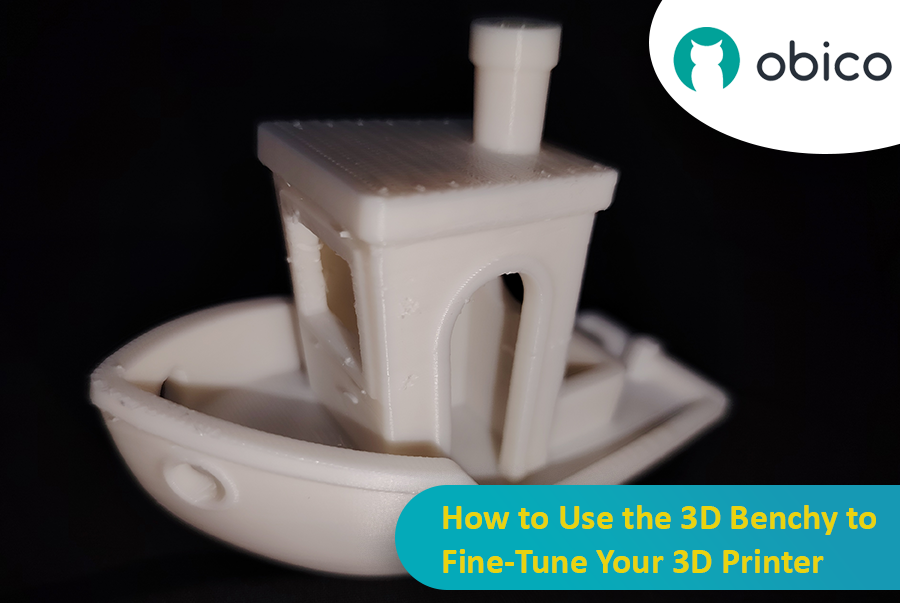
Let’s talk about the 3D Benchy, the little boat that has taken the 3D printing world by storm. At first glance, you may think that it’s a fun toy, but this little tugboat is actually one of the most powerful tools for testing and fine-tuning your 3D printer. Whether you’re new to 3D printing or an experienced user, the 3D Benchy can greatly help you with troubleshooting your 3D printer.

How to Use the 3D Benchy to Fine-Tune Your 3D Printer

Let’s dive deeper and understand how this model can improve your printer performance.

tipp

Try JusPrin, the first GenAI 3D printing tool built on OrcaSlicer.

Wenn Sie sich für 3D-Druck interessieren, haben Sie sicherlich schon Cura oder PrusaSlicer zum Slicen Ihrer Modelle verwendet. Diese Tools sind notwendig, um jedes 3D-Modell in G-Code umzuwandeln, der Anweisungen enthält, die Ihre Maschine ausführen kann, um Ihr Modell tatsächlich zu drucken. Es gibt jedoch immer Raum für neue Software mit unterschiedlichen Funktionen und Optionen.

Orca-Schneider

Orca Slicer ist genau das Richtige für Sie. Es ist kostenlos und basiert auf Bambu Studio. Es bietet Ihnen mehr Möglichkeiten zur Anpassung, Kontrolle und präzisen Druckergebnissen. Egal, ob Sie Anfänger sind und nach vorgefertigten Profilen suchen oder erfahrener Benutzer erweiterte Einstellungen benötigen – Orca Slicer ist die richtige Wahl.

Orca Slicer entstand als Ableger von Bambu Studio, das wiederum auf PrusaSlicer basiert, einer der am weitesten verbreiteten Open-Source-Slicing-Softwares. Es wurde von SoftFever entwickelt. Dank der zunehmenden Anzahl an Druckerprofilen und erweiterten Druckkalibrierungsoptionen gewann es schnell an Popularität. Es ist besonders hilfreich, wenn Sie mehr Kontrolle und Details über Ihre 3D-Modelle wünschen.

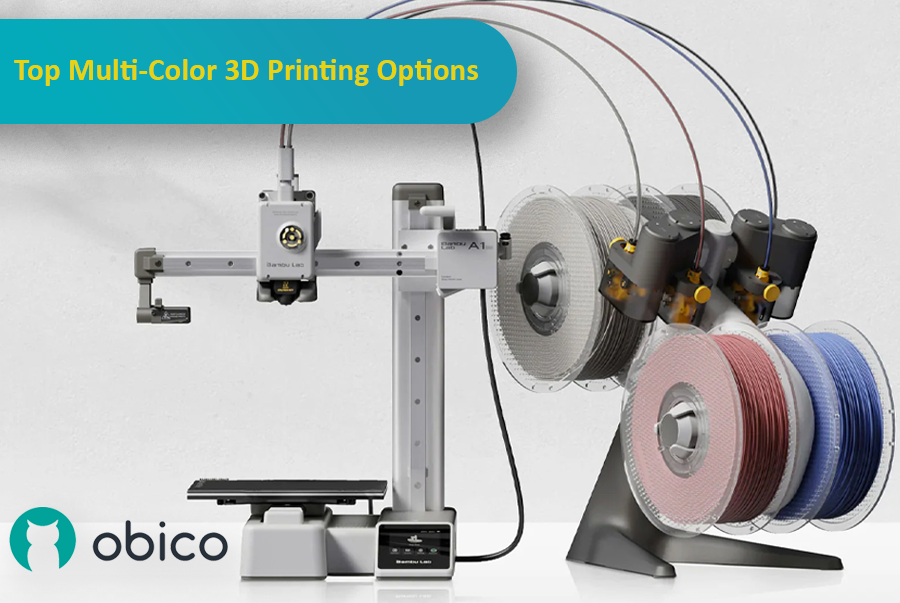
3D printing has come a long way, and one of the most exciting advancements is the ability to print with multiple colors or materials in a single go. This makes it possible to create detailed, colorful, and functional models without having to manually paint or assemble them afterward. Whether you're making parts that need different materials or designing colorful, intricate models, multi-material 3D printing can really take your projects to the next level.

Multi-color 3D printing options

As the technology has improved, more options have become available, each with its own benefits for different users and experience levels. In this article, we'll look at some of the top multi-color 3D printing systems, including the Bambu Lab AMS, Prusa MMU, Enraged Rabbit Carrot Feeder (ERCF), and new systems like the Tradrack and 8-Track. We'll break down how each system works, their pros and cons, and which users they’re best suited for.

Einführung

Im 3D-Druck kann die gewählte Slicer-Software die Qualität, Geschwindigkeit und Effizienz Ihrer Drucke maßgeblich beeinflussen. Zwei beliebte Slicer, die in der Community für Aufsehen sorgen, sind Orca Slicer und Bambu Studio. Beide Slicer bieten umfangreiche Funktionen, die auf unterschiedliche Benutzer zugeschnitten sind. Doch welcher ist der richtige für Sie?

Orca Slicer vs. Bambu Studio: Detaillierte Überprüfung und Funktionen

In diesem Handbuch vergleichen wir beide Slicer und behandeln dabei Installation, Benutzeroberfläche, herausragende Funktionen, Community-Support und mehr.

Egal, ob Sie neu im 3D-Druck sind oder bereits Erfahrung damit haben, dies hilft Ihnen bei der Auswahl des richtigen Slicers für Ihre Anforderungen.

Introduction

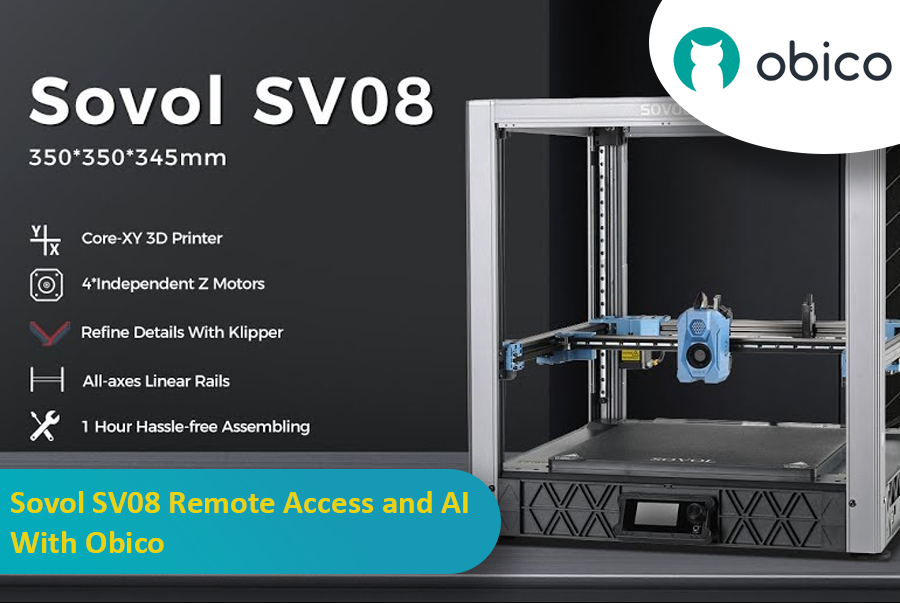
The Sovol SV08 is a standout 3D printer in the current market, offering a mix of advanced features, precision, and versatility that caters to both beginners and experienced makers. By integrating it with the Obico platform, an AI-powered, open-source system, users can significantly enhance their 3D printing experience through remote monitoring, control, and AI failure detection.

Sovol SV08 Remote Access and AI With Obico

This guide will take you through setting up your Sovol SV08 with Obico, including firmware updates, WiFi connections, and integrating the Obico system. We will also look at some advanced features provided by Obico, like Nozzle Ninja AI, which takes first-layer monitoring to another level, as well as the new built-in online slicer.

Introduction

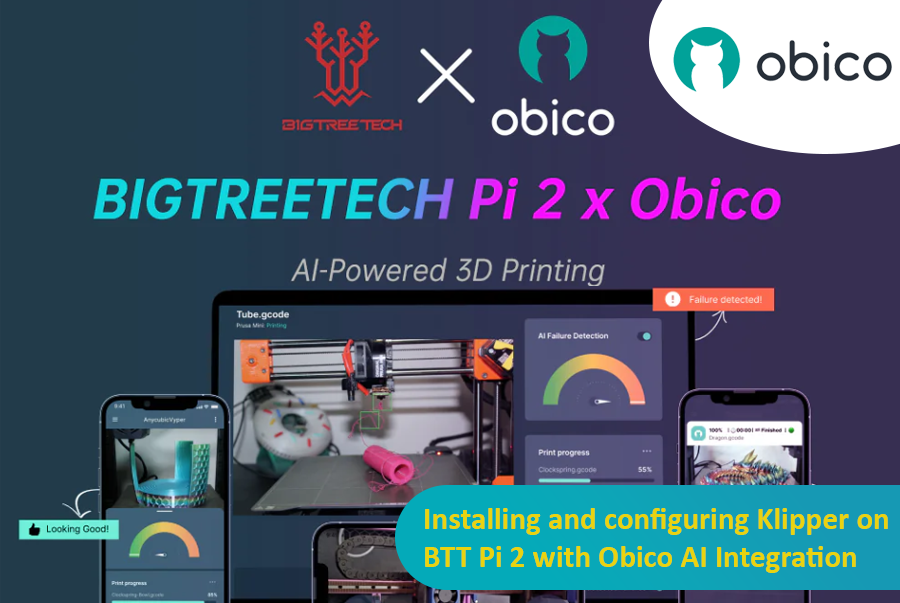
3D printing is a fast-moving field, with new developments constantly pushing the boundaries of what is possible. One such development is the partnership between Obico and BigTreeTech (BTT), which brings Obico's advanced AI capabilities within reach of 3D printer enthusiasts through the BTT Pi 2.

Installing and configuring Klipper on BTT Pi 2 with Obico AI Integration

This guide gives complete step-by-step instructions on how to install Klipper onto your BTT Pi 2 and then integrate Obico AI onto it. It includes detailed instructions for setting up an Ender 3 V2 3D printer as an example. Additionally, we will provide guidance on configuring other printer models to ensure all users can benefit from this setup. Whether you're a novice or an experienced user, this guide aims to simplify the process and enhance your 3D printing experience.