Passa al contenuto principale

Next-Gen AI

Failure Detection Private Beta

AI Failure Detection Beta

49 post etichettati con "3D Printing"

Guarda tutte le etichette

suggerimento

Try JusPrin, the first GenAI 3D printing tool built on OrcaSlicer.

Se ti occupi di stampa 3D, sicuramente avrai utilizzato Cura o PrusaSlicer per suddividere i tuoi modelli. Questi strumenti sono necessari per convertire qualsiasi modello 3D in G-code, che contiene le istruzioni che la tua macchina può eseguire per stampare effettivamente il modello. Tuttavia, c'è sempre spazio per nuovi software che offrono funzionalità e opzioni diverse.
Affettatrice Orca

Orca Slicer è ciò che fa per te. È gratuito e basato su Studio di bambù. Ti offre più modi per personalizzare, controllare e ottenere risultati precisi per le tue stampe. Che tu sia un principiante alla ricerca di profili già pronti o un utente esperto in cerca di impostazioni avanzate, Orca Slicer fa al caso tuo.

Orca Slicer è nato come fork di Studio di bambù, che a sua volta si basa su PrusaSlicer, uno dei software di slicing open source più utilizzati. È stato sviluppato da Febbre morbida. Ha rapidamente guadagnato popolarità grazie al maggior numero di profili di stampa e alle opzioni di calibrazione di stampa più avanzate. È particolarmente utile se si desidera un maggiore controllo e dettaglio sulla resa dei modelli 3D.
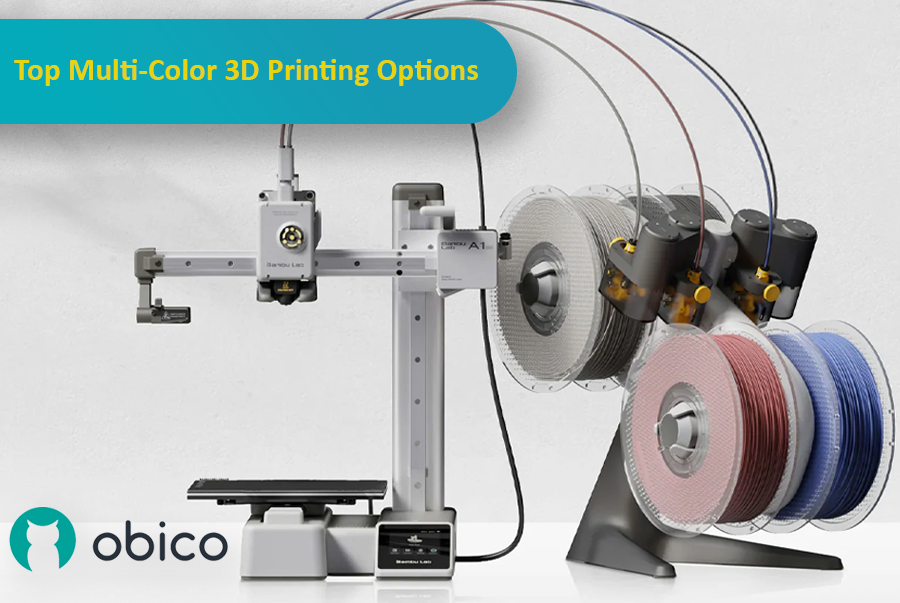
3D printing has come a long way, and one of the most exciting advancements is the ability to print with multiple colors or materials in a single go. This makes it possible to create detailed, colorful, and functional models without having to manually paint or assemble them afterward. Whether you're making parts that need different materials or designing colorful, intricate models, multi-material 3D printing can really take your projects to the next level.

Multi-color 3D printing options

As the technology has improved, more options have become available, each with its own benefits for different users and experience levels. In this article, we'll look at some of the top multi-color 3D printing systems, including the Bambu Lab AMS, Prusa MMU, Enraged Rabbit Carrot Feeder (ERCF), and new systems like the Tradrack and 8-Track. We'll break down how each system works, their pros and cons, and which users they’re best suited for.

Introduzione

Nel mondo della stampa 3D, il software di slicer che scegli può avere un impatto significativo sulla qualità, la velocità e l'efficienza delle tue stampe. Due slicer popolari che stanno riscuotendo successo nella community sono Orca Slicer e Bambu Studio. Entrambi offrono un solido set di funzionalità pensate per utenti diversi, ma qual è quello giusto per te?

Orca Slicer vs. Bambu Studio: recensione dettagliata e caratteristiche

In questa guida confronteremo entrambi gli slicer, analizzando l'installazione, l'interfaccia utente, le funzionalità più importanti, il supporto della community e altro ancora.

Che tu sia alle prime armi o esperto nella stampa 3D, questo articolo ti aiuterà a scegliere lo slicer più adatto alle tue esigenze.

Introduction

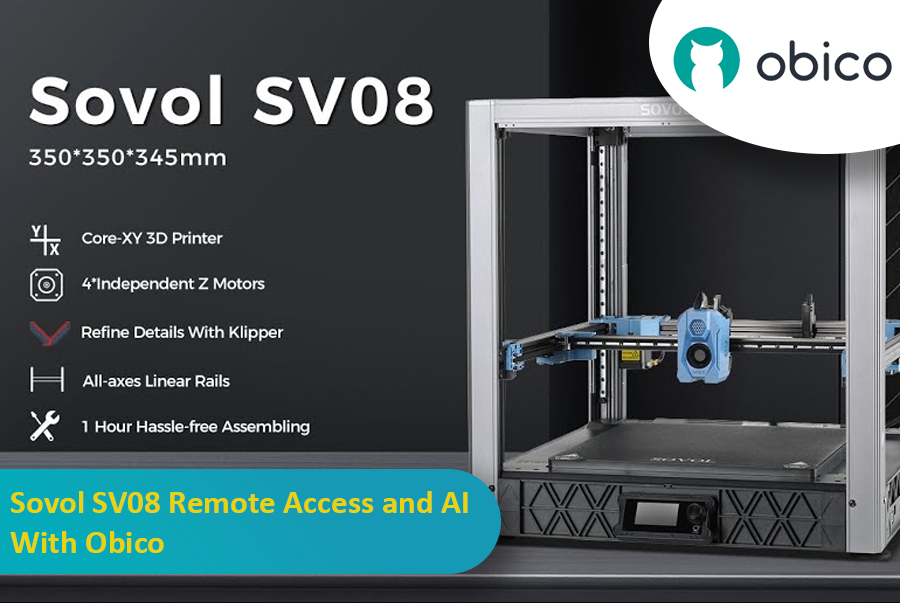
The Sovol SV08 is a standout 3D printer in the current market, offering a mix of advanced features, precision, and versatility that caters to both beginners and experienced makers. By integrating it with the Obico platform, an AI-powered, open-source system, users can significantly enhance their 3D printing experience through remote monitoring, control, and AI failure detection.

Sovol SV08 Remote Access and AI With Obico

This guide will take you through setting up your Sovol SV08 with Obico, including firmware updates, WiFi connections, and integrating the Obico system. We will also look at some advanced features provided by Obico, like Nozzle Ninja AI, which takes first-layer monitoring to another level, as well as the new built-in online slicer.

Introduction

3D printing is a fast-moving field, with new developments constantly pushing the boundaries of what is possible. One such development is the partnership between Obico and BigTreeTech (BTT), which brings Obico's advanced AI capabilities within reach of 3D printer enthusiasts through the BTT Pi 2.

Installing and configuring Klipper on BTT Pi 2 with Obico AI Integration

This guide gives complete step-by-step instructions on how to install Klipper onto your BTT Pi 2 and then integrate Obico AI onto it. It includes detailed instructions for setting up an Ender 3 V2 3D printer as an example. Additionally, we will provide guidance on configuring other printer models to ensure all users can benefit from this setup. Whether you're a novice or an experienced user, this guide aims to simplify the process and enhance your 3D printing experience.

Introduzione

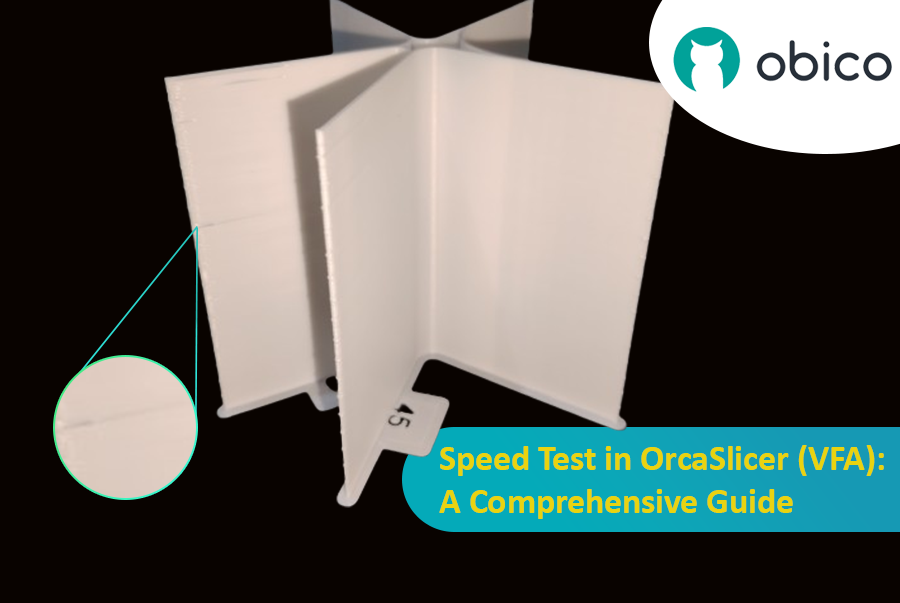
La stampa 3D è una tecnologia straordinaria che trasforma i progetti in oggetti reali, ma individuare la velocità di stampa ottimale può essere complicato. Se si procede troppo velocemente, la qualità potrebbe essere compromessa; se si procede troppo lentamente, il processo potrebbe richiedere un'eternità.

Test di velocità in OrcaSlicer (VFA): una guida completa

In questa guida ti mostreremo come usare OrcaSlicer per determinare la velocità di stampa perfetta per la tua stampante 3D. Al termine, saprai come ottenere stampe eccellenti in tempi rapidi, mantenendo una buona qualità.

Cominciamo!

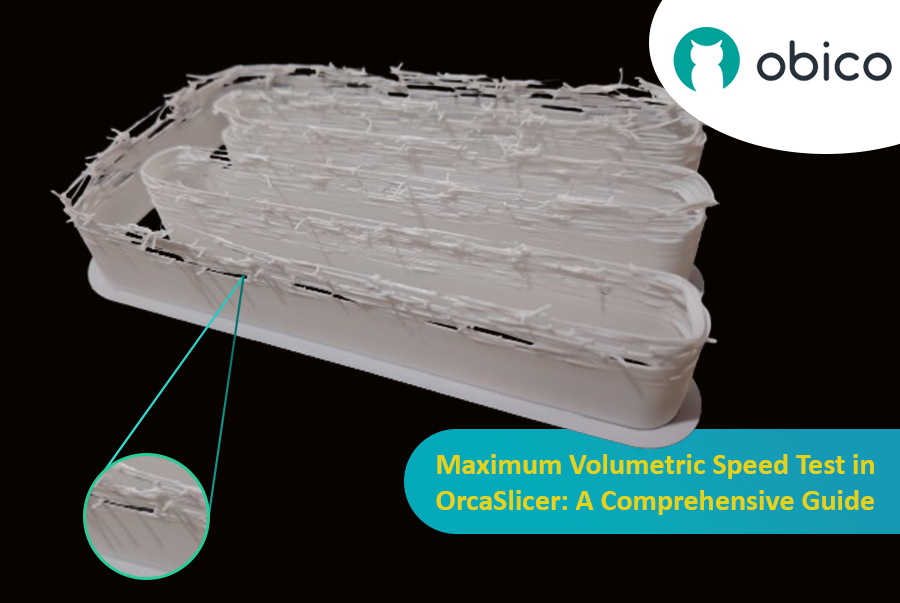
Hello there! Welcome to our easy-to-understand guide on how to control the OrcaSlicer maximum volumetric speed test for 3D printing enthusiasts. If you’re looking forward to enhancing print quality and efficiency, then this is the best place for you. This tutorial will help you optimize your printer’s volumetric speed that determines at what speed you can print without compromising on quality.

Maximum Volumetric Speed Test in OrcaSlicer: A Comprehensive Guide

Volumetric speed knowledge is crucial in 3D printing because it enables one understand how fast a printer can produce objects with accuracy. If this speed is tested and adjusted, under extrusion among other common problems while printing can be avoided thus ensuring that all your prints are good-looking even at higher speeds.

Introduction

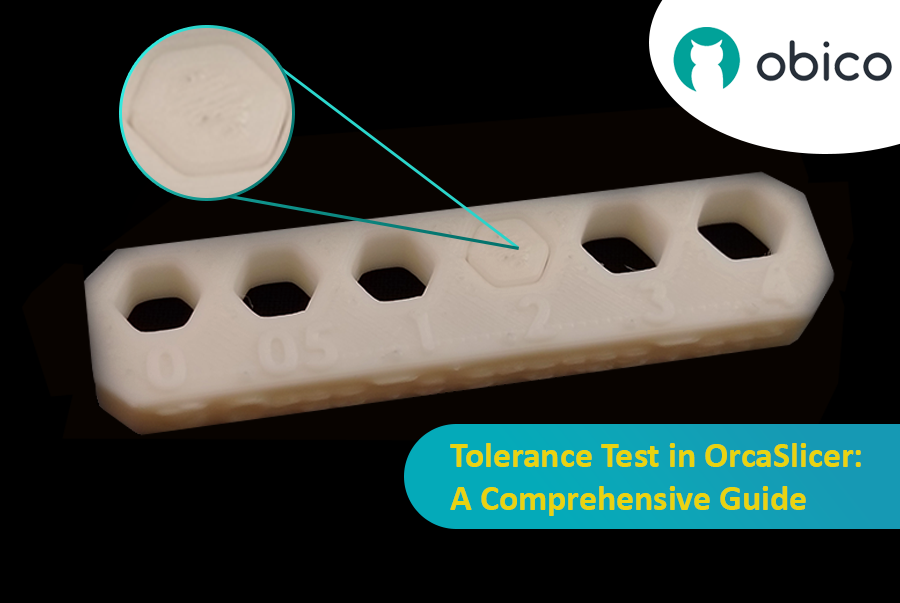
3D printing has revolutionized the way creators, engineers, and hobbyists bring their ideas to life. However, the transition from a digital model to a tangible object isn’t always straightforward. One key challenge is ensuring parts fit together seamlessly. In this comprehensive guide, we’ll delve into the world of tolerance testing using OrcaSlicer, a valuable tool for 3D printing. We will understand together how to know the right tolerances value to design successful prints which fit together well.

Tolerance Test in OrcaSlicer: A Comprehensive Guide

But before we get started testing our 3D printer, let’s understand some important related topics.

The Importance of Tolerance in 3D Printing

In the world of 3D printing, tolerance is all about precision. It's the measure of how accurately a 3D printer can replicate the dimensions specified in your digital design. Imagine you're creating a puzzle; if the pieces are too big or too small, they won't fit together. Similarly, for 3D printed parts to function and fit together as intended, the printer must be able to accurately produce parts within very tight dimensional limits. Good tolerance affects everything from how smoothly moving parts interact to the overall look and strength of the finished product.

But why do you need to make the tolerance test?

Well, in 3D printing things do not always go right. Every filament type has its own shrinkage coefficient and this affects how your print turns out. Different printers, with their unique mechanics and settings, can also produce varied results. That's why testing for tolerance is crucial - it helps you understand how your specific printer and chosen filament behave together, allowing you to adjust the tolerances in your design for the perfect print.

suggerimento

Try JusPrin, the first GenAI 3D printing tool built on OrcaSlicer.

Panoramica di Pressure Advance

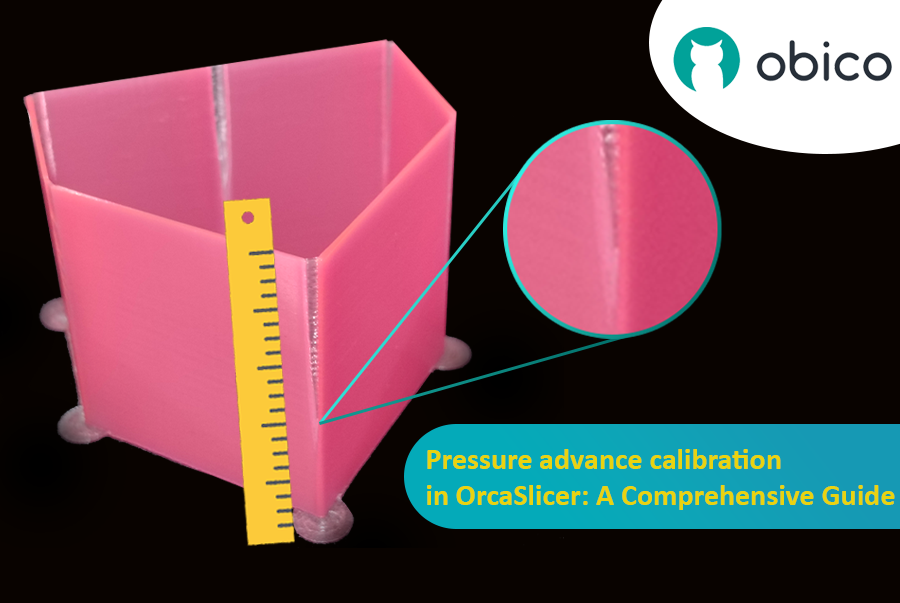
Immagina di disegnare con una penna che a volte perde troppo inchiostro e altre volte pochissimo. Nella stampa 3D, qualcosa di simile potrebbe accadere quando la stampante si muove velocemente e cambia la sua velocità: può compromettere la quantità di plastica estratta.

Calibrazione dell'anticipo di pressione in OrcaSlicer: una guida completa

Ma perché a volte la stampante non calcola correttamente la quantità di plastica che esce?

In una stampante 3D, il filamento fuoriesce in base alla pressione presente all'interno dell'ugello. È come un tubo da giardino: serve una pressione idrica sufficiente prima che l'acqua fuoriesca. Quando la stampante accelera o rallenta, ad esempio in curva, ci vuole un po' prima che la pressione dell'ugello si adatti. Se la stampante si muove troppo velocemente e troppo presto, non esce abbastanza filamento. E se rallenta troppo velocemente, ne esce troppo. Questo può rendere gli angoli della stampa un po' disordinati perché la stampante non ha regolato correttamente il flusso del filamento in base alle variazioni di velocità.

Ed è qui che entra in gioco Pressure Advance. È una funzione intelligente che compensa queste variazioni, garantendo che venga estrusa la giusta quantità di filamento quando la stampante accelera o rallenta. Con Pressure Advance, la stampante può gestire meglio le transizioni di velocità, ottenendo stampe più fluide e nitide, soprattutto negli angoli più difficili.

Introduzione

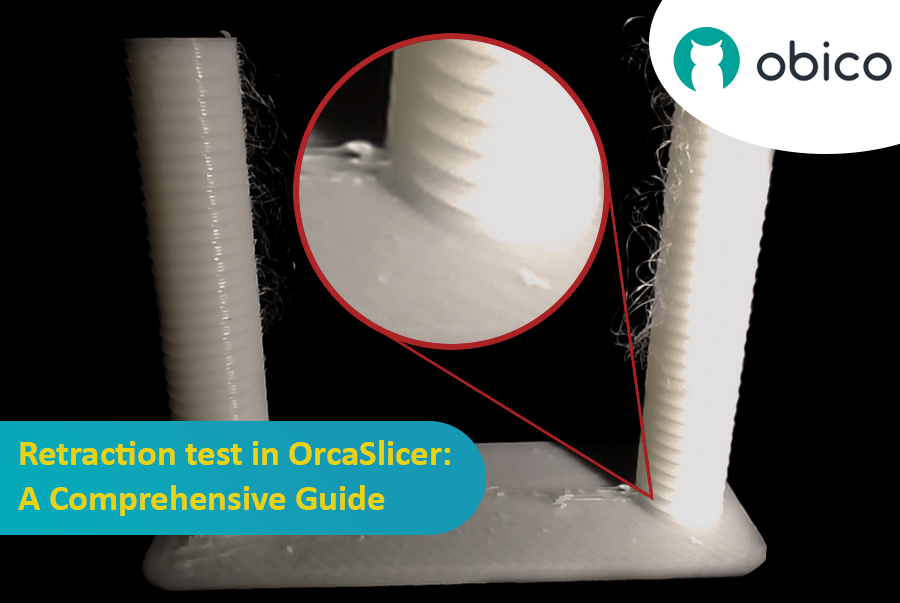
La stampa 3D è una tecnologia affascinante che permette di creare praticamente qualsiasi cosa si possa immaginare. Tuttavia, presenta anche alcune sfide e limitazioni, come la qualità dei pezzi stampati. Uno dei problemi più comuni che influiscono sull'aspetto e sulla funzionalità delle stampe 3D è la presenza di residui di materiale indesiderati, come fili, macchie e brufoli.

Test di retrazione in OrcaSlicer: una guida completa

Fortunatamente, esiste un modo per ridurre o eliminare questi artefatti utilizzando una funzionalità chiamata retrazione. Ma cosa significa retrazione?

Analizziamolo nel dettaglio:

Che cosa sono la retrazione e il test di retrazione?

Il test di retrazione è una procedura di calibrazione che mira a ridurre o eliminare i problemi di filamento e trasudamento che possono verificarsi durante la stampa 3D. Filamenti e trasudamenti sono causati dal materiale in eccesso che fuoriesce dall'ugello quando l'hotend si sposta da una parte all'altra del modello senza estrudere. Ciò si traduce in filamenti o grumi indesiderati sulla superficie o tra le parti del modello, compromettendo la qualità e l'aspetto della stampa.