Troubleshoot choppy/jerky Premium Streaming
This page covers choppy Premium Streaming specifically. For the full troubleshooting guide, start with the Webcam Streaming Troubleshooting Guide.
If the Premium Stream is choppy only very occasionally for brief moments, reload the page and it should resume streaming just fine.
If the problem happens frequently, work through the sections below. Occasional choppiness can also be caused by a weak internet connection on your phone or computer — that is normal for live video streaming.
Webcam stream is only 0.1 FPS
If your webcam only refreshes once about every 10 seconds (0.1FPS webcam stream), see 0.1 FPS troubleshooting.
You don't have an Obico AI Premium subscription
If you are on the Obico Cloud's Free plan, you are only eligible for the Basic Streaming, which can appear to be quite choppy. Learn more about the difference between Premium Streaming and Basic Streaming.
Upgrade to the Obico AI Premium plan to get 25FPS Premium Streaming.
The hardware or OS doesn't support H.264 encoding
By default, Obico Premium Streaming uses H.264 video encoding. If your hardware or OS does not support it, Obico falls back to MJPEG streaming, which is limited to lower FPS and can appear choppy.
See OS compatibility for webcam streaming for supported OS images. Raspberry Pi 3/4 and BTT Pi 2/CB2 support H.264 hardware encoding; Raspberry Pi 5 does not.
Webcam is buffering or dropping frames
Quite often, the Obico mobile app or web app can identify and diagnose the streaming issues when they happen. In that case, the app will show warning messages.
Depending on the nature of a streaming issue, the app may show one of both of the follow warning messages:
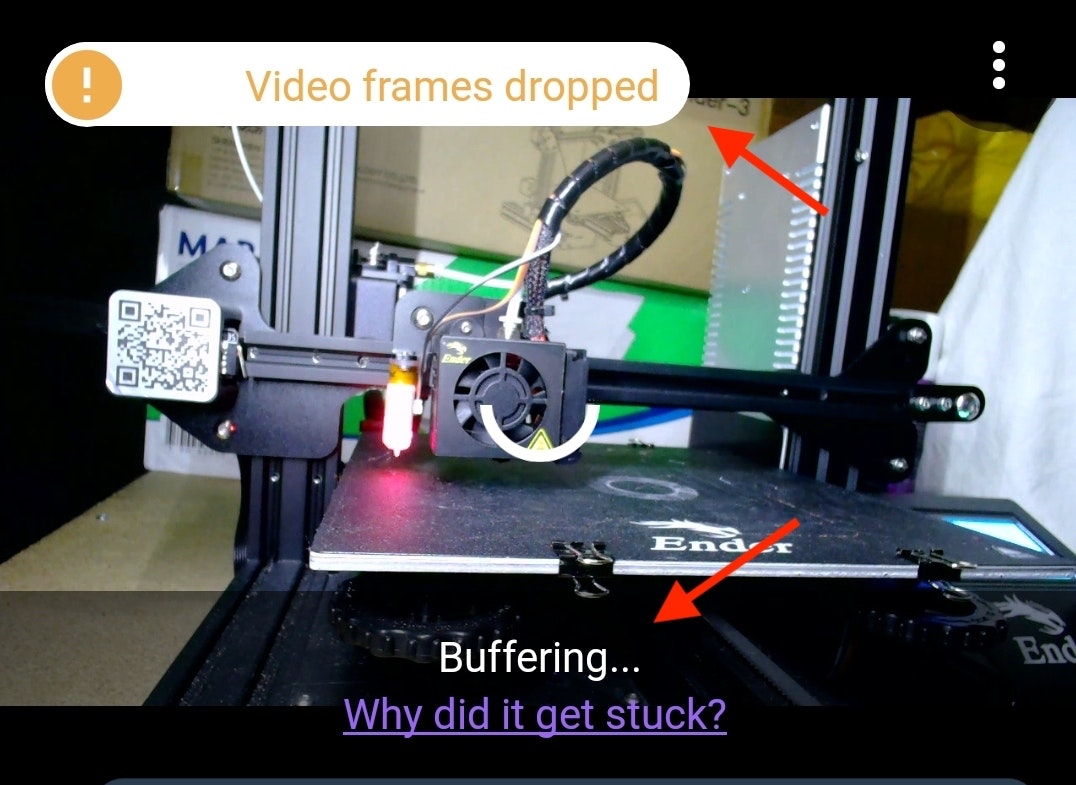
"Video frames dropped"
This usually indicates a connection bandwidth bottleneck. The bottleneck can be anywhere, but often it's either your phone's cellular connection, or the Raspberry Pi's Wi-Fi connection.
- Test if your phone/computer's Internet connection is fast enough for the Premium Streaming.
- Test if the Raspberry Pi's Internet connection is fast enough for the Premium Streaming.
"Buffering..."
The most common reason why the webcam shows "buffering" warning is because the webcam resolution and/or framerate is set too high. If you are not sure, test by setting the resolution to 640x480, and framerate to 10FPS. If the webcam no longer buffers, you can find out the highest resolution/framerate your hardware can handle by increasing the resolution/framerate until the stream starts to buffer again.
Buffering can also be caused by connection issues.
- Test if your phone/computer's Internet connection is fast enough for the Premium Streaming.
- Test if the Raspberry Pi's Internet connection is fast enough for the Premium Streaming.
- If you are using the mobile app, check it in the web app to see if you have the same problem. If you are using the web app, check it in the mobile app, or check it in a different browser.
If you got a Webcam Streaming Failed notification, the problem may not be your internet connection — start with the steps in that section.
Get help from a human
If none of the steps above helped you identify the problem, you can get help from a human.